---
title: "Add a filter"
slug: "add-a-filter"
abstract: "How to add a simple, composite, or fixed filter to a page to refine the results shown by the Search component based on entity definitions and relationships."
---
# Add a filter
You can add simple, composite, or fixed filters to a page to change the number of search results displayed in a **Search** component.
> [!note]
> **Before you begin**
> - [Add a Search component](https://doc.sitecore.com/ch/en/users/content-hub/add,-modify,-or-delete-page-components.html "Add, modify, or delete page components") to the page.
## Add a simple filter
Use a simple filter to include only entities that match a specific definition, property, relation, or selection.
Example of a simple filter
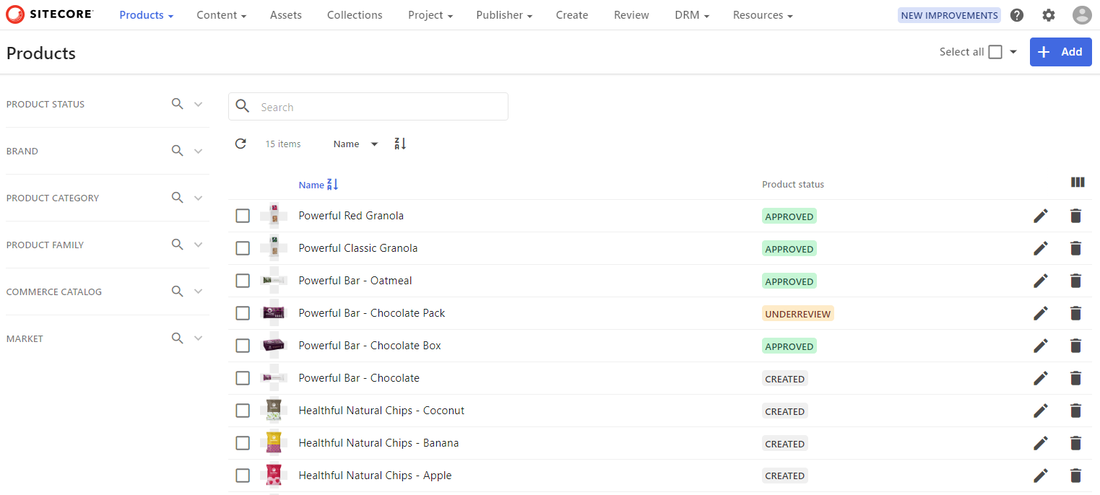
In the following example, the **Products** page includes a simple filter that displays all products. Here, the filter settings are:
- Filter type - *Definition*
- Definition - *Product (M.PCM.Product)*
To add a simple filter:
1. On the **Layout** tab, click the **Search** component to open its details page.
2. In the left pane, in the **General** section, click **Filters**.
3. Click :mdiPlus: **Filter**.
4. In the **Filter type** list, choose one of the following filter types:
- **Definition** - to filter on an entity definition only.
- **Property** - to filter on a specific entity definition field and value.
- **Relation** - to build a filter expression.
- **Selection** - to filter on an entity definition selection pool where the entity is stored.
5. In the **Definition** list, select a definition.
6. Based on your choices, configure the additional parameters required for the filter.
7. Click **Save**.
## Add a composite filter
Use a composite filter to combine simple filters using `AND` or `OR` logic for more advanced search conditions.
Example of a composite filter
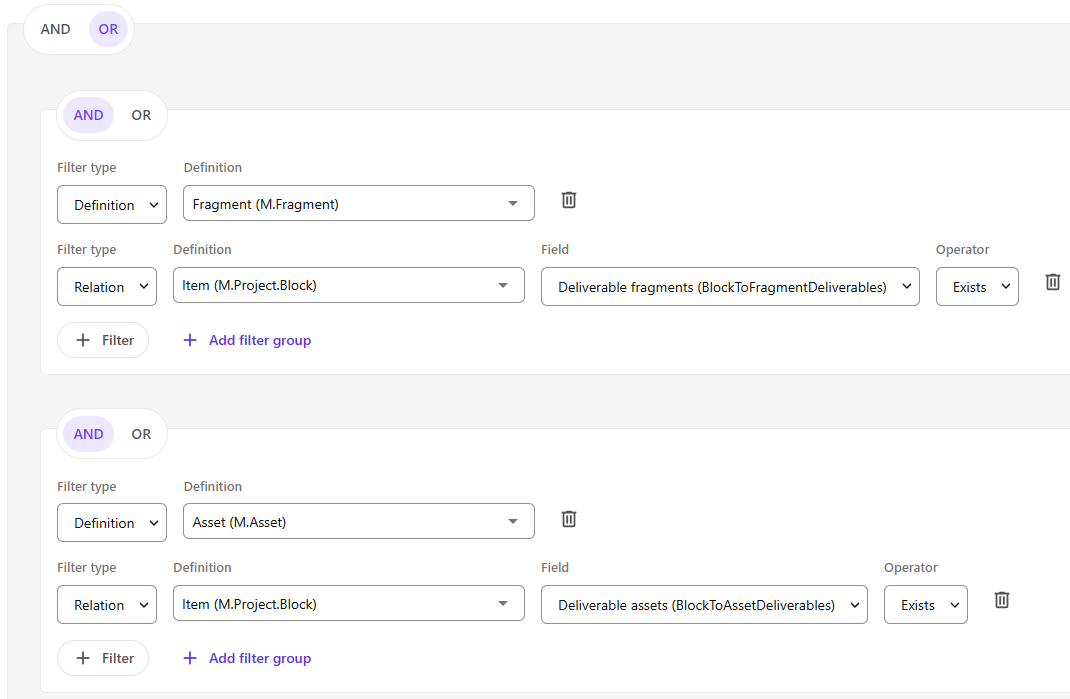
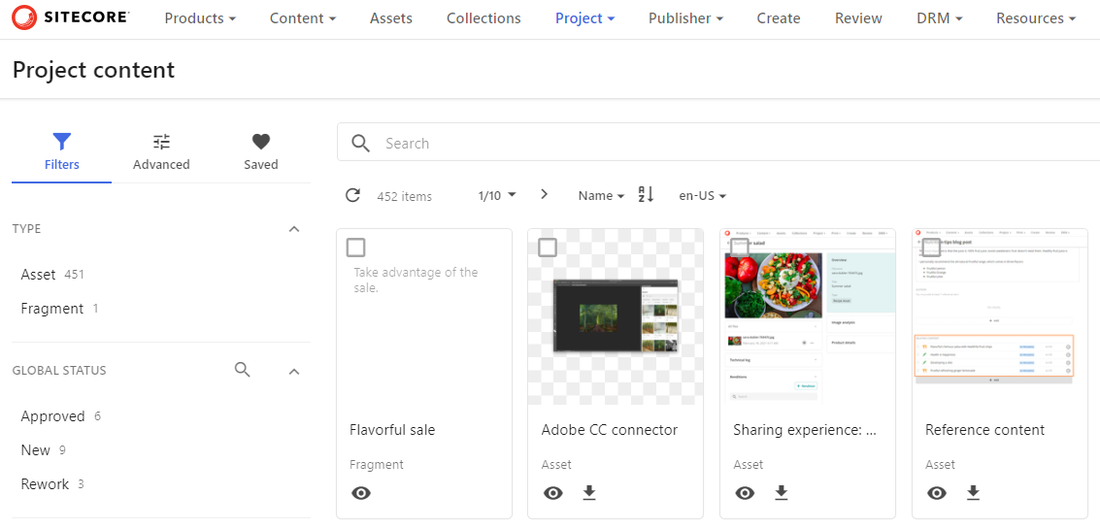
In the following example, the **Project content** page includes a composite filter at the top level that uses an *OR* operator to display assets or fragments. There are two nested composite filters that use the *AND* operator.
This configuration of composite filters produces the following search results.
To add a composite filter:
1. If you haven't already done so, add the first simple filter.
2. Click :mdiPlus: **Add filter group**.
3. Choose one of the following operators:
- **AND** - requires both of the adjacent simple filters to be satisfied.
- **OR** - requires one or both of the adjacent simple filters to be satisfied.
4. Click **Save**.
5. Add the next simple filter.
6. Repeat steps 2-6 until you've added all the required conditions.
7. Click **Save and close**.
## Add a fixed filter
Use fixed filters to render related content for a selected entity, for example, to show all assets linked to a specific project on that project's details page.
Example of a fixed filter
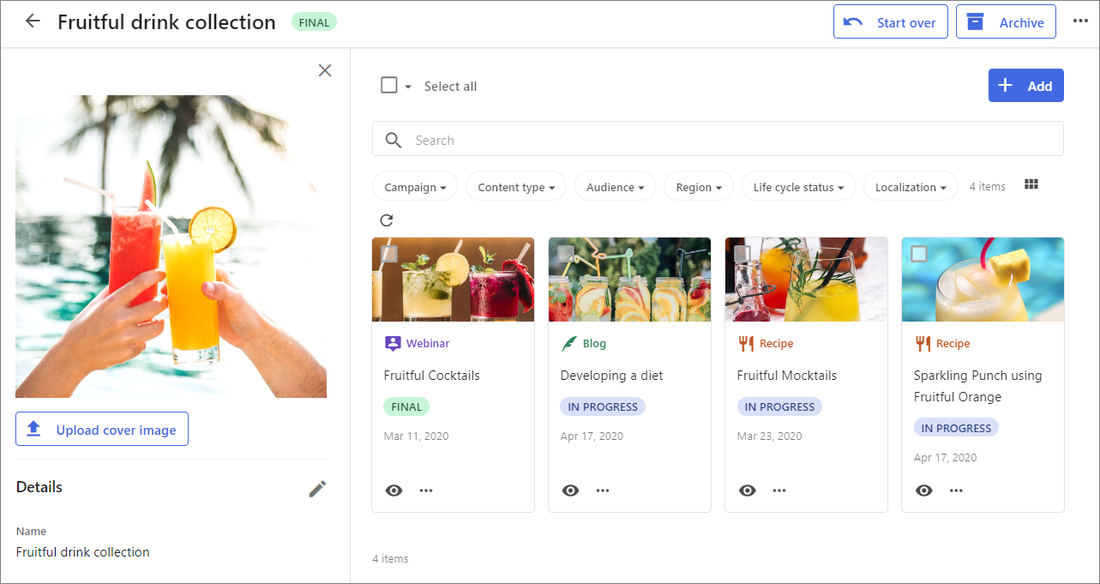
In the following example, the **Content collection** page includes a fixed filter that displays the contents of a selected collection. If any changes are made to that collection, the filter dynamically updates what is shown on the page.
Here, the page definition is *Content (M.Content)* and the filter settings are:
- Input type - *Page entity*
- Filter type - *Relation*
- Filter - *Content (ContentCollectionToContent)*
To add a fixed filter:
1. On the **Layout** tab, click the **Search** component to open its details page.
2. In the left pane, in the **General** section, click **Filters** and then click the **Fixed** tab.
3. Click :mdiPlus: **Fixed filter**.
4. In the **Input** section, define the following settings.
| Field | Description |
| --- | --- |
| **Input type** | The input type of the filter, which can be *Page entity* or *Related entity*. |
| **Relation** | For *Related entity* types, a list of relations defined in your solution. |
5. In the **Filter** section, in the **Filter type** list, choose the type of filter you want.
6. depending on the chosen **Input type** and **Filter type**, fill out the following settings.
:::tab{title="Relation"}
| Field | Description |
| --- | --- |
| **Filter** | The relation used for filtering. |
| **Parent/Child** | Whether the filter applies to child entities or the parent entity. |
:::
:::tab{title="Dynamic-relation"}
If you want to see items linked to many relations, all with a similar name pattern.
For example, you want all assets linked to this collection + all fragments linked to this collection. Relation names are `CollectionToAsset` and `CollectionToFragment`, your dynamic relation name will be `CollectionTo*`.
| Field | Description |
| --- | --- |
| **Name** | The dynamic relation name you want. |
:::
:::tab{title="Ancestor"}
| Field | Description |
| --- | --- |
| **Name** | Name of the related ancestor. |
:::
:::tab{title="Similar-images"}
In combination with Visual Search and only to be used on an asset detail page, if you want this search component to show images similar to the current asset.
:::
7. Click **Save**.
8. Click **Save and close**.