---
title: "Annotate"
slug: "annotate"
abstract: "Overview of annotation usefulness and types of annotations you can use for image and video assets."
---
# Annotate
In Sitecore Content Hub, you can use annotations to review content, provide feedback, and collaborate with others. You can [add annotations to images and documents](https://doc.sitecore.com/ch/en/users/content-hub/create-and-use-annotations.html "Create and use annotations") (such as PDFs, Word files, or Powerpoint files). When an asset has existing annotations, an indicator on the asset details page next to the **Annotate** icon displays the number of annotations.
> [!note]
> You can also [add annotations to video](https://doc.sitecore.com/ch/en/users/content-hub/create-and-use-video-annotations.html "Create and use video annotations") or audio files.
In the following example, the reviewer used the **Note**, **Squiggly**, **Rectangle**, **Highlight**, and **Free Hand** tools to annotate a document.
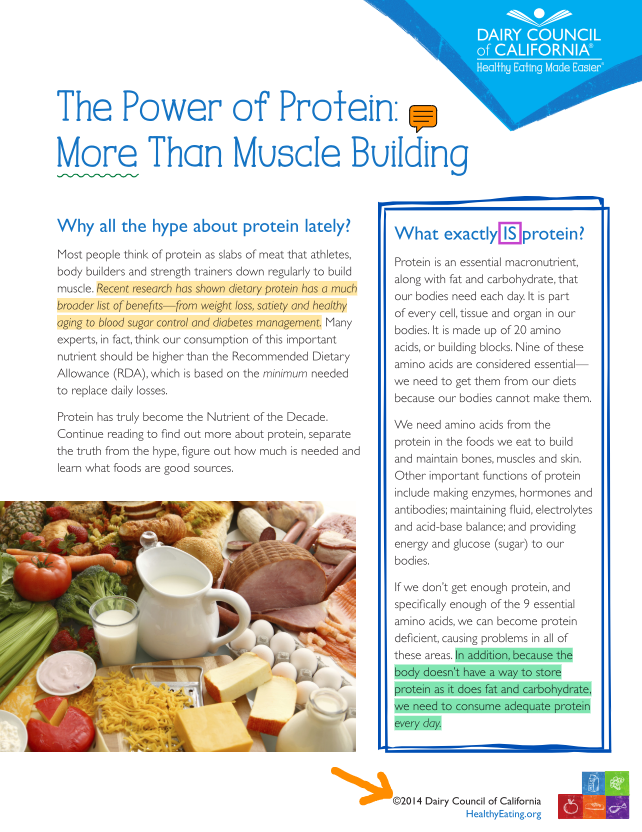
The following tabs describe the available annotation tools:
::::tabs
:::tab{title="Text"}
Use these tools to add emphasis to text-based documents. Each text tool has presets that you can modify according to your needs (color, opacity, and so on):
- **Highlight** :mdiMarker:
- **Underline** :mdiFormatUnderline:
- **Strikeout** :mdiFormatStrikethrough:
- **Squiggly** :mdiDraw:
:::
:::tab{title="Shapes"}
Use these tools to draw lines and shapes on images and text-based documents. Each shape has presets that you can modify according to your needs (color, opacity, stroke, and so on):
- **Rectangle** :mdiSquareOutline:
- **Ellipse** :mdiCircleOutline:
- **Line** :mdiVectorLine:
- **Arrow** :mdiArrowTopRightThin:
- **Free Hand** :mdiMarker:
:::
:::tab{title="Other"}
The other available tools are:
| Button | Description |
| --- | --- |
| **Note** :mdiNoteOutline: | Add a short text comment to the file. |
| **Undo** :mdiUndoVariant: | Reverse your most recent action. |
| **Search** :mdiMagnify: | Search for specific text in the file. This tool includes case-sensitivity and whole-word matching to improve your search focus. |
:::
::::
## View controls
You can use the following tools to adjust how the asset appears in the annotation viewer:
| Button | Description |
| --- | --- |
| **Resize actions** | Adjust the magnification using one of the following options:
- **Fit to width** :mdiArrowExpand: - adjust to fit the width of the image inside the current view.
- **Fit to page** :mdiFitToPageOutline: - adjust to fit the full image inside the current view.
- Preset values (*10%, 25%, 50%, and so on*) - adjust to the chosen percentage.
- **Marquee Zoom** - Draw a selection over the image and fit that selection inside the current view.
|
| **View Controls** :mdiFileCogOutline: | Change the page transition, orientation, or layout. |
| **Pan** :mdiHandBackRightOutline: | When the image is magnified, click-and-drag to control the position of the image in the viewer. |
| **Zoom out** :mdiMinusCircleOutline: | Reduce the magnification level in the viewer. |
| **Zoom in** :mdiPlusCircleOutline: | Increase the magnification level in the viewer. |