---
title: "Configure parallel and sequential approvals"
slug: "configure-parallel-and-sequential-approvals"
abstract: "How to configure parallel and sequential approvals in state flows."
---
# Configure parallel and sequential approvals
For more flexible and advanced state flow configuration, you can add [parallel and sequential approvals](https://doc.sitecore.com/ch/en/users/content-hub/parallel-and-sequential-approvals.html) to a state flow. In a structured approval process, you can configure two levels of logic:
- **Decision rules** - define how reviewer decisions determine whether an individual stage is approved or rejected.
- **Rejection rules** - define what happens to the overall review process and entity lifecycle when a rejection occurs.
> [!note]
> **Before you begin**
> Make sure that:
>
> - You are a *superuser* or have the *Read*, *Create*, *Update*, and *Delete* permissions on the `SC.Automation.Gate` entity and the *ManageStateFlowGate* permission on the target entity definition. For more information, see [permissions for parallel and sequential approvals](https://doc.sitecore.com/ch/en/users/content-hub/parallel-and-sequential-approvals.html).
>
> - The entity definition is assigned a state flow that has a [transition](https://doc.sitecore.com/ch/en/users/content-hub/add-a-state-flow-transition.html "Add a state flow transition") with the **Conditional transition** option enabled.
>
> - The entity details page has a [StateMachine viewer](https://doc.sitecore.com/ch/en/users/content-hub/statemachine-viewer.html "StateMachine viewer") component with the **Show gate configuration** switch turned on.
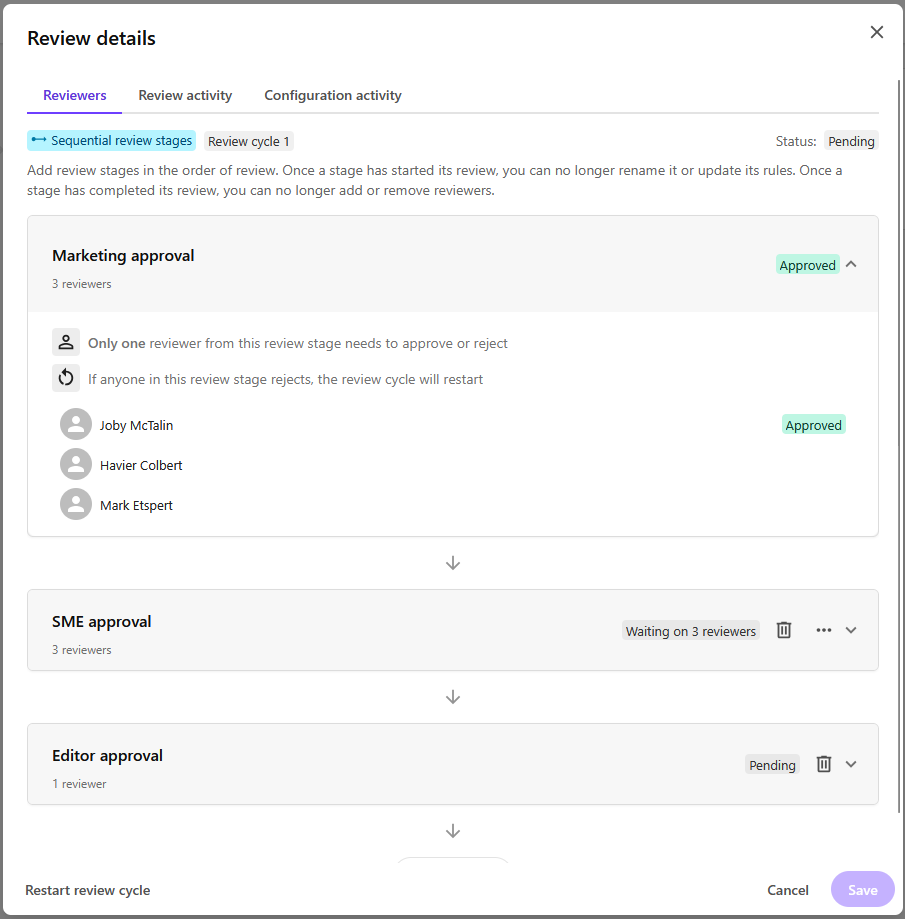
To configure a parallel or sequential approval:
1. Open the entity details page where you want to configure the parallel or sequential approval.
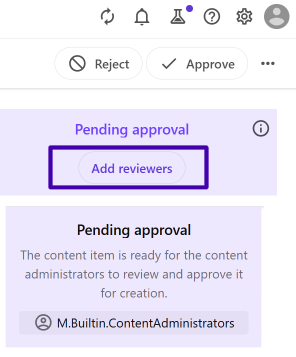
2. On the state where you want to configure a parallel or sequential approval, click **Add reviewers**.
In the following example for the *Pending approval* state, the **Add reviewers** button is visible on the right side of the page.
3. In the **Select review type** dialog, click the type of approval you want to add, and then click **Continue**.
- **Sequential review stages** - stages must be reviewed in sequence. The next review stage can't start until the current one finishes.
- **Parallel review stages** - all stages can be reviewed at the same time.
4. In the **Add reviewers** dialog, click the review stage name to rename it.
5. To add reviewers to a stage, click **Reviewers**, then click **Add user groups** or **Add users**. Select the user groups or users you want to add, and then click **Add**.
After adding users and user groups, the **Rules** tab becomes visible in the review stage.
6. On the **Rules** tab, select a **Rejection rule**:
| Review type | Options |
| ----------- | ------- |
| Sequential | - **Restart from the first review stage** - if the stage is rejected, the review process starts with a new review cycle from the first review stage.
- **Restart from this review stage** - if the stage is rejected, the review process restarts from the current review stage.
- **Move to a specific state** - if the stage is rejected, the item moves to the state that you select from the drop-down list.
|
| Parallel | - **Restart review cycle** - if the stage is rejected, a new review process starts.
- **Move to a specific state** - if the stage is rejected, the item moves to the state that you select from the drop-down list.
|
7. Select a **Decision rule**:
- **Only one reviewer from this review stage needs to approve or reject** - if a single reviewer approves or rejects, the review stage will be approved or rejected.
- **Everyone in this review stage must approve or reject** - all users need to approve or reject before the review stage is approved or rejected. If any reviewer rejects, the review stage will not be approved.
8. To add another review stage, click :mdiPlus: **Review stage**, and perform steps 4 to 7.
9. When you have added all the review stages and assigned all the reviewers, click **Save**.