---
title: "Facets"
slug: "facets"
abstract: "How to filter search results based on related taxonomy values."
---
# Facets
A facet is used to categorize content based on a [taxonomy value](https://doc.sitecore.com/ch/en/users/content-hub/create-a-taxonomy.html "Create a taxonomy"). This makes the content easier to find. To display additional information based on the selected facet above the search bar, use [super facets](https://doc.sitecore.com/ch/en/users/content-hub/super-facets.html "Super facets").
Facets can be displayed in different ways.
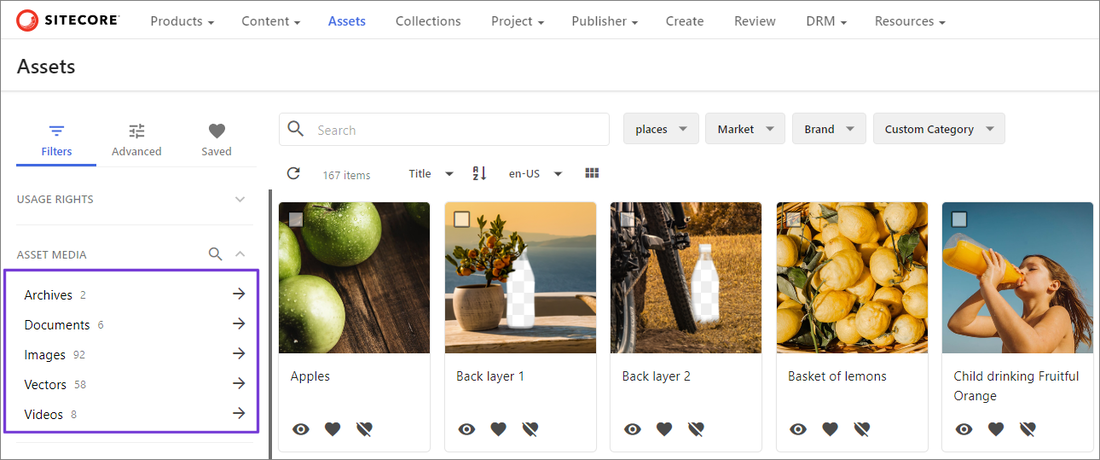
- **Vertical facets** are displayed in the left pane.
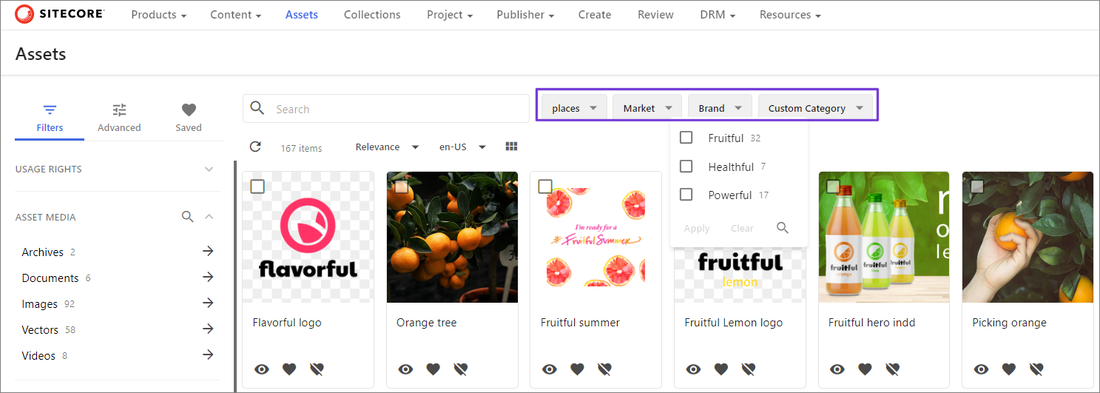
- **Horizontal facets** are displayed above the asset grid or table.
> [!note]
> If you are a superuser or have the necessary permissions granted to you through [user group policies](https://doc.sitecore.com/ch/en/users/content-hub/user-group-policies.html "User group policies"), you can define [search restrictions](https://doc.sitecore.com/ch/en/users/content-hub/search-restrictions.html "Search restrictions") that determine the number of search facets you can select. If the number of facets you select surpasses the number defined in the search restrictions, a validation message displays. To resolve this, select fewer facets or change the search restrictions.
Example
With vertical facets, click the arrow next to a facet to narrow down results.
With horizontal facets, click the facet to display the facet list and then select and apply the facets.
> [!note]
> **Before you begin**
> - [Add a **Search** component](https://doc.sitecore.com/ch/en/users/content-hub/add,-modify,-or-delete-page-components.html "Add, modify, or delete page components") to the page.
## Add facets
To add a facet:
1. On the **Layout** tab, click the page component to open its details page.
2. In the **Tools** section, turn on the **Facets** switch.
3. Click the **Facets** tab and then click the **Standard** tab.
4. Click :mdiPlus: **Add facet**.
You can add up to 40 facets.
5. Define the following settings:
| Field | Description |
| --- | --- |
| **Facet type** | The facet type. |
| **Taxonomy item** | The source taxonomy of the facet values. |
| **Label type** | The facet label type. |
| **Label** | A new or existing label using translations. |
| **Definition** | The source definition of the facet values. |
| **Property** | The property of the selected definition used as a source/label for the facet values. |
| **Sorting** | The sort order. |
| **Direction** | The sort order direction. |
| **Position** | The position of the facet. |
| **Limit** | Limits the number of facet values displayed. |
| **Multi-select** | Allows you to select multiple facet values in a single search.
> [!note]
> If you use this facet as the **Source** for a [follow-up facet](https://doc.sitecore.com/ch/en/users/content-hub/follow-up-facets.html), **Multi-select** must be disabled. |
| **Collapsed by default** | Allows you to specify that vertical facets be closed by default. |
6. Click **Save**.
> [!warning]
> Do not configure custom facets as they are used for system features.
> [!tip]
> To clear your facet selection, for horizontal facets, clear the selected checkboxes or click **Clear**. For vertical facets, click X next to the selected facet or click **Clear all**.