---
title: "Selection"
slug: "selection"
abstract: "How to add a component that lets users select multiple entities on the page and perform actions on that selection."
---
# Selection
The **Selection** component lets users select multiple entities on the page and perform actions on that selection. This includes the option to export data about the selected entities, and include additional data from related definitions in that report.
> [!note]
> You can only select 2,000 items at a time using the **Selection** component.
Example
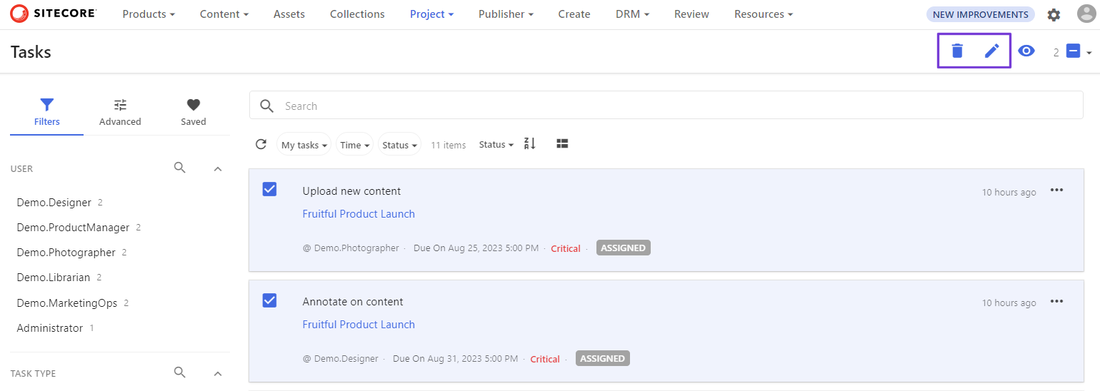
In this example, the **Tasks** page includes a **Selection** component that has **Delete** and **Edit** operations.
> [!note]
> **Before you begin**
> - Add a [**Search** component](https://doc.sitecore.com/ch/en/users/content-hub/search.html "Search").
## Configure the selection component
1. On the menu bar, click **Manage** :mdiCogOutline:.
2. On the **Manage** page, click **Pages**.
3. On the **Pages** page, select the page you want to modify.
4. On the **Layout** tab, [add the **Selection** component](https://doc.sitecore.com/ch/en/users/content-hub/add,-modify,-or-delete-page-components.md "Add, modify, or delete page components").
5. Click the new component to open its details page.
6. On the **General settings** tab, configure the following settings.
| Field | Description |
| --- | --- |
| **Linked search component** | The search component that will be used to determine what is available for selection. |
| **Show select all** | Adds an option list that lets users quickly select or deselect all available entities. |
| **Copy to clipboard** | Adds an option that lets users copy the selected items to their clipboard. |
| **Enable export to Excel** | Adds an option list that lets users export the selected items to Excel. |
| **Operations display format** | Determines whether the operations specified on the **Operations** tab are displayed using icons, labels, or both. |
| **Ignore permissions** | Causes the component to be displayed regardless of whether the user or the associated user group has the required permissions. When this switch is turned on, all selected items are retrieved and all configured operations are visible.
> [!note]
> When this switch is turned off, the user must have **Update** [permissions](https://doc.sitecore.com/ch/en/users/content-hub/permissions.html) to unlink an entity using the **Selection** component. |
| **Alignment** | The horizontal alignment in the **Actions** menu :mdiDotsHorizontal: of the operations that can be performed on the selection. |
| **Selection pool** | How selected items are cached. If the selection is cached in a shared selection pool and users navigate between pages using a search component with the same selection pool, their selection is persisted across the pages. A selection pool can be unique to a single search component or shared between multiple search components. |
7. To add operations that can be performed on the selection:
- On the **Operations** tab, click **Add definition** and select a definition. You can repeat this step to add more than one definition.
- For each definition, click **Add operation**, select an [operation](https://doc.sitecore.com/ch/en/users/content-hub/entity-operations.html "Entity operations"), and configure associated settings. You can repeat this step to add more operations.
8. Click **Save and close**.
9. If the **Enable export to Excel** switch is turned on, on the **Export Excel settings** tab, click **Add definition**, select a definition, and, optionally, add an [export profile](https://doc.sitecore.com/ch/en/users/content-hub/create-an-export-profile.html "Create an export profile"). You can repeat this step to add multiple definitions.
10. Click **Save and close**.