Validation
You can add the Validation component to details pages to collect and display validation errors or to highlight fields where information is missing.
With the validation feature:
-
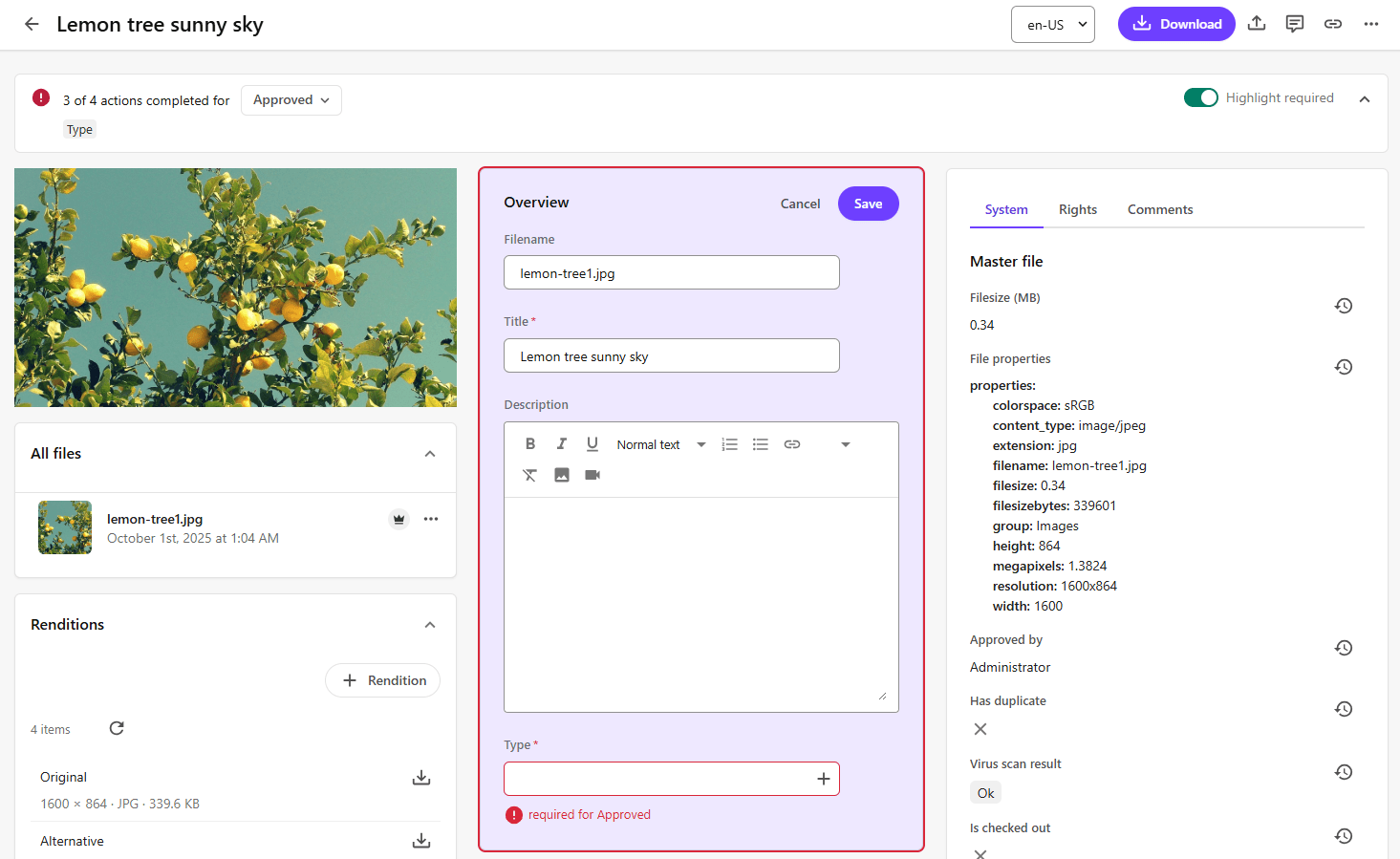
Validation errors are displayed on details pages, ensuring users can easily identify when required fields still need to be completed. For example, if publishing an asset makes additional fields mandatory, the Validation component will mention those required fields so you can resolve them before proceeding.

-
Fields that are required in a particular state of a state flow are highlighted so they can be addressed. In this example, only the asset title is required in the Create state. When the asset moves to the Approve state, the asset type is also a required field. The validation feature highlights the Asset type field indicating to the approver that it is required.
To add a Validation component:
-
On the menu bar, click Manage
 .
. -
On the Manage page, click Pages.
-
On the Pages page, select the details page you want to modify.
-
On the Layout tab, add the page component.
-
Click Save.
If you are adding a Validation component to the asset details page, click the component to open its details page and, in the Select lifecycle statuses field, click  Add. In the Status dialog, select the check boxes next to the statuses where you want validation to be performed.