---
title: "UTM dashboard"
slug: "utm-dashboard"
abstract: "The UTM report in Sitecore Personalize provides a dashboard to monitor the performance of a specific UTM parameter added to experiments and experiences."
---
# UTM dashboard
The UTM report is available for all types of experiments and experiences that track site traffic using Urchin Tracking Module (UTM) parameters. This report helps analyze the performance of UTM parameters, providing insights into their effectiveness. To view this report, you must first [enable it](https://doc.sitecore.com/personalize/en/users/sitecore-personalize/view-dashboards.html "View dashboards").
> [!note]
> The report displays data for the UTM string, regardless of where it was configured: whether added within a Sitecore [experiment](https://doc.sitecore.com/personalize/en/users/sitecore-personalize/view-dashboards/manage-experiment-details.html "Manage experiment details") or [experience](https://doc.sitecore.com/personalize/en/users/sitecore-personalize/view-dashboards/manage-experience-details.html "Manage experience details"), or any other system, and regardless of whether it is part of a UTM campaign, source, medium, term, or content.
>
> The report shows data for the term you entered, including all UTM parameters that contain that term. For example, if you entered *sale*, the report also shows data for the `summer_sale` parameter.
You can use the filters in the UTM report to select the time frame for which to display data. By default, the report shows data from the previous week.
The exact dates and times used for the data currently displayed are indicated as *Viewing data for \[start date and time\] - \[end date and time\]*, based on your [organization's time zone](https://doc.sitecore.com/personalize/en/users/sitecore-personalize/managing-accounts-and-system-settings-in-sitecore-personalize/manage-company-information-in-sitecore-personalize.html "Manage company information in Sitecore Personalize").
To update the UTM report based on your selected filters, click **Apply**. To revert to the default view, click **Reset filters**.
The data in the UTM report is refreshed every 24 hours. To download the report as a ZIP archive containing CSV files, click the **Download**  icon.
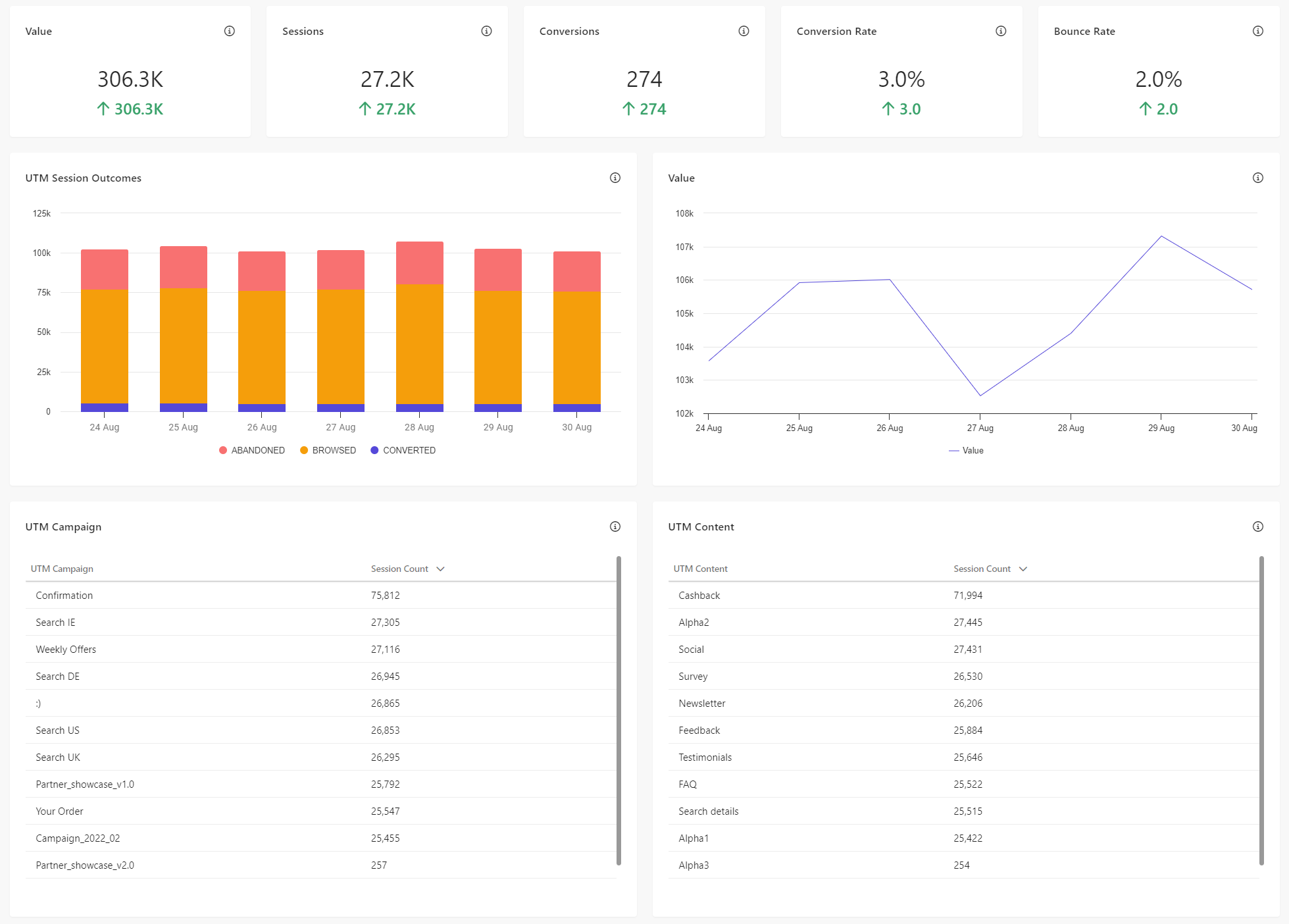
Overview metrics
The following metrics are shown for the UTM string you configured for an experiment or experience:
- **Value** - the total value of converted sessions that contained the UTM parameter over the selected period. The arrow indicates whether the total value went up or down compared to the previous time period.
- **Sessions** - the number of sessions that contained the UTM parameter over the selected period. The arrow indicates whether the number of sessions went up or down compared to the previous time period.
- **Conversions** - the number of converted sessions that contained the UTM parameter over the selected period. Converted sessions are those during which a purchase was made. The arrow indicates whether the number of conversions went up or down compared to the previous time period.
- **Conversion Rate** - the rate of converted sessions out of all the sessions that contained the UTM parameter, over the selected period. The arrow indicates whether the conversion rate went up or down compared to the previous time period.
- **Bounce Rate** - the rate of bounce sessions out of all the sessions that contained the UTM parameter, over the selected period. Bounce sessions are those where the visitor landed on a page, did not interact with the site, and ended the session. The arrow indicates whether the number of sessions went up or down compared to the previous time period.
Graphs
The report includes the following graphs. Hover your mouse over a data point to see its value:
- **UTM Session Outcomes** - this stacked bar chart shows the daily proportion of abandoned, browsed, and converted sessions that contained the UTM parameter.
- In an **Abandoned** session, the customer added items to their cart but did not complete a purchase.
- In a **Browsed** session, the customer did not perform any cart activity.
- In a **Converted** session, the customer completed a purchase.
- **Value Line Chart** - this graph shows the total daily value of sessions that contained the UTM parameter.
UTM tables
This section shows the performance of different types of UTM parameters that were included in sessions that contained the selected UTM parameter, including UTM campaigns, content, sessions, and terms.
For example, in the previous image, for the search term *cart*, the table shows additional terms such as *Confirmation*, *Search UK*, and *Weekly Offers*. This means these parameters were included in sessions that also contained the UTM parameter *cart*.
- Click **Session Count** to change the sort order to ascending or descending.