---
title: "Set up the React project"
slug: "set-up-the-react-project"
abstract: "How to authenticate with credentials using Sitecore Search JS SDK and components."
---
# Set up the React project
This walkthrough is part one of the [Rapid development using Search UI components walkthrough series](https://doc.sitecore.com/search/en/developers/search-js-sdk-for-react/rapid-development-using-search-ui-components-walkthrough-series.html "Rapid development using Search UI components walkthrough series").
You will learn how to:
- Install JS SDK and UI Components for React.
- Retrieve credentials.
- Authenticate with credentials.
## View the entities
If your Sitecore Search domain is configured for multiple entities, we strongly recommend you familiarize yourself with those entities and their details before you begin.
To view the entities in your Sitecore Search domain:
1. Log in to Sitecore Search using your Sitecore Search credentials.
2. On the menu bar, click **Administration**, then click **Domain settings**.
3. On the **General Settings** tab, click **Entities**.
The **Entities** page displays a list of all entities in your implementation, along with their attributes.
4. To view the attributes for a specific entity, on the **Attributes** tab, in the **Entity** drop-down list, click the name of that entity.
## View the widgets
We recommend you start making an inventory of the widgets that you need to create. In the Sitecore Search user interface, the **Widgets** section lists all widgets that have been configured for your implementation, including any that are not currently used in your application.
To view details of widgets and the pages where they're hosted:
1. Log in to Sitecore Search using your Sitecore Search credentials.
2. To view a list of all widgets, on the menu bar, click **Widgets**.
The table displays the `name`, `rfk_id`, `type`, `status`, and the hosted page or pages for every widget.
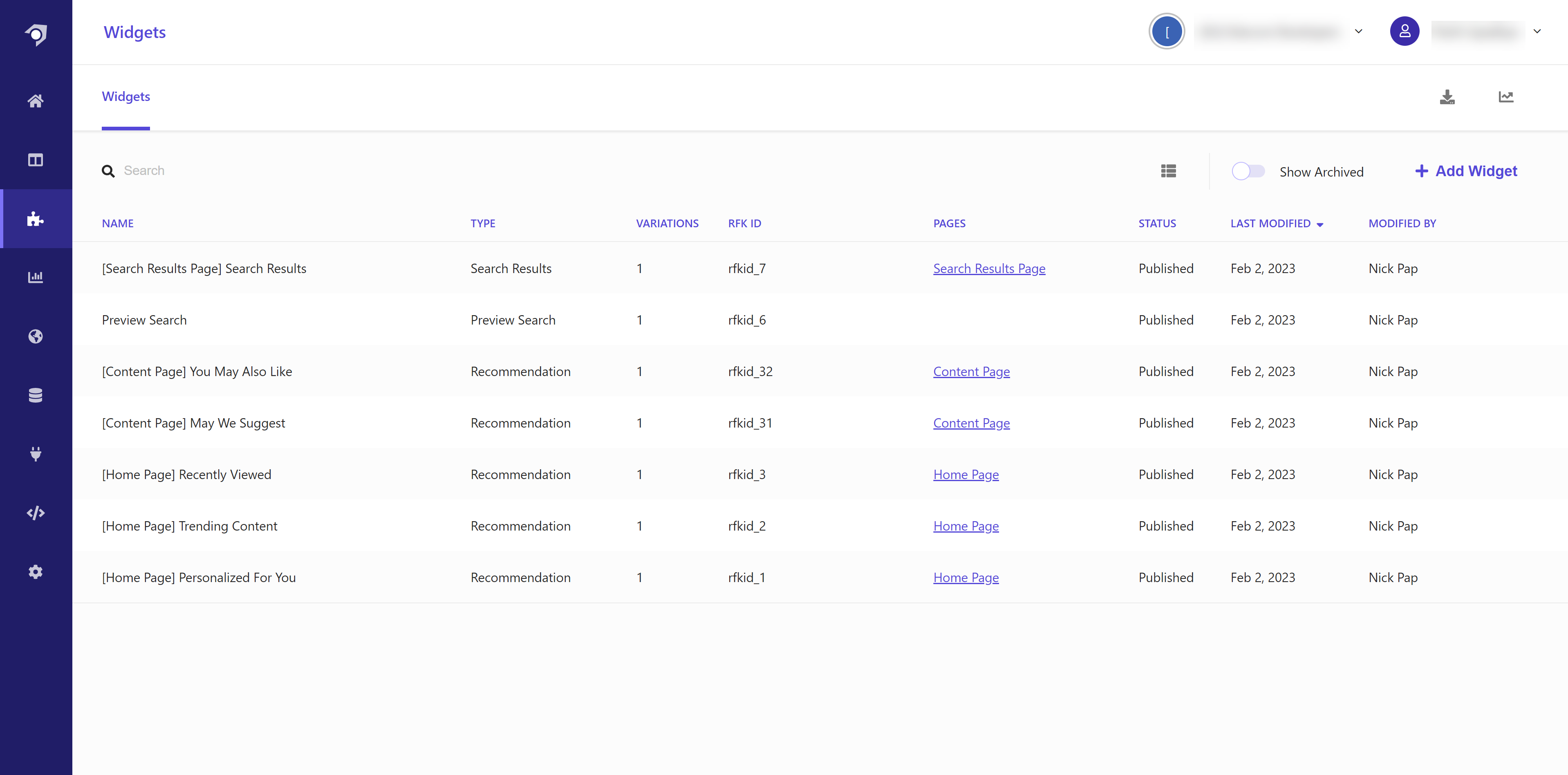
3. To view a list of pages, on the menu bar, click **Pages**.
> [!note]
> For successful rendering of widget components, make sure that widget components have the same `rfk_id` and `type` as configured in Sitecore Search; and widgets are published and have *Active* status.
## Install JS SDK and UI Components for React
Developers can install Sitecore Search JS SDK and UI Components packages into their projects. In your React code, you can import classes, functions, and objects from these packages, just as you would from other JS packages.
To install the latest JS SDK and UI Components for React:
1. To add Search JS SDK for React to your project, run the following in your project:
```shell
npm install --save @sitecore-search/react
```
2. To add Search UI Components for React to your project, run the following in your project:
```shell
npm install --save @sitecore-search/ui
```
3. In the `Root` component of your React project, import the `WidgetsProvider` component as shown in the following:
```tsx
import { PageController, WidgetsProvider } from "@sitecore-search/react";
const Root = () => {
PageController.getContext().setLocaleLanguage('en');
PageController.getContext().setLocaleCountry('us');
return (
)};
```
> [!note]
> If you don't have multiple locales configured, you can remove the `PageController` component and the two lines before the return statement. The default locale is automatically used in this case.
## Retrieve credentials
To protect your privacy and content, we require that your application authenticate with Search before making any requests. You need to use the credentials associated with your account and domain.
To retrieve your Search credentials:
1. Log in to Sitecore Search with your Sitecore Search credentials.
2. On the menu bar, click **Developer Resources**.
3. In the **API Keys** pane on the right, copy the key for data requests.
## Authenticate with credentials
To protect your privacy and content, we require that your application authenticate with Search before making any requests. You need to use the credentials associated with your account and domain. You can choose to authenticate before you make any data requests or along with your fist data request.
> [!important]
> The JS SDK sets a cookie and includes the UUID when tracking events. Visitor information, UUID, is required to personalize search results.
After the JS SDK successfully authenticates the application, the JS SDK includes the necessary authentication information in all future requests.
We recommend you include the credentials in the `Root` or `App` component of your React application.
To authenticate when your subdomain is set up:
- In the `Root` component of your React project, add the `WidgetsProvider` component with the correct [credentials for authentication](https://doc.sitecore.com/search/en/developers/search-js-sdk-for-react/js-sdk-reference/credentials-for-authentication.html "Credentials for authentication") and the `PageController` component to set the locale, as shown in the following code block.
```tsx
import { PageController, WidgetsProvider } from "@sitecore-search/react";
const Root = () => {
PageController.getContext().setLocaleLanguage('en');
PageController.getContext().setLocaleCountry('us');
return (
)}
```
> [!note]
> If you don't have multiple locales configured, you can remove the `PageController` component and the two lines before the return statement. The default locale is automatically used in this case.
>
> The credentials you use depend on how your domain is set up for Sitecore Search. For instructions on authenticating when your subdomain is not set up with Search, refer to [Authenticate without domain set up](https://doc.sitecore.com/search/en/developers/search-js-sdk-for-react/rapid-development-using-search-ui-components-walkthrough-series/authenticate-without-domain-set-up.html "Authenticate without domain set up").
>
> For the `env` attribute, the value must be one of `apse2` (for Asia/Oceania domains), `prodEu` (for European domains), or `prod` (for US domains).