---
title: "Extract HTML from a PDF"
slug: "extract-html-from-a-pdf"
abstract: "Configure a temporary source in Sitecore Search to view the HTML structure of PDF documents."
---
# Extract HTML from a PDF
Sitecore Search [document extractors](https://doc.sitecore.com/search/en/users/search-user-guide/index-items/additional-configurations-and-settings/configuring-document-extractors.html "Configuring document extractors") can parse only HTML. As a result, you have to know what the HTML structure of your PDFs looks like before you can set up accurate document extractors to extract attributes like *title*, *description*, *tags*, and more.
To do this, configure a temporary source whose only purpose is to reveal the HTML structure of your PDFs. In this source, you select a JavaScript document extractor and use the `html()` jQuery method to extract HTML from the *entire* PDF. Then, after you view the HTML structure of the PDF in the Content Collection, you can decide how best to extract individual attributes.
This walkthrough describes how to:
:::walkthrough
1. [Create a dummy attribute to enable HTML extraction](https://doc.sitecore.com/search/en/users/search-user-guide/index-items/configure-indexing/configure-for-pdfs/extract-html-from-a-pdf.html#create-a-dummy-attribute-to-enable-html-extraction)
2. [Create a temporary advanced web crawler source and configure triggers](https://doc.sitecore.com/search/en/users/search-user-guide/index-items/configure-indexing/configure-for-pdfs/extract-html-from-a-pdf.html#create-a-temporary-advanced-web-crawler-source-and-configure-triggers)
3. [Configure a JavaScript document extractor to extract HTML](https://doc.sitecore.com/search/en/users/search-user-guide/index-items/configure-indexing/configure-for-pdfs/extract-html-from-a-pdf.html#configure-a-javascript-document-extractor-to-extract-html)
4. [View the HTML structure of the PDF in the Content Collection](https://doc.sitecore.com/search/en/users/search-user-guide/index-items/configure-indexing/configure-for-pdfs/extract-html-from-a-pdf.html#view-the-html-structure-of-the-pdf-in-the-content-collection)
:::
> [!note]
> **Before you begin**
> - Gather a few URLs that represent the different types of PDF content you have.
>
> - Scan your PDFs and look for patterns. For example, you might notice some that are text-heavy with tables, some that are image-heavy with limited text, and some that are a list of questions and answers. You can note down one PDF URL from each group, which gives you three representative PDFs.
>
> - Identify representative PDFs. When you later configure a source to extract *all* PDFs, you create document extractors based on the HTML structure of the sample PDFs you got.
## Create a dummy attribute to enable HTML extraction
You need an attribute that you can use to extract the entirety of the PDF document in HTML format. To avoid confusion, we recommend creating an attribute specifically for this purpose.
To create a dummy attribute to enable HTML extraction:
[Create and publish an attribute](https://doc.sitecore.com/search/en/users/search-user-guide/configure-entities/add-an-attribute.html "Add an attribute") with the following details:
- **Entity**: **Content**.
- **Display Name**: *PDF to HTML*, or similar.
- **Attribute Name**: *pdf_to_html*, or similar.
- **Placement**: **Standard**.
- **Data Type**: **String**.
## Create a temporary advanced web crawler source and configure triggers
Create an [advanced web crawler](https://doc.sitecore.com/search/en/users/search-user-guide/index-items/configure-indexing/configure-an-advanced-web-crawler.html "Configure an advanced web crawler") to crawl only the PDFs you selected to represent your PDF content. The only [triggers](https://doc.sitecore.com/search/en/users/search-user-guide/index-items/additional-configurations-and-settings/configure-triggers.html "Configure triggers") you need are the URLs of the PDFs you identified before you began.
To create a temporary advanced web crawler source and configure triggers:
1. Create a source with the **CONNECTOR** type of **Web Crawler (advanced)**. Name the source clearly to identify its purpose, like *Temp PDF to HTML*.
2. [Create a request trigger](https://doc.sitecore.com/search/en/users/search-user-guide/index-items/additional-configurations-and-settings/configure-triggers/create-a-request-trigger.html "Create a request trigger") with the **URL** of one of the PDFs you identified in the prerequisite. Leave all other settings as the default.
3. Repeat Step 2 for the other PDF URLs you identified. For example, if you identified 3 sample PDFs, each having a distinct pattern, you'll have 3 *Request* triggers.
4. To stop the crawler from indexing hyperlinked URLs, click **Crawler Settings** > **MAX DEPTH** and change the value to *0*.
## Configure a JavaScript document extractor to extract HTML
[Document extractors](https://doc.sitecore.com/search/en/users/search-user-guide/index-items/additional-configurations-and-settings/configuring-document-extractors.html "Configuring document extractors") create [index documents](https://doc.sitecore.com/search/en/users/search-user-guide/index-items/configure-indexing/configure-for-pdfs/index-items.html#UUID-7cbd7da5-f33b-93cd-ec44-9690104ae1bd_section-idm4581825664620833496946254764 "Index documents") from your original content. Each index document has attributes and attribute values. In this example, you only care about the value of the *pdf_to_html* attribute. To extract the HTML structure of a PDF, configure a JavaScript document extractor that uses the `html()` method to extract the value of the *pdf_to_html* attribute.
To configure a JavaScript document extractor to extract HTML:
1. [Create a JavaScript document extractor](https://doc.sitecore.com/search/en/users/search-user-guide/index-items/additional-configurations-and-settings/configuring-document-extractors/create-a-javascript-document-extractor.html "Create a JavaScript document extractor") that uses the following function:
```javascript
// Sample document extractor function to get HTML from PDF content.
function extract(request, response) {
$ = response.body;
return [{
'pdf_to_html': $('html').html(), // gets the HTML structure of the document's root element and assigns it to the pdf_to_HTML attribute
'type': "pdf" //Mandatory attribute. Uses the fixed value of 'pdf'
}];
}
```
2. [Publish](urn:resource:component:1033035) and scan the source.
## View the HTML structure of the PDF in the Content Collection
Use the Content Collection to find indexed documents and view the content extracted for the *pdf_to_html* attribute.
To view the HTML version of the PDF in the **Content Collection**:
1. Click **Content Collection**.
2. Filter by **Sources** and select the source you created previously when you created a temporary advanced web crawler.
You see a list of content items that represent the PDFs you indexed.
3. Click a content item.
4. In the **Content Details** section, look for the **PDF to HTML** attribute. The value of this attribute is the HTML structure of the PDF.
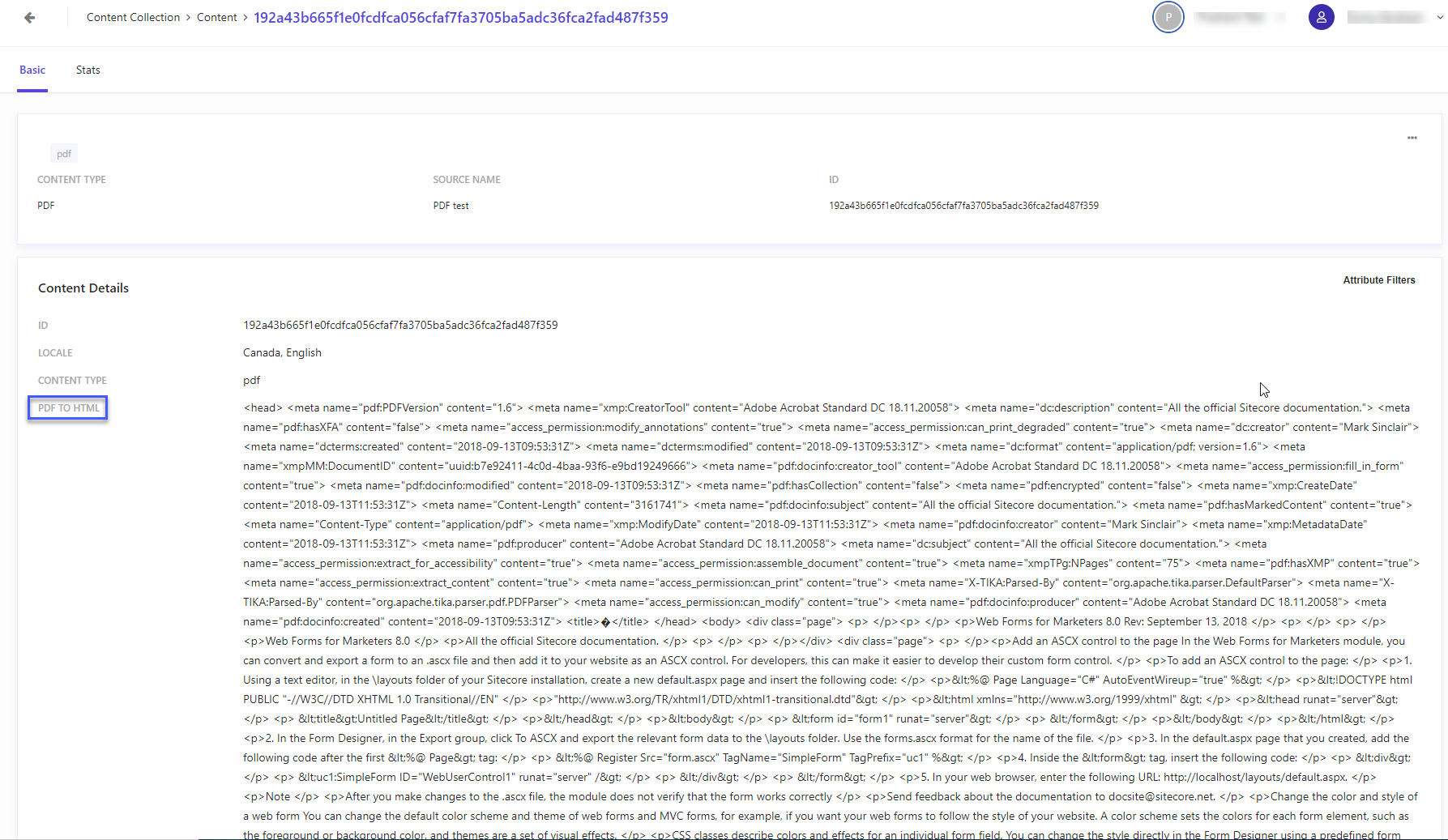
5. Repeat Steps 4 and 5 for all content items.
Now that you've seen what the HTML structure of your PDFs looks like, you can use this information to create accurate document extractors to extract PDF content.