---
title: "Configure environments"
slug: "configure-environments"
abstract: "How to configure Sitecore Module Explorer environments for connecting to Sitecore instances."
---
# Configure environments
You use environments to configure connections to Sitecore instances including [authentication and authorization credentials](https://doc.sitecore.com/xp/en/developers/100/developer-tools/log-in-to-a-sitecore-instance-with-sitecore-command-line-interface.html "Log in to a Sitecore instance with Sitecore Command Line Interface"). Environments are stored in the `.sitecore/user.json` file under the project root.
## Create an environment
To create an environment:
1. In Sitecore Module Explorer, right-click **Environments** and click **New Environment**.
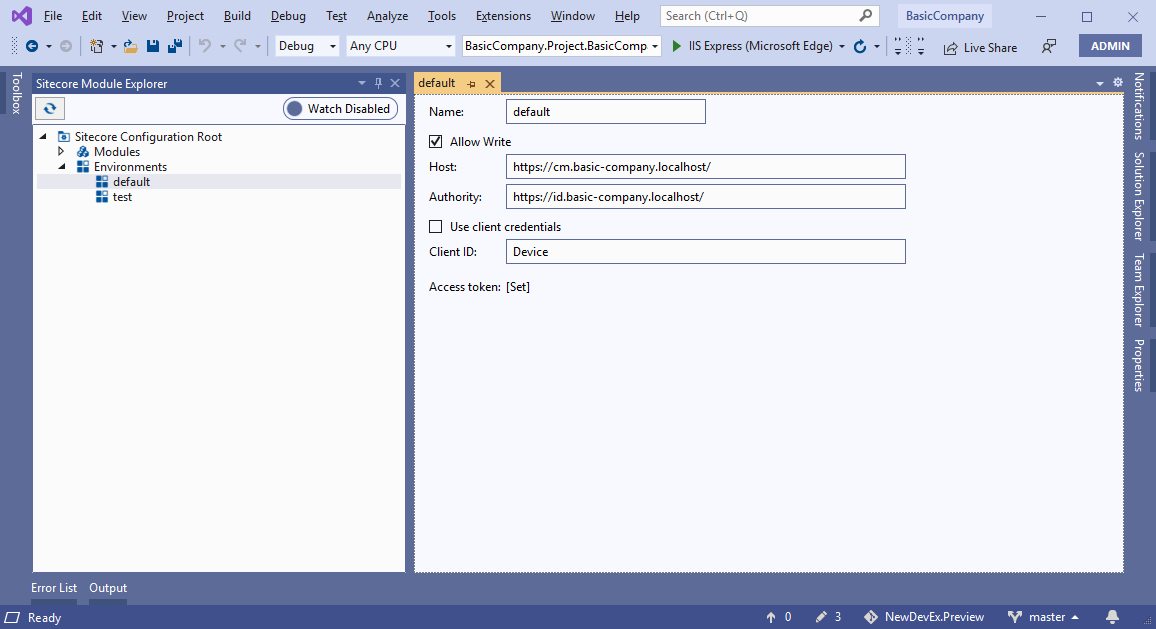
2. In the environment window, enter the following:
| Field | Content |
| --- | --- |
| **Name** | The name of the environment.
> [!note]
> If you name the environment `default`, the [Sitecore Command Line Interface](https://doc.sitecore.com/xp/en/developers/100/developer-tools/sitecore-command-line-interface.html) uses this environment unless another is specified. |
| **Allow write** | Allow writing to the Sitecore instance. |
| **Host** | The URL of the Sitecore instance. |
| **Authority** | The URL of the Sitecore Identity Server or other identity service. |
| **Use client credentials** | Log in using OAuth2 client credentials. |
| **Client ID** | The client ID. |
See [the Sitecore Command Line Interface login](https://doc.sitecore.com/xp/en/developers/100/developer-tools/log-in-to-a-sitecore-instance-with-sitecore-command-line-interface.html "Log in to a Sitecore instance with Sitecore Command Line Interface") documentation for more details.
3. Save the environment.
## Edit an environment
To edit an environment:
1. In Sitecore Module Explorer, double-click the environment.
2. In the environment window, edit the following:
| Field | Content |
| --- | --- |
| **Name** | The name of the environment.
> [!note]
> If you name the environment `default`, the [Sitecore Command Line Interface](https://doc.sitecore.com/xp/en/developers/100/developer-tools/sitecore-command-line-interface.html) uses this environment unless another is specified. |
| **Allow write** | Allow writing to the Sitecore instance. |
| **Host** | The URL of the Sitecore instance. |
| **Authority** | The URL of the Sitecore Identity Server or other identity service. |
| **Use client credentials** | Log in using OAuth2 client credentials. |
| **Client ID** | The client ID. |
See [the Sitecore Command Line Interface login](https://doc.sitecore.com/xp/en/developers/100/developer-tools/log-in-to-a-sitecore-instance-with-sitecore-command-line-interface.html "Log in to a Sitecore instance with Sitecore Command Line Interface") documentation for more details.
## Remove an environment
To remove an environment:
1. In Sitecore Module Explorer, right-click the environment and click **Remove Environment**.
2. In the dialog box, click **Yes** to remove the environment.