---
title: "Run your first Sitecore instance"
slug: "run-your-first-sitecore-instance"
abstract: "This topic shows how you get a Sitecore image without customizations up and running."
---
# Run your first Sitecore instance
This topic shows how you quickly get an out-of-the-box *Sitecore Experience Platform - Single (XP0)* instance up and running with minimal configuration.
> [!note]
> Although this topic uses the *Sitecore Experience Platform - Single (XP0)* configuration for simplicity, you can use the same approach to start any configuration.
>
> Docker Compose files for each Sitecore topology are included in the *Sitecore Container Support Package* that you can download from [https://dev.sitecore.net](https://dev.sitecore.net).
This topic assumes that your local environment is set up for developing with Docker on Windows. See [Environment setup](https://doc.sitecore.com/xp/en/developers/100/developer-tools/set-up-the-environment.html "Set up the environment") for details. Make sure you have switched to Windows containers.
You must also have a valid Sitecore license file.
> [!important]
> The default Sitecore container configuration uses specific ports. To avoid any conflicts, ensure that the following ports are not being used by another process: 443, 8079, 8081, 8984, and 14330.
[Troubleshooting Docker](https://doc.sitecore.com/xp/en/developers/100/developer-tools/troubleshooting-docker.html "Troubleshooting Docker") advice is available as well.
Clone the Docker Examples repository
Start by cloning the [Docker Examples repository](https://github.com/Sitecore/docker-examples) to a location on your machine, for example, `C:\sitecore\docker-examples\ `(the following steps assume you use this folder). In this topic , you use the *getting-started* folder.
Open a PowerShell prompt and navigate to the *getting-started* folder. It contains these files:
- `docker-compose.yml` and `.env` : Types of [Docker Compose](https://docs.docker.com/compose/) files. These are the main files necessary for launching a vanilla Sitecore instance. *Included in the Sitecore Container Support Package*.
- `mssql-data`, `solr-data`, and `traefik` - Supporting folders utilized by the Docker containers within your Sitecore instance. *Included in the Sitecore Container Support Package*.
- `init.ps1` and `clean.ps1` - Example helper scripts. *Not part of the Sitecore Container Support Package*.
Each of these is explained in more detail in the following sections.
The Docker Compose files
- `docker-compose.yml`
This Compose file is the main configuration file used by the `docker compose` command. It contains information about the different containers (referred to as *services*) and their configuration.
For Sitecore, the services generally represent the individual Sitecore roles that make up the topology (mssql, solr, id, cm, and so on).
- `.env`
This is an environment file. The values here provide default values for any environment variables referenced in the Compose file (for example `SITECORE_DOCKER_REGISTRY`), or you use it to configure Compose (for example `COMPOSE_PROJECT_NAME`).
Environment variables are the recommended way to pass configuration settings into containers. You can see how these are used in Sitecore containers in the `docker-compose.yml` file. The `mssql` service, for example, sets an environment variable to configure the SQL Server SA password (`SA_PASSWORD`):
```
mssql:
isolation: ${ISOLATION}
image: ${SITECORE_DOCKER_REGISTRY}sitecore-xp0-mssql:${SITECORE_VERSION}
environment:
SA_PASSWORD: ${SQL_SA_PASSWORD}
SITECORE_ADMIN_PASSWORD: ${SITECORE_ADMIN_PASSWORD}
ACCEPT_EULA: "Y"
SQL_SERVER: mssql
ports:
- "14330:1433"
```
The value is sourced from the `.env` file using variable substitution (`${SQL_SA_PASSWORD}`).
> [!note]
> The SQL Server SA password must meet the [SQL Server password policy](https://learn.microsoft.com/en-us/sql/relational-databases/security/password-policy) requirements; otherwise, the SQL Server container might not work properly.
Preparation
The repository includes a script that performs all preparation steps automatically: the `init.ps1` script.
To run this script:
1. Open a PowerShell administrator prompt.
2. Run the following command, replacing the `-LicenseXmlPath` with the location of your Sitecore license file:
```text
.\init.ps1 -LicenseXmlPath C:\License\license.xml
```
If you do not use the script, follow the steps in the following sections.
### Install SitecoreDockerTools
The [SitecoreDockerTools](https://sitecore.myget.org/feed/sc-powershell/package/nuget/SitecoreDockerTools) PowerShell module has various helper cmdlets you use in Docker-based Sitecore development. These commands greatly simplify the preparation steps (although they are not essential).
Run the following commands from PowerShell to install, or follow the instructions on the [SitecoreDockerTools page](https://cloudsmith.io/~sitecore/repos/resources/packages/detail/nuget/SitecoreDockerTools/):
```
Register-PSRepository -Name "SitecoreGallery" -SourceLocation "https://nuget.sitecore.com/resources/v2/"
Install-Module SitecoreDockerTools
```
### Populate the environment file
The `.env` file has the following unassigned values:
```
COMPOSE_PROJECT_NAME=sitecore-xp0
SITECORE_DOCKER_REGISTRY=scr.sitecore.com/sxp/
SITECORE_VERSION=10.0.0-ltsc2019
SITECORE_ADMIN_PASSWORD=
SQL_SA_PASSWORD=
TELERIK_ENCRYPTION_KEY=
SITECORE_IDSECRET=
SITECORE_ID_CERTIFICATE=
SITECORE_ID_CERTIFICATE_PASSWORD=
SITECORE_LICENSE=
CM_HOST=xp0cm.localhost
ID_HOST=xp0id.localhost
TRAEFIK_IMAGE=traefik:v2.2.0-windowsservercore-1809
TRAEFIK_ISOLATION=hyperv
ISOLATION=default
```
The [Installation Guide for a Developer Workstation with Containers](https://dev.sitecore.net/Downloads/Sitecore_Experience_Platform/100/Sitecore_Experience_Platform_100.aspx) describes each of these variables, and what values you can specify.
You do not have to update any of the variables that have a value specified at this time, but you must specify values for the variables that are empty.
1. Set the `SITECORE_ADMIN_PASSWORD` and `SQL_SA_PASSWORD` to passwords of your choice.
> [!note]
> The SQL SA password must meet [SQL Server complexity requirements](https://docs.microsoft.com/en-us/sql/relational-databases/security/password-policy).
You can also use the *SitecoreDockerTools* module to set and generate these passwords in the PowerShell: the `init.ps1` script sets both to `Password12345`.
2. To set the Telerik encryption key, run the following PowerShell script as an administrator in the folder where your environment file is:
```
Import-Module SitecoreDockerTools
Set-DockerComposeEnvFileVariable "TELERIK_ENCRYPTION_KEY" -Value (Get-SitecoreRandomString 128)
```
This imports the *SitecoreDockerTools* module into the session, and then sets the `TELERIK_ENCRYPTION_KEY` variable using these two cmdlets:
- `Set-DockerComposeEnvFileVariable` : Sets a variable value in a Docker Compose `.env` file.
- `Get-SitecoreRandomString`: Returns a random string to be used as a password or key.
3. To set Identity Server variables, run the following PowerShell script:
```
Import-Module SitecoreDockerTools
Set-DockerComposeEnvFileVariable "SITECORE_IDSECRET" -Value (Get-SitecoreRandomString 64 -DisallowSpecial)
$idCertPassword = Get-SitecoreRandomString 12 -DisallowSpecial
Set-DockerComposeEnvFileVariable "SITECORE_ID_CERTIFICATE" -Value (Get-SitecoreCertificateAsBase64String -DnsName "localhost" -Password (ConvertTo-SecureString -String $idCertPassword -Force -AsPlainText))
Set-DockerComposeEnvFileVariable "SITECORE_ID_CERTIFICATE_PASSWORD" -Value $idCertPassword
```
This sets the `SITECORE_IDSECRET`, `SITECORE_ID_CERTIFICATE`, and `SITECORE_ID_CERTIFICATE_PASSWORD` variables, using the a cmdlet from the *SitecoreDockerTools*:
- `Get-SitecoreCertificateAsBase64String`: Generates a new self-signed certificate and returns the certificate in its password-protected, Base64 encoded form.
4. To set the Sitecore license variable, run the following PowerShell script, replacing the `-Path` with the location of your Sitecore license file:
```
Import-Module SitecoreDockerTools
Set-DockerComposeEnvFileVariable "SITECORE_LICENSE" -Value (ConvertTo-CompressedBase64String -Path "C:\License\license.xml")
```
The Sitecore license file is very large and you must compress and Base64-encode it to fit within the [maximum size allowed by Windows for all the environment variables](https://devblogs.microsoft.com/oldnewthing/20100203-00/?p=15083). The `ConvertTo-CompressedBase64String` cmdlet in *SitecoreDockerTools* does this.
> [!note]
> You can reuse variables across multiple Sitecore instances by setting environment variables in Windows instead of the Docker Compose environment file.
> [!note]
> Alternatively, you can mount a folder with your `license.xml` file into each service, and set the `SITECORE_LICENSE_LOCATION` variable. For xConnect services, this must be the folder containing the license file. For all other services, it must be the path to the file itself.
### Configure TLS/HTTPS certificates
Sitecore uses [Traefik](https://docs.traefik.io/) as the default reverse proxy or edge router for Docker Compose. The *getting-started\\traefik* folder contains the following:
- *certs*
An empty folder where you put the certificates you generate.
- `config/dynamic/certs_config.yaml`
A Traefik configuration file used by the Traefik container.
This entire *traefik* folder is made available for the Traefik container with a Docker [volume](https://docs.docker.com/storage/volumes/) in the `docker-compose.yml` file:
```
traefik:
[...]
volumes:
- source: \\.\pipe\docker_engine
target: \\.\pipe\docker_engine
type: npipe
- ./traefik:C:/etc/traefik
[...]
```
The *traefik* service maps the relative *./traefik* folder to the running container at *C:/etc/traefik*.
This path is then used by the Traefik service configuration, where the `--providers.file.directory` is specified as `C:/etc/traefik/config/dynamic` (where the `certs_config.yaml` file is). See the [Traefik documentation](https://docs.traefik.io/getting-started/configuration-overview/) for more details.
The `certs_config.yaml` file also uses the volume to reference certificates in the *certs* folder:
```
tls:
certificates:
- certFile: C:\etc\traefik\certs\xp0cm.localhost.crt
keyFile: C:\etc\traefik\certs\xp0cm.localhost.key
- certFile: C:\etc\traefik\certs\xp0id.localhost.crt
keyFile: C:\etc\traefik\certs\xp0id.localhost.key
```
#### Install mkcert
You use the [mkcert](https://github.com/FiloSottile/mkcert) utility generate the required certificates.
To install mkcert:
1. Download the [latest Windows executable.](https://github.com/FiloSottile/mkcert/releases)
2. Rename the file to `mkcert.exe`.
3. Move the file to a directory that is in one of your PATH environment variables, such as `C:\Windows\system32`.
4. Open a command prompt in administrator mode and run `mkcert -install`
If you use [Chocolatey](https://chocolatey.org/) you can install mkcert with the following commands instead:
```
choco install mkcert
mkcert -install
```
#### Generate certificates
Run the following commands in the *getting-started* folder to generate the required certificates:
```
mkcert -cert-file traefik\certs\xp0cm.localhost.crt -key-file traefik\certs\xp0cm.localhost.key "xp0cm.localhost"
mkcert -cert-file traefik\certs\xp0id.localhost.crt -key-file traefik\certs\xp0id.localhost.key "xp0id.localhost"
```
### Add Windows hosts file entries
You can add the `xp0cm.localhost` and `xp``0id.localhost` host names to your Windows `hosts` file, and point them to the loopback IP address 127.0.0.1:
```
127.0.0.1 xp0cm.localhost
127.0.0.1 xp0id.localhost
```
Alternatively, you can use the `Add-HostsEntry` cmdlet from *SitecoreDockerTools*:
```
Add-HostsEntry "xp0cm.localhost"
Add-HostsEntry "xp0id.localhost"
```
Start Sitecore
To start Sitecore:
- Run the following command in the same folder as your Compose file:
```text
docker compose up -d
```
This command does the following:
- Downloads all required images from the Sitecore Container Registry.
- Creates a default network to use.
- Creates a container for each configured service.
- Starts the containers with their configured entrypoints.
> [!note]
> The `-d` (*detached mode*) tells Docker to start the containers in the background and leave them running. If you omit this, the container logs are streamed to the output instead, and you must type `Ctrl``+C` to return to a prompt. Doing this also stops and removes your containers.
>
> For a quick reference of this and other common commands used in this guide, see the [Sitecore Docker cheat sheet](https://doc.sitecore.com/xp/en/developers/100/developer-tools/sitecore-docker-cheat-sheet.html "Sitecore Docker cheat sheet").
View the running containers
To see the containers that you created:
- Run the `docker ps` command:
```text
docker ps
```
This displays a list of all running containers as indicated by a status of *Up*. You can also see the container ID, image being used, and ports the container is exposed on:
```
CONTAINER ID IMAGE COMMAND CREATED STATUS PORTS NAMES
75684e9146f2 traefik:v2.2.0-windowsservercore-1809 "/traefik --ping --a…" 7 seconds ago Up 3 seconds (healthy: starting) 80/tcp, 0.0.0.0:443->443/tcp, 0.0.0.0:8079->8080/tcp sitecore-xp0_traefik_1
67be2b1350e1 scr.sitecore.com/sxp/sitecore-xp0-cm:10.0.0-ltsc2019 "C:\\LogMonitor\\LogMo…" 21 seconds ago Up 11 seconds (healthy) 80/tcp sitecore-xp0_cm_1
e553b6ab0fb5 scr.sitecore.com/sxp/sitecore-xp0-cortexprocessingworker:10.0.0-ltsc2019 "C:\\LogMonitor\\LogMo…" 21 seconds ago Up 11 seconds (healthy) sitecore-xp0_cortexprocessingworker_1
8d40d14da8a2 scr.sitecore.com/sxp/sitecore-xp0-xdbautomationworker:10.0.0-ltsc2019 "C:\\LogMonitor\\LogMo…" 21 seconds ago Up 12 seconds (healthy) sitecore-xp0_xdbautomationworker_1
b4279d4f6de7 scr.sitecore.com/sxp/sitecore-id:10.0.0-ltsc2019 "C:\\LogMonitor\\LogMo…" 27 seconds ago Up 21 seconds (healthy) 80/tcp sitecore-xp0_id_1
41418243fd0d scr.sitecore.com/sxp/sitecore-xp0-xdbsearchworker:10.0.0-ltsc2019 "C:\\LogMonitor\\LogMo…" 27 seconds ago Up 20 seconds (healthy) sitecore-xp0_xdbsearchworker_1
6f4e64033031 scr.sitecore.com/sxp/sitecore-xp0-xconnect:10.0.0-ltsc2019 "C:\\LogMonitor\\LogMo…" 27 seconds ago Up 21 seconds (healthy) 0.0.0.0:8081->80/tcp sitecore-xp0_xconnect_1
33931b923acb scr.sitecore.com/sxp/sitecore-xp0-mssql:10.0.0-ltsc2019 "powershell -Command…" About a minute ago Up 56 seconds (healthy) 0.0.0.0:14330->1433/tcp sitecore-xp0_mssql_1
3b362d8ed9a6 scr.sitecore.com/sxp/sitecore-xp0-solr:10.0.0-ltsc2019 "powershell -Command…" About a minute ago Up 56 seconds 0.0.0.0:8984->8983/tcp sitecore-xp0_solr_1
```
You might notice some of the statuses have `(health: starting)`, which means they are still warming up to meet the configured health check (see `healthcheck` in the `docker-compose.yml` file). If you run the `docker ps` command again, you can eventually see these all change to `(healthy)`.
Access Sitecore containers
You access the containers serviced by the reverse proxy with the HTTPS protocol, using their configured hostnames (for ex [https://xp0cm.localhost](https://xp0cm.localhost)).
The rest of the exposed containers are preconfigured to use specific ports (see `ports` in the `docker-compose.yml` file). In the default configuration of Docker Desktop for Windows, you access these ports on `localhost`.
This means you can access your *Sitecore Experience Platform - Single (XP0)* containers like this:
- Sitecore Content Management (cm): [https://xp0cm.localhost](https://xp0cm.localhost)
- Sitecore Identity Server (id): [https://xp0id.localhost](https://xp0id.localhost)
- Sitecore xConnect Server (xconnect): [http://localhost:8081](http://localhost:8081)
- Apache Solr (solr): [http://localhost:8984](http://localhost:8984)
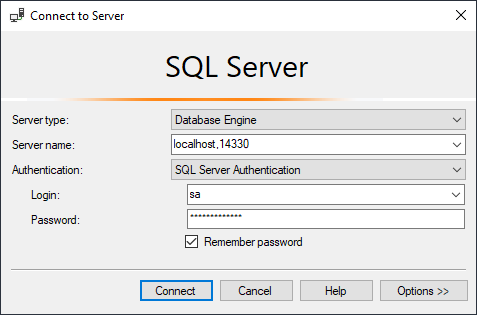
- Microsoft SQL Server (mssql): localhost,14330
- Traefik: [http://localhost:8079](http://localhost:8079)
### About connecting to SQL Server
When you connect to SQL Server using a port, the syntax is slightly different. You must use a comma (,) instead of a colon (:), as indicated previously. You can connect with SQL Server Authentication using the *sa* account and the value you specified for `SQL_SA_PASSWORD` in the `.env` file (`Password12345` by default in the `init.ps1` file):
Verify your instance
To verify your instance:
1. Browse to [https://xp0cm.localhost](https://xp0cm.localhost) to see the Sitecore default website.
2. Browse to [https://xp0cm.localhost/sitecore](https://xp0cm.localhost/sitecore) and verify you can log in to Sitecore. Use `admin` for the **User Name** and the value you specified for `SITECORE_ADMIN_PASSWORD` in the `.env` file (`Password12345` by default in the `init.ps1` file) for the **Password**.
3. Look at the logs with the following command to see the logs from all containers:
```text
docker compose logs -f --tail 20
```
The `-f` (or `--follow`) option tells Docker to stream the output, and the `--tail` option limits the initial log output to the last 20 lines of each container. You can see that the logs are prefixed by the container.
4. Type `Ctrl+C` when you are done to return back to a prompt.
Stop Sitecore
To stop the Sitecore instance:
- Run the following command:
```text
docker compose stop
```
This stops your containers, but does not remove them. They can then be started again with `docker compose start`.
- To stop and remove the containers:
```text
docker compose down
```
This stops your containers, but also removes the containers as well as any networks that were created.
- To stop and remove containers, and also remove images:
Add `--rmi `.
Your development workflow will involve a combination of these commands. The commands are relatively fast, depending on the topology.
Persistent storage cleanup
There are now files in the *mssql-data* and *solr-data* folders. Like the *traefik* folder, these are folders mounted as [volumes](https://docs.docker.com/storage/volumes/) in the Compose file. They are configured in the `docker-compose.yml` file:
```
mssql:
[...]
volumes:
- type: bind
source: .\mssql-data
target: c:\data
solr:
[...]
volumes:
- type: bind
source: .\solr-data
target: c:\data
```
The folders are used as persistent storage for the database files for the *mssql* service and the index files for the *solr* service. This means that your database and index data remain even after a `docker compose down` command.
However, there are situations where you want to start fresh or you need to clear these due to stale data, for example, if you change the Sitecore administrator password.
You can manually delete the files in these folders, or you can use the `clean.ps1` script.
To delete the files:
1. Open a PowerShell administrator prompt in the *getting-started folder.*
2. Run the following command:
```text
.\clean.ps1
```
Further reading
- [https://docs.docker.com/compose](https://docs.docker.com/compose)
- [https://docs.docker.com/docker-for-windows/networking/](https://docs.docker.com/docker-for-windows/networking/)