---
title: "Set up the environment"
slug: "set-up-the-environment"
abstract: "Describes how you set up the environment on Windows."
---
# Set up the environment
This topic is for development environments on Windows that use Docker Desktop. For other environments (such as build agents) that run on Windows Server and use *Docker Engine - Enterprise*, refer to the [Docker documentation](https://hub.docker.com/editions/enterprise/docker-ee-server-windows).
Prerequisites
To run Docker on Windows 10, you need the following:
- Run Windows 10 Professional or Enterprise version 1903 or later. For enabling process isolation, you need version 1909, or later.
- Enable [Hyper-V](https://docs.microsoft.com/en-us/virtualization/hyper-v-on-windows/reference/hyper-v-requirements).
The Docker Desktop installer enables Hyper-V if necessary, but a machine restart is then required during install.
- Make sure you're using [Docker Compose V2](https://docs.docker.com/compose/migrate/).
> [!note]
> When Hyper-V is enabled, VirtualBox no longer works. However, any existing VirtualBox VM images are retained.
### Hardware guidelines
The hardware must meet the requirements for running Hyper-V. For complete details, including how to verify compatibility, see [Windows 10 Hyper-V System Requirements](https://docs.microsoft.com/en-us/virtualization/hyper-v-on-windows/reference/hyper-v-requirements). To summarize, Hyper-V requires:
- A 64 bit processor with [Second-level address translation (SLAT)](https://en.wikipedia.org/wiki/Second_Level_Address_Translation) and hardware-assisted virtualization.
- At least 4GB of RAM (see below for Sitecore guidelines).
- Virtualization support must be turned on in the BIOS.
In addition to the Hyper-V requirements, Sitecore development has these further requirements:
- 16GB of RAM is the minimum, 32GB of RAM is recommended. This depends on the number of instances and topologies you want to run (that is, the number of simultaneously running containers). For example, 16GB may be sufficient for XM1 or XP0 instances, but will probably have problems running a full XP1 instance.
- A quad core, or higher, CPU.
- At least 25GB of free disk space for Sitecore container images. SSD storage is highly recommended for optimal performance when downloading and running Docker containers.
Install Docker
To install Docker:
1. Download [Docker Desktop for Windows](https://hub.docker.com/editions/community/docker-ce-desktop-windows/) and run the installer.
2. During installation, choose to use Windows containers instead of Linux containers. You can also switch to Windows containers after installation.
If you use [Chocolatey](https://chocolatey.org/), install with the following command:
```text
choco install docker-desktop
```
For more details, see the [Docker documentation](https://docs.docker.com/docker-for-windows/install/).
Start Docker Desktop
Docker Desktop does not automatically start after installation. If you have not already done so, [start Docker Desktop](https://docs.docker.com/docker-for-windows/install/#start-docker-desktop). When the Docker item (the whale icon) in the Windows system tray stays steady, Docker Desktop is up and ready to go.
> [!note]
> Docker Desktop is configured to run automatically on log in, so later you will typically not have to start it manually.
Switch to Windows containers
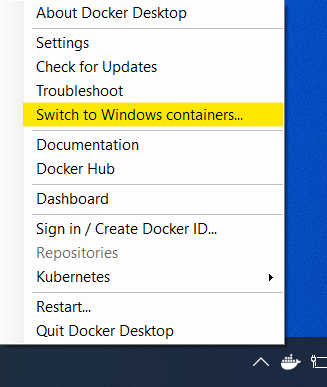
Sitecore development uses Windows-based containers. If you did not choose Windows containers during the installation, do it now.
To switch to Windows containers:
- Use the Docker item (the whale icon) in the Windows system tray:
Verify the installation
To verify that Docker was installed and runs:
- Run `docker version` from a command prompt. You will see `windows `listed as the operating system for the Docker client and the Docker server:
```
PS C:\WINDOWS\system32> docker version
Client: Docker Engine - Community
Version: 19.03.8
API version: 1.40
Go version: go1.12.17
Git commit: afacb8b
Built: Wed Mar 11 `01:23`:10 2020
OS/Arch: windows/amd64
Experimental: false
Server: Docker Engine - Community
Engine:
Version: 19.03.8
API version: 1.40 (minimum version 1.24)
Go version: go1.12.17
Git commit: afacb8b
Built: Wed Mar 11 `01:37`:20 2020
OS/Arch: windows/amd64
Experimental: false
```
Further reading
- [Docker for Windows FAQ](https://docs.docker.com/docker-for-windows/faqs/)
- [Microsoft Support policy for Windows containers and Docker in on-premises scenarios](https://support.microsoft.com/en-us/help/4489234/support-policy-for-windows-containers-and-docker-on-premises)