---
title: "Walkthrough: Setting up Solr"
slug: "walkthrough--setting-up-solr"
abstract: "Learn how to set up Solr on Sitecore"
---
# Walkthrough: Setting up Solr
This walkthrough describes how to set up Solr for use with Sitecore. It does not cover all configuration options available in Solr: it only documents configuration details specific for using Solr in Sitecore. The Solr website has information about more advance Solr setup.
Check the [Solr compatibility table](https://support.sitecore.com/kb?id=kb_article_view&sysparm_article=KB0227897) to see which version is compatible with your version of Sitecore.
> [!note]
> The Solr server that hosts your Content Search cores can be different from the server that hosts your xDB Search Index core.
Follow the instructions in the Solr documentation to install Solr. The Solr website lists resources. The [Apache Solr wiki](http://wiki.apache.org/solr/) hosted there is especially useful.
> [!note]
> You must use a separate core for each index. The Apache Solr wiki provides [an introduction to the concept of multiple cores](http://wiki.apache.org/solr/CoreAdmin).
Configure Solr to work with Sitecore
Sitecore uses managed schema in Solr.
To modify the example configuration in Solr to use it with Sitecore, follow these steps:
1. Copy the configuration example folder provided by Solr called `_default` from the `[SOLR_DIR]/server/solr/configsets` folder to the `[SOLR_DIR]/server/solr` folder.
2. Create a text file called `core.properties` in the folder you created (`[SOLR_DIR]/server/solr/[CORE_NAME]`), and specify these values:
```
name=[CORE_NAME]
config=solrconfig.xml
update.autoCreateFields=false
dataDir=data
```
To configure the managed schema, follow these steps:
1. Open the managed schema file in the `conf` subfolder of [the folder you created](https://doc.sitecore.com/xp/en/developers/100/platform-administration-and-architecture/walkthrough--setting-up-solr.html#UUID-c49e3e99-c717-1fa7-b788-77258c364a83_N1575970281635).
2. Set the value in the `id` node to `_uniqueid` (for example, `_uniqueid`).
3. In the `fields` section, add field configuration for `_uniqueid`:
```text
```
You must configure all Solr indexes for Sitecore in the same way. The list of indexes Sitecore uses is in [The indexes used by Sitecore](https://doc.sitecore.com/xp/en/developers/100/platform-administration-and-architecture/walkthrough--setting-up-solr.html#UUID-c49e3e99-c717-1fa7-b788-77258c364a83_section-idm456431718994883151978626308 "The indexes used by Sitecore").
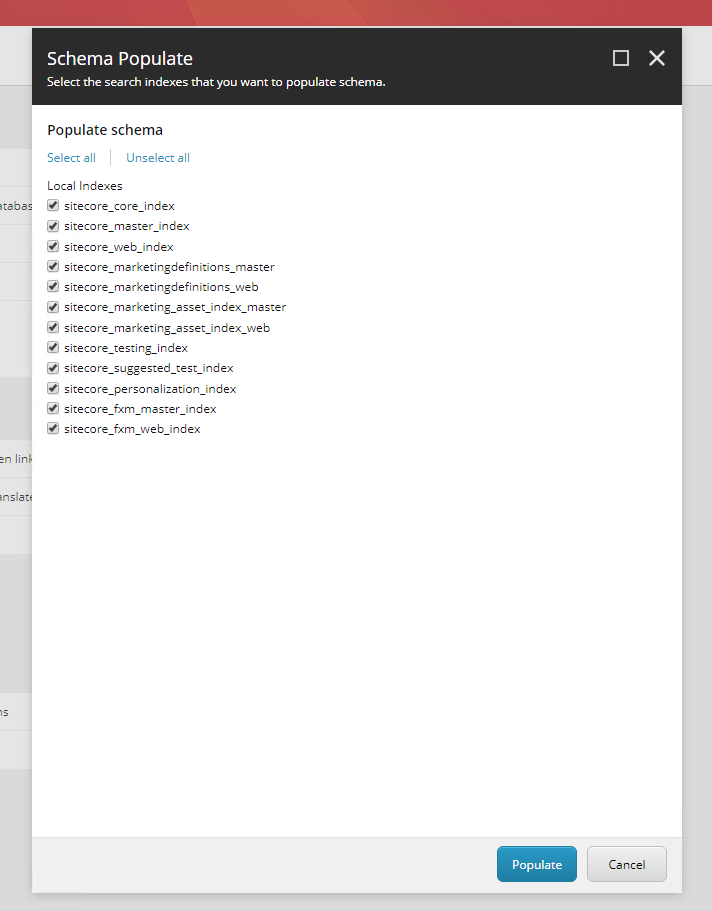
These are the indexes in Sitecore XP:
Run Solr
When you have created cores, restart the Solr instance. To verify that Solr is running correctly:
1. Open the administration page at `https://:8983/solr`:
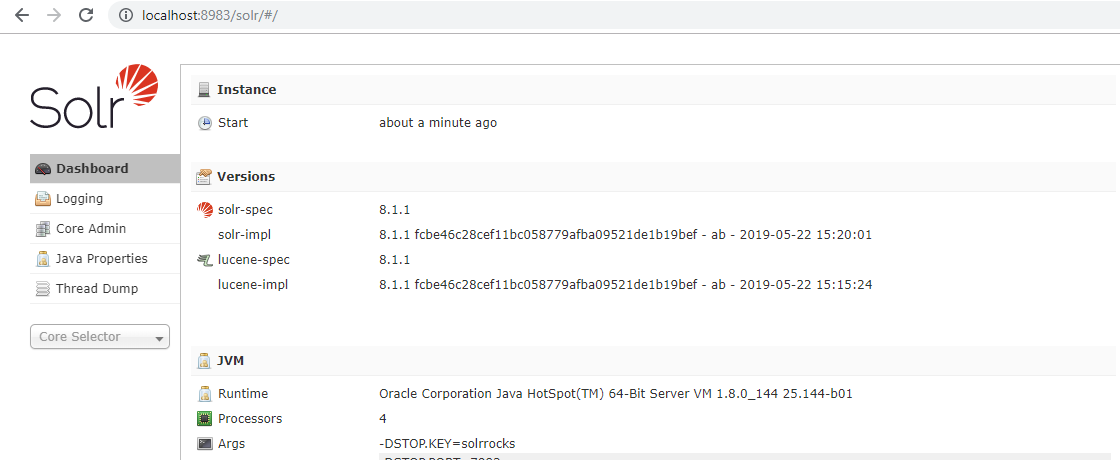
2. Check the **Logging** section for any errors in the logs. Sometimes, you see a warning related to authentication/authorization, but this is expected. If you want to remove the warning, enable basic authentication.
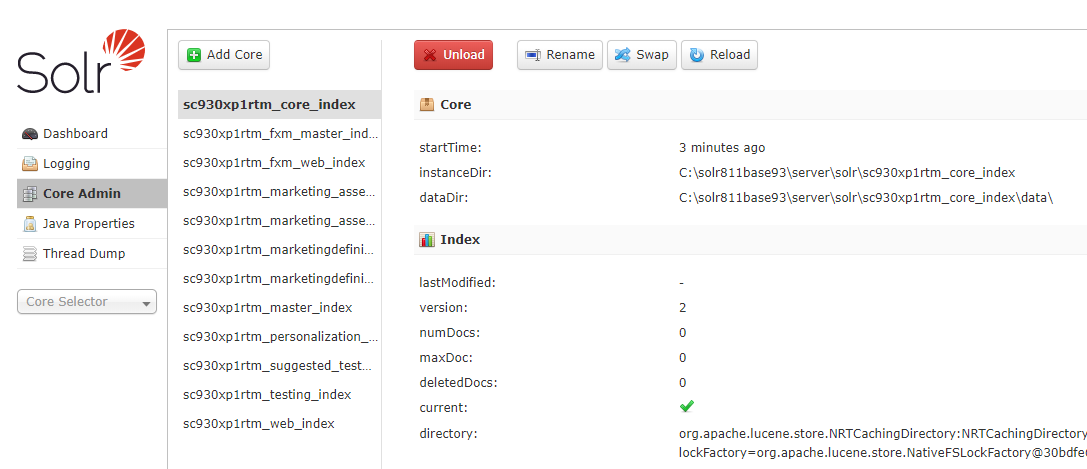
3. Open the **Core Admin** section to verify the available cores. These cores are created automatically because you specified them in the `core.properties` file. It is crucial that you use the correct core names in the configuration files. The names are case-sensitive. If you use the default names, you do not need to change the configuration.
Configure Sitecore to work with Solr
This section describes how to configure Sitecore to work with Solr. Follow these steps:
1. To specify the correct connection string to Solr for the Sitecore instance, open the `\Website\App_config\ConnectionStrings.config` file and inspect the `solr.search` connection string. It should look like this example:
```text
```
2. To specify the search provider, open the `Web.config` file. and inspect the `search:define` key. It should look like this:
```text
```
3. In the `\Website\App_config\Sitecore\ContentSearch\Sitecore.ContentSearch.config` file, the value of the `` specifies the maximum number of documents retrieved in a single request if the number has not been specified in the query. The default is 1000000. In most cases, you do not need to change this. Patch this value if you need to change it.
4. In the `\Website\App_Config\Sitecore\ContentSearch\Sitecore.ContentSearch.Solr.DefaultIndexConfiguration.config` file, the value of the `` specifies if commits are in batch mode. This reduces the network traffic between the CM server and the Solr server. The value of the `` setting specifies the number of document updates in a batch. Batch mode is *on* by default. If your index is very large, you can patch the batch size setting to a larger number to improve performance.
5. Specify custom names for Solr cores.
By default, Sitecore looks for predefined index names in Solr. For example, the predefined name for the master index is `sitecore_master_index`. If have not changed, you do not need to do anything.
If, however, you have named the indexes yourself, you must patch the configuration to reflect this. The value of the `$(id)` in the `\website\App_Config\Sitecore\ContentSearch\Sitecore.ContentSearch.Solr.Index.Master.config` file specifies the custom index name, for example `sc10_sitecore_master_index` for an index called `sc10_sitecore_master_index`. This a full list of files where you must specify custom index:
| Index config file | Custom iden name |
| --- | --- |
| `Sitecore.ContentSearch.Solr.Index.Core.config` | `_core_index` |
| `Sitecore.ContentSearch.Solr.Index.Master.config` | `_master_index` |
| `Sitecore.ContentSearch.Solr.Index.Web.config` | `_web_index` |
| `Sitecore.ContentTesting.Solr.IndexConfiguration.config` | `_testing_index`, `Sitecore instance name>_suggested_text_index` |
| `Sitecore.FXM.Solr.DomainsSearch.Index.Master.config` | `_fxm_master_index` |
| `Sitecore.FXM.Solr.DomainsSearch.Index.Web.config` | `_fxm_web_index` |
| `Sitecore.Marketing.Definitions.MarketingAssets.Repositories .Solr.Index.Master.config` | `__marketing_asset_index_master` |
| `Sitecore.Marketing.Definitions.MarketingAssets.Repositories .Solr.Index.Web.config` | `_marketing_asset_index_web` |
| `Sitecore.Marketing.Solr.Index.Master.config` | `_marketingdefinitions_master` |
| `Sitecore.Marketing.Solr.Index.Web.config` | `_marketingdefinitions_web` |
| `Sitecore.Personalization.Solr.IndexConfiguration.config` | `_personalization_index` |
Populate the Solr schemas
When you have Solr running and have configured Sitecore, you populate Solr schemas with Sitecore fields.
To populate the schemas:
1. In Sitecore, go to the **Control Panel** and click **Populate Solr Managed Schema**.
2. Select all indexes and click **Populate**:

The **Schema Populate** tool populates the schema with the Sitecore files it needs.
You can add more fields to the schema by adding fields to the `managed-schema` file but do not change the system index fields. We recommend that you only do this after you have populated the Solr schema with the tool. **You can use the solr admin schema page to add additional fields.**
Rebuild search indexes
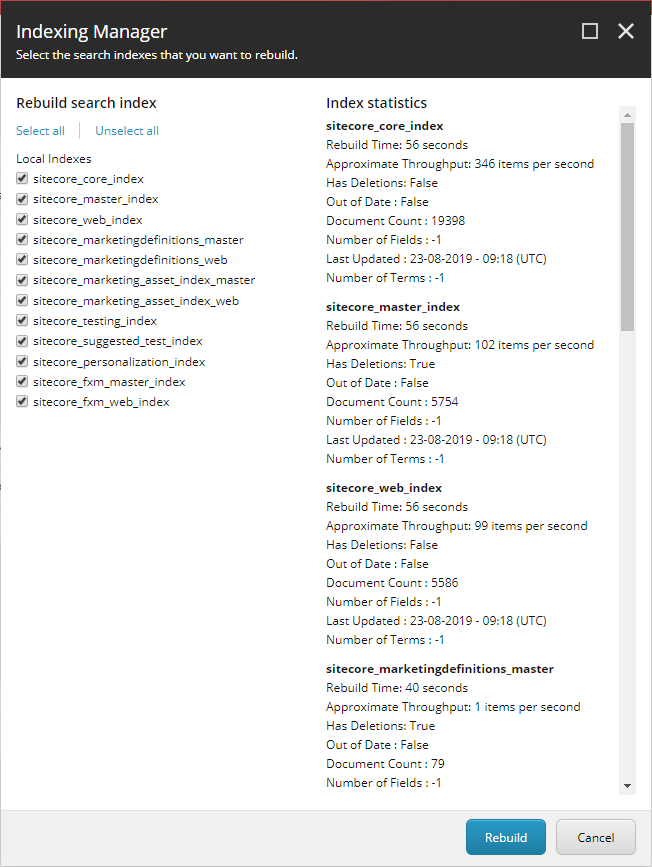
Before you can start using Solr for indexing, you must re-index Sitecore content. To rebuild the search indexes:
1. In Sitecore, go to the **Control Panel** and click **Indexing manager**.
2. Select all indexes and click **Rebuild**:
> [!note]
> If you deployed marketing definitions before, it is not necessary to select the marketing definitions indexes as they are already rebuilt.
The indexes used by Sitecore
This section lists the indexes Sitecore uses.
With xDB:
```
sitecore_core_index
sitecore_master_index
sitecore_web_index
sitecore_marketingdefinitions_master
sitecore_marketingdefinitions_web
sitecore_marketing_asset_index_master
sitecore_marketing_asset_index_web
sitecore_testing_index
sitecore_suggested_test_index
sitecore_personalization_index
sitecore_fxm_master_index
sitecore_fxm_web_index
```
Without xDB:
```
sitecore_core_index
sitecore_master_index
sitecore_web_index
```