---
title: "Trigger the Infrastructure and Application pipelines automatically"
slug: "trigger-the-infrastructure-and-application-pipelines-automatically"
abstract: "Learn how to work with pull requests."
---
# Trigger the Infrastructure and Application pipelines automatically
This topic describes how handle basic GIT interactions within your Azure DevOps environment, such as creating branches, creating pull requests, and approving pull requests.
Create a branch
To create a branch via the branch section of [Azure Devops](https://docs.microsoft.com/en-us/azure/devops/repos/git/create-branch?view=azure-devops):
1. On the left pane, go to **Repos** and click **Branches**.
2. Click **New Branch**.
3. In the **Create a Branch** dialog box, enter the following:
| Field | Description |
| --- | --- |
| Name | Enter a name. Make sure to follow your organization's naming conventions. |
| Based on | Select a branch to copy as a starting point for your work. This branch is usually *main*, unless you have an unusual Git workflow. |
| Work items to link | Optional. If you use Azure Devops to track work items, add the backlog work item here to make the branch reference the work item. |
4. Click **Create**.
Create a pull request
A [pull request](https://docs.microsoft.com/en-us/azure/devops/repos/git/pullrequest?view=azure-devops) is a review and merge process for Git to incorporate newly developed code into an existing code base. For more information on creating pull requests please refer to the [Azure Devops documentation](https://docs.microsoft.com/en-us/azure/devops/repos/git/pullrequest?view=azure-devops).
> [!note]
> Developers will need to get an approval from user with the Devops persona to complete their pull request. All devops engineers will be added as reviewers to the pull request automatically.
To create a pull request:
1. After you [create the branch](https://doc.sitecore.com/xp/en/developers/101/managed-cloud/trigger-the-infrastructure-and-application-pipelines-automatically.html#UUID-dce107a8-e8a1-6f8b-8c92-1e96d035c550_section-idm232171058505731 "Create a branch"), on the left pane, click **Pull requests**.
2. In the top right corner, click **New pull request** to create the new pull request for your current branch. The new pull request page lets you create a pull request for the branch that contains your code changes:
- The *source* branch: the name of your branch that contains the changes.
- The *destination* branch: the branch you wish the changes to go to (generally, this is `main`, since any changes to the main branch will trigger the pipeline and deploy the changes).
> [!note]
> The files and commits tabs will show different values depending on the differences between the source and destination branches.
3. In the **Create pull request** dialog box add values to the following fields:
- **Title**: enter a title for the pull request that briefly describes the changes that you have made.
- **Description**: enter a full description of your changes in the *Description* section. You can use [Markdown](https://docs.microsoft.com/en-us/azure/devops/project/wiki/markdown-guidance?view=azure-devops).
- **Reviewers**: all Devops engineer personas of your organization are automatically added as reviewers to the pull request. If there are additional people you would like to review the pull request, add them here.
- **Work items to link**: if you are working on an Azure Devops backlog item, enter the work item number here.
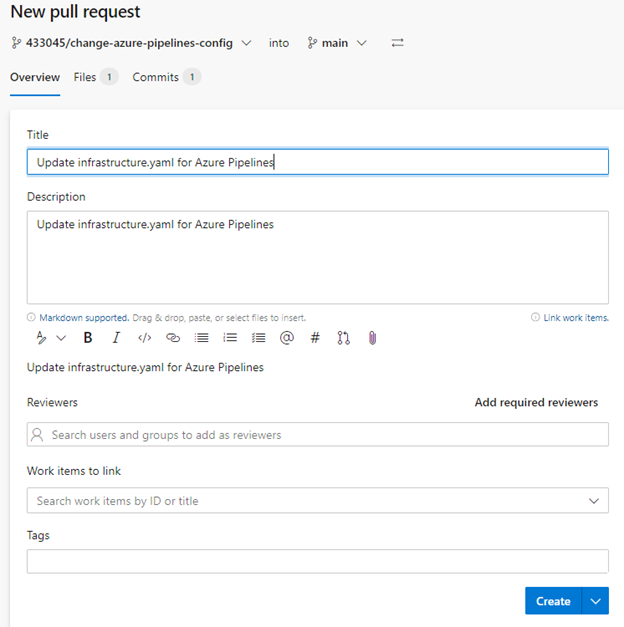
4. Click **Create**.
Review a pull request
Reviews allow collaborators to comment on the changes proposed in pull requests. Reviewers can approve the changes, or request further changes before the pull request is merged.
To review a pull request:
1. Open the pull request from the email or link.
2. Read the information on the following tabs carefully: **Overview**, **Files**, **Updates**, **Commits**. Sometimes, there is information in the **Conflicts** tab as well.
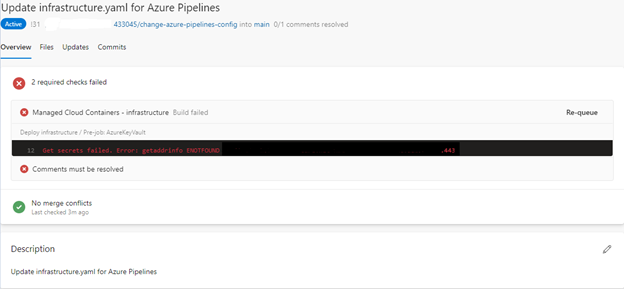
3. If you approve of the changes, click **Approve** in the top right corner. If you want to raise questions, comment on the lines of the pull request.