---
title: "Update a domain for Sitecore endpoints"
slug: "update-a-domain-for-sitecore-endpoints"
abstract: "How to update domains."
---
# Update a domain for Sitecore endpoints
You can update Managed Cloud Containers solutions with new domains for Sitecore endpoints. This topic describes how to update a domain, both when you use your own DNS zone, and when you use the Sitecore DNS zone.
Update a domain for Sitecore endpoints using your own DNS zone
To update a domain when you use your own DNS zone:
1. Prepare a wildcard certificate (`.pfx`) for a new top-level domain. For example: `*.example.com`.
2. Configure DNS records for new domains (cm/cd/id/grafana). Add CNAME for your custom domains pointed to Azure Frontdoor: `“{infrastructure_id}fdr.azurefd.net"`.
> [!note]
> Because unbounding old CNAMEs from Azure Frontdoor leads to downtime, you must plan this maintenance during low business hours.
3. Create CNAMEs that point to Azure Frontdoor.
4. Open a support ticket with Sitecore Cloud Ops to unbound the old CNAME from Azure Frontdoor.
5. Follow steps 3-9 from the next section - *Update a domain for Sitecore endpoints using Sitecore DNS zone*.
Update a domain for Sitecore endpoints using Sitecore DNS zone
To update a domain when you use Sitecore DNS zone:
1. Prepare a wildcard certificate (`.pfx`) for a new top-level domain. For example: `*.example.com`.
2. Create a service request to update CNAME.
3. Update Key Vault secrets for the changed domains. Create a new version of the following secrets:
- `sitecore-cd-host-name`
- `sitecore-cm-host-name`
- `sitecore-id-host-name`
- `grafana-host-name`
4. Upload a new version of the certificate created in step 1 to the Key Vault certificates storage.
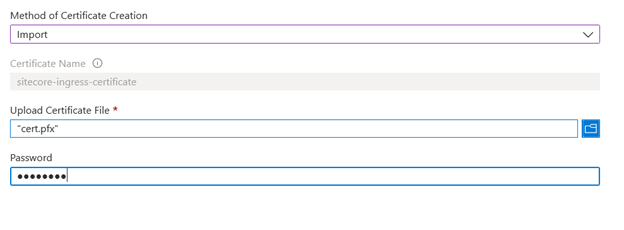
5. > [!important]
> Update Key Vault secrets for the new certificate:
>
> - `sitecore-ingress-certificate-pfx-base64`
>
> - sitecore-ingress-certificate-password
6. Run the Frontdoor pipeline. Open the Frontdoor designer and make sure that the Frontdoor configuration was updated with new domains:
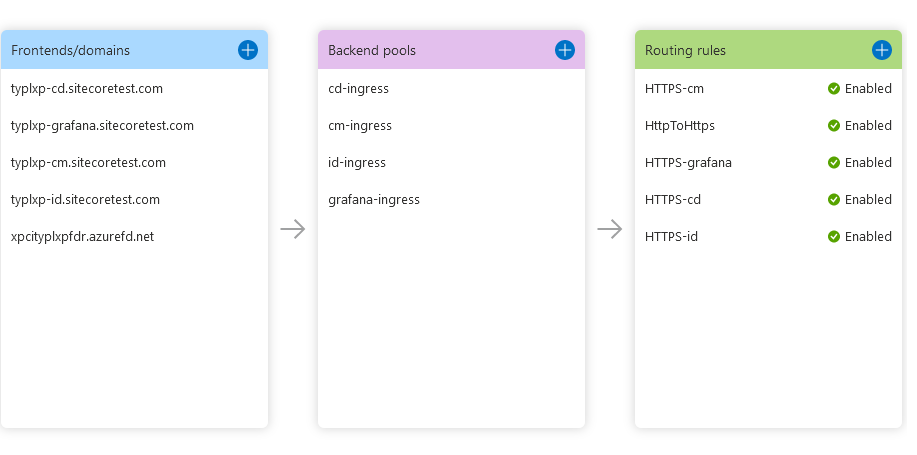
7. Restart cm/cd/id/Grafana pods using `Restart Deployment Pipeline`.
8. Run the Application pipeline.
9. Contact Sitecore Managed Cloud Support and update the Grafana reply URL in the Grafana application.
> [!note]
> Updating domains leads to downtime (less than 30 minutes).