---
title: "Walkthrough: Configuring and displaying facets on the storefront"
slug: "walkthrough--configuring-and-displaying-facets-on-the-storefront"
abstract: "How to build the Aggregated Facets Filter rendering."
---
# Walkthrough: Configuring and displaying facets on the storefront
You can [configure and display facet](https://doc.sitecore.com/xp/en/developers/101/sitecore-experience-commerce/configuring-and-displaying-facets-on-the-storefront.html "Configuring and displaying facets on the storefront") including the [Aggregated Facet Filter](https://doc.sitecore.com/xp/en/users/sxa/101/sitecore-experience-accelerator/use-the-sxa-search-filter-components.html) rendering on the storefront to make it easier for customers to search for and find information.
> [!note]
> Regardless of how many facet filter renderings you insert on the rendering variant, they are only visible to customers at runtime and only if there are facet values for the given facet that applies to the items listed.
This walkthrough describes how to build an aggregated facet filter. It describes how to:
- Create the facet filters
- Add a checklist filter
- Create a variant definition
- Associate the rendering variant with the Aggregated Facet Filter rendering
> [!important]
> After you create a new commerce facet, you need to [define a facet index field](https://doc.sitecore.com/xp/en/developers/101/sitecore-experience-commerce/adding-a-property-field-to-an-index.html "Adding a property field to an index") and then re-index the storefront site.
Create the facet filters
You can use a search results signature to bind the multiple facet filters in an Aggregated Facet Filter together but it is not a requirement.
To create a facet filter:
1. In the Content Editor, go to *sitecore/Content///Settings/Facets*.
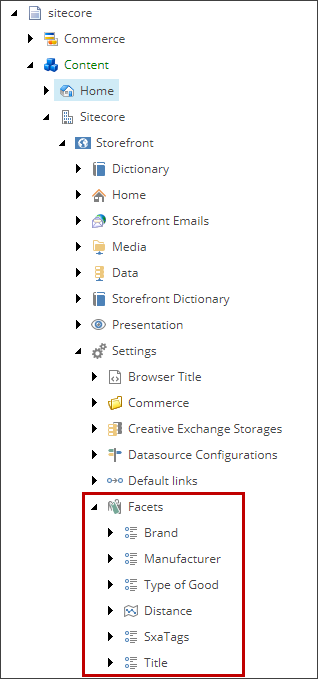
2. Right-click the **Facets** folder and click **Insert, List Facet**.
3. In the **Message** dialog box, enter a name for the facet, and click **OK**.
4. On the **Content** tab, in the **Facet** section, enter a name and field name, which is used in the index.
5. On the ribbon, click **Save**.
Add a checklist filter
In this procedure, you add a checklist filter to the facet. You can, however, use any of the [SXA Search renderings](https://doc.sitecore.com/xp/en/users/sxa/101/sitecore-experience-accelerator/the-sxa-renderings-and-rendering-variants.html).
To add a checklist filter:
1. In the Content Editor, go to *sitecore/Content///Data/Search/Checklist Filter*.
2. Right-click **Checklist Filter** and click **Insert, Checklist Filter**.
3. In the **Message** dialog box, enter a name for the filter and click **OK**.
4. On the **Content** tab, in the **Facet** field, select the list facet you created in the previous procedure.
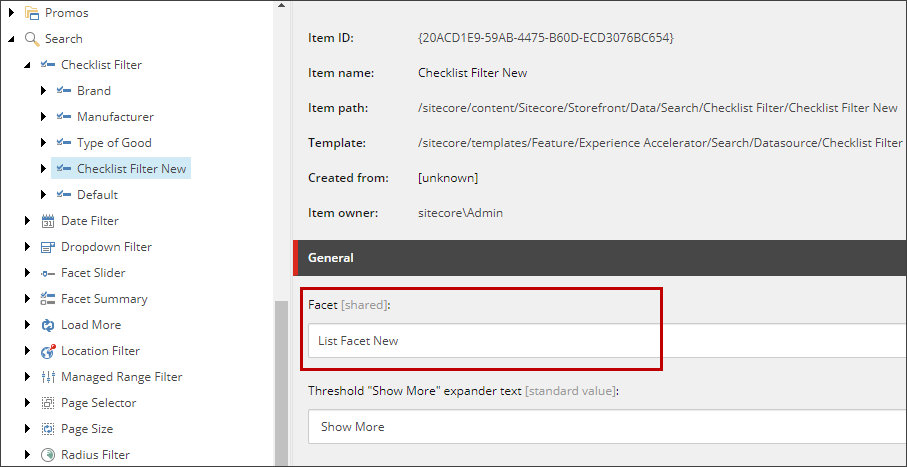
5. On the ribbon, click **Save**.
Create a variant definition
You must associate each Aggregated Facet Filter with a rendering variant.
> [!note]
> If you are using a custom field, instead of creating a variant definition, insert new components into the existing Category Page and Search Results rendering variants in order to display the new facet on the storefront.
To create a variant definition:
1. In the Content Editor, go to *sitecore/Content///Presentation/Rendering Variants/Aggregated Facet Filter*.
The *Aggregated Facet Filter* folder contains all the variant definitions that you can use for the Aggregated Facet Filter.
2. Right-click the *Aggregated Facet Filter* folder and click **Insert, Variant Definition**.
3. In the **Message** dialog box, enter a name for the variant definition and click **OK**.
4. Right-click the newly created variant definition and click **Insert, Component**.
5. In the **Message** dialog box, enter a name for the component and click **OK**.
6. On the **Content** tab, in the **Rendering Item** field, click and select *Renderings/Feature/Experience Accelerator/Search/Filter (Checklist)* and, on the ribbon, click **Save**.
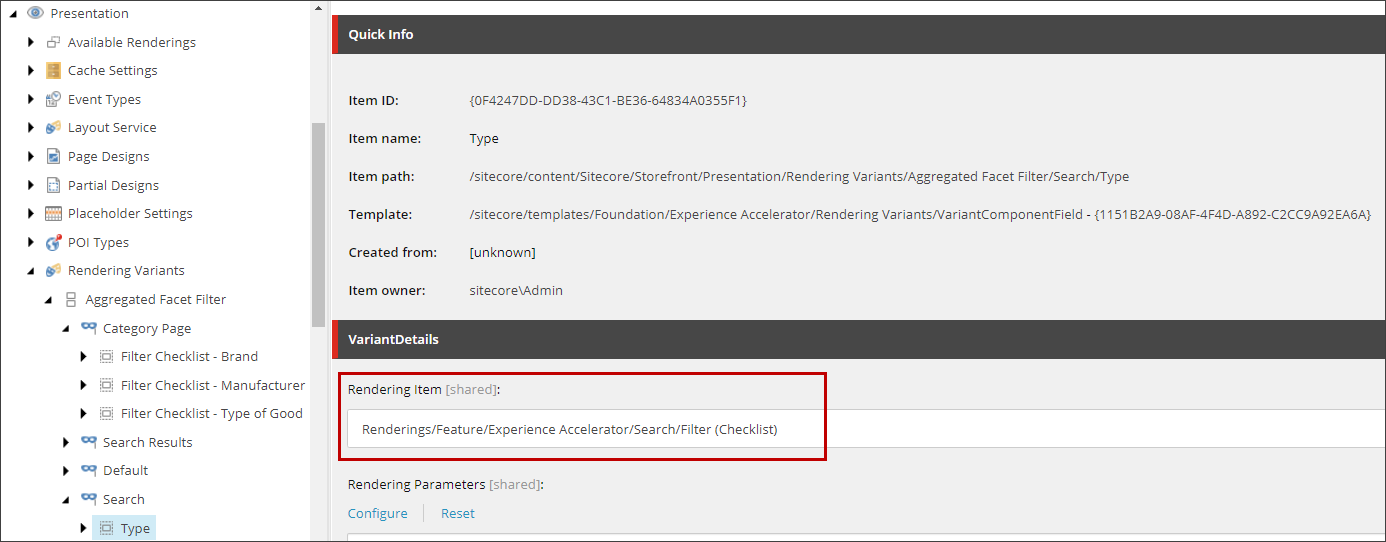
7. In the **Rendering Parameters** field, click **Configure**.
8. In the **Control Properties** dialog box, under **Data Source**, click **Browse**, and, in the **Select the Associated Content** dialog box, select the checklist filter you created in the previous procedure, click **OK**.
9. In the **Control Properties** dialog box, in the **SearchCriteria** section, in the **Search results signature** field, define a search result signature (for example, *category-page*, *search-page*) and click **OK**. In the previous screenshot, the Category Page has three filter checklists (brand, manufacturer, type of good) linked with the search signature *category-page*.
10. Repeat steps 4 to 9 for all the components (renderings) on the page that you want to link, for example, Sort results , the Search results, and Load more.
11. On the ribbon, click **Save**.
Associate the rendering variant with the Aggregated Facet Filter rendering
> [!note]
> If you are appending your facet to the existing variant definition, you do not need to complete this procedure.
To associate the rendering variant with the Aggregated Facet Filter rendering:
1. In the Content Editor, go to *sitecore/Content///Presentation/Partial Designs*.
2. Expand the folder, right-click the **Default Commerce Category Page Content** and click **Experience Editor**.
3. In the Experience Editor, on the page, click the **Aggregated Facet filter** rendering and, from the **Variant** list, click the variant definition you created in the previous procedure.
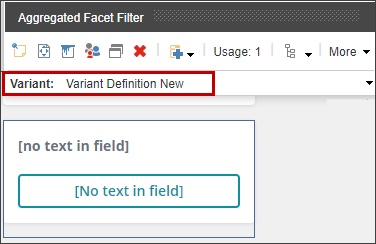
4. On the ribbon, click **Save**.
5. In the Content Editor, go to *sitecore/Content///Presentation/Partial Designs*, right-click **Default Commerce Category Page Content** and click **Publish Item**.
6. In the **Publish Item** dialog box, select the publishing options, and click **Publish**.