---
title: "Getting started with Managed Cloud Standard"
slug: "getting-started-with-managed-cloud-standard"
abstract: "How to access resources provided by Managed Cloud Standard for Sitecore."
---
# Getting started with Managed Cloud Standard
This topic describes how to access resources provided by Managed Cloud Standard for Sitecore.
Access services and credentials
When you have a deployment of Managed Cloud Standard, you can access the resources created by the Managed Cloud environment. Go to Azure Key Vault for all services URLs and credentials.
To view the secrets:
1. In the Azure portal, navigate to the Key Vault resource. Go to resource group `{infrastructure_id}` and keyvault `{infrastructure_id}kvt`.
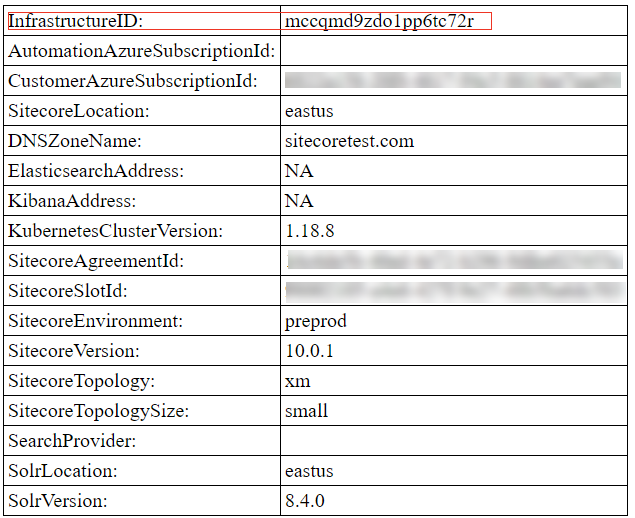
You can find the infrastructure_id in the Sitecore response to your *request environment* ticket in [Sitecore Support & Self-Service Portal](https://support.sitecore.com/):
2. Request access to the Azure Key Vault for your account. To do this, you must be a DevOps persona user. You can request to be added as a DevOps engineer persona by adding a *Get Access (User)* service request in Sitecore Support & Self-Service Portal.
3. To view the secrets, go to **Settings** and click **Secrets**.
Access Sitecore
To access Sitecore Content Management:
1. Go to Azure Key Vault, and copy the following values:
- `sitecore-cm-host-name`
- `sitecore-admin-username`
- `secret sitecore-admin-password`
2. In a browser, enter: `https://{sitecore-cm-host-name}/sitecore/`.
3. On the login page, use the `sitecore-admin-username` and `sitecore-admin-password` values.
Access Kibana
Kibana is an open-source data visualization tool used for log analytics. You can use Kibana to see the Managed Cloud containers logs.
To access the Kibana instance:
1. Go to Azure Key Vault, and copy the following values:
- `logging-kibana-address`
- `logging-elasticsearch-admin-username`
- `logging-elasticsearch-admin-password`
2. In a browser, enter: `//{logging-kibana-address}`.
3. On the login page, use the `logging-elasticsearch-admin-username` and `logging-elasticsearch-admin-password` values.
4. Go to Kibana, and click **Discover** to see the logs from Managed Cloud Containers.
Access Grafana
Grafana is open-source visualization and analytics software that lets you query and visualize your time-series database data. You can use Grafana to view the [Managed Cloud Containers metrics dashboards](https://doc.sitecore.com/xp/en/developers/102/managed-cloud/import-and-export-your-grafana-dashboards.html "Import and export your Grafana dashboards").
To access the Grafana instance:
1. Go to Azure Key Vault, and take the following value:
- `grafana-host-name`
2. In a browser, enter `https://{grafana-host-name}`
3. To find the Managed Cloud Containers metrics dashboards, click **Dashboard**.
Access the Sitecore license
To access the Sitecore license:
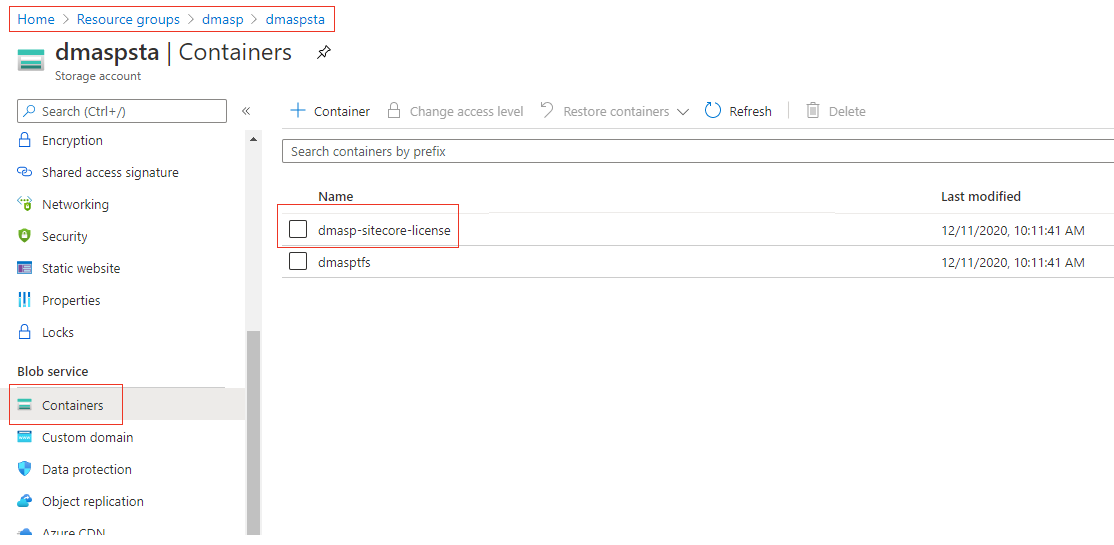
1. On the Azure portal menu, click **All services**. In the list of resources, type **Storage Accounts**.
2. Go to **Resources**, `{infrastructure_id}`, and click `{infrastructure_id}sta`.
3. Go to **Containers** and click `{infrastracture-id}lsc`.
> [!note]
> The Sitecore license is stored in base64 format.
Access Searchstax Solr instance
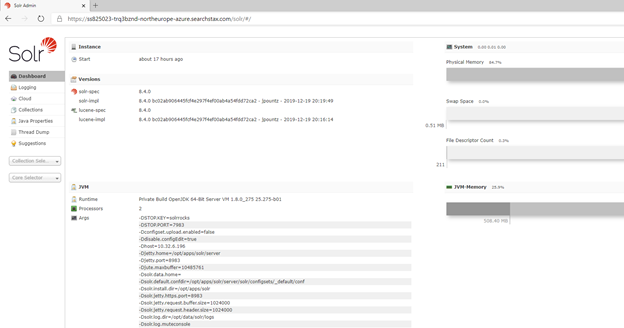
Searchstax helps you to manage, monitor, and scale the Apache Solr search engine in public and private cloud environments.
To access the Searchstax Solr instance:
1. Go to the Azure Key Vault and copy the following value:
- `external-solr-endpoint`
The connection string is represented in the following format: `https://user:password@{solr-url}/solrcloud=true`
Copy the user and password values.
2. In a browser, enter the `external-solr-endpoint` value but replace `solrcloud=true` with a trailing slash.
3. Enter the user and password that you copied earlier.
View the Terraform State file
Terraform state is used to map your infrastructure to the resources that you define in your Terraform configuration. The State file keeps track of which resource configuration maps to which real-world resource.
> [!warning]
> You must not change the Terraform State file.
To view the Terraform State file:
1. On the Azure portal menu, click **All services**. In the list of resources, type **Storage Accounts**.
2. Go to **Resources**, `{infrastructure_id}`, and click `{infrastructure_id}sta`.
3. Go to **Containers** and click `{infrastracture-id}tfs`
Access Azure DevOps
To access Azure DevOps:
1. Go to `https://dev.azure.com` and log in.
2. Go to the organization `{infrastructure_id}` and click the project `{infrastructure_id}`.
Access the Azure Kubernetes Service
Azure Kubernetes Service (AKS) is the quickest way to use Kubernetes on Azure.
To access AKS:
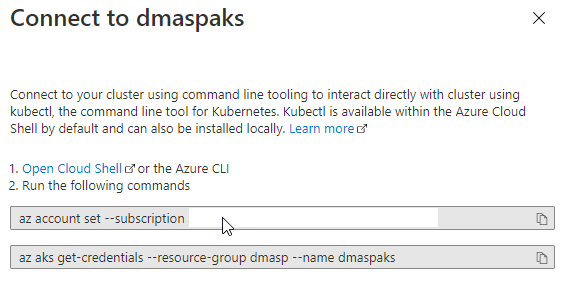
1. Go to **Resources**, `{infrastructure_id}`, and find the Azure Kubernetes Service named: `{infrastructure_id}aks`.
2. Click **Connect** and follow the instructions in the right-hand panel.
Access Azure Front Door
Azure Front Door is an Application Delivery Network (ADN) as a service.
To access Azure Front Door:
- Go to **Resources**, `{infrastructure_id}`, and find the Azure FrontDoor named: `{infrastructure_id}fdr`.