---
title: "Getting started with Sitecore IP Geolocation Service"
slug: "getting-started-with-sitecore-ip-geolocation-service"
abstract: "Introducing a dynamic tool for personalizing user experience and an invaluable research and campaign tool for marketers."
---
# Getting started with Sitecore IP Geolocation Service
If you are a marketer or a developer, and are interested in using the Sitecore IP Geolocation service with your Sitecore installation, then this article is intended for you.
With the Sitecore IP Geolocation services, visitors to your website benefit from a more enhanced, personalized experience with the many tools and activities that marketers can also benefit from.
With IP Geolocation you can set up personalization for different geographical regions and view reports pertinent to those locations. For visitors to your website, you can identify their:
- Time zone
- Longitude and latitude
- Country
- Region
- Metro code
- City
- Post code
- Business name
- DNS address
- IP address
- ISP name
Personalize site pages for visitors from different regions
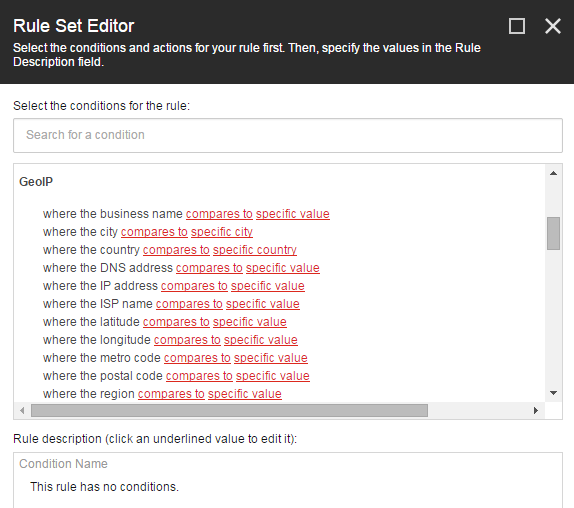
IP Geolocation is particularly useful for targeted marketing. You can set up personalization on pages by using the Rule Set Editor for IP Geolocation.
Fine tune tracking for Goals and Page Events
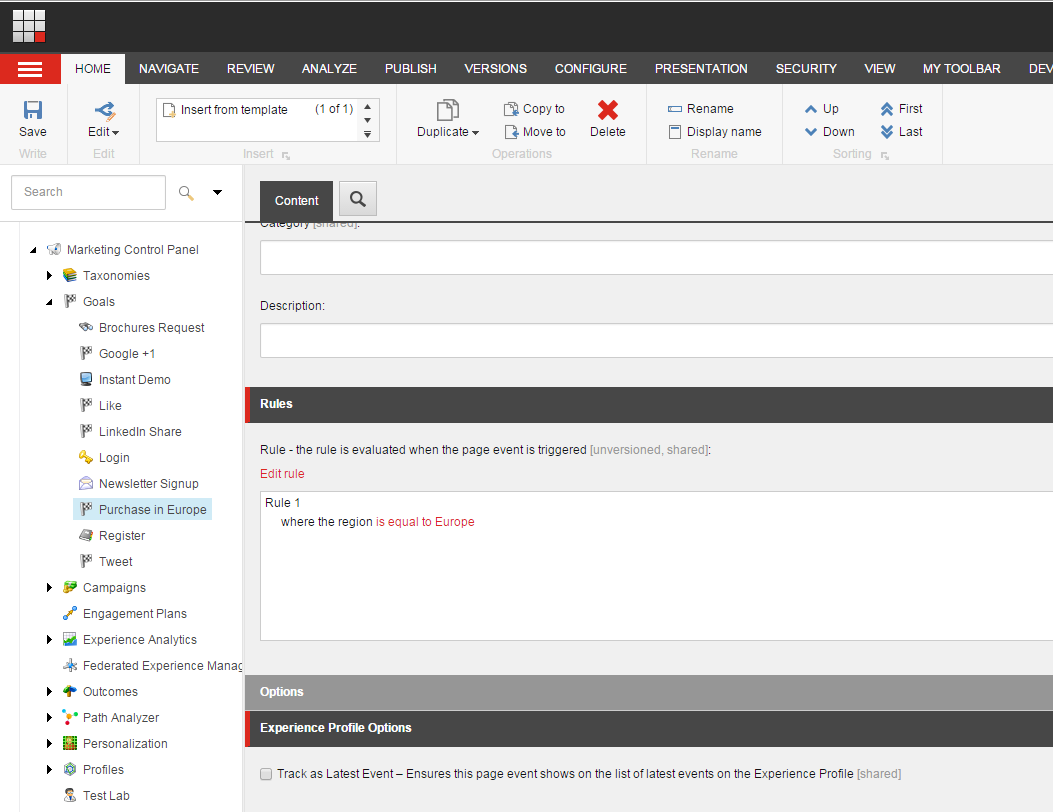
Another example of targeted marketing is that you can trigger goals and [page events](https://doc.sitecore.com/xp/en/users/102/sitecore-experience-platform/configure-a-page-event-to-appear-in-the-experience-profile.html) if a visitor from a certain location visits your website pages. You just apply the same rules that you use when creating a goal. Note that the goal in the screenshot below would only be triggered if the visitor came from Europe.
Define conditions in Marketing Automation plans
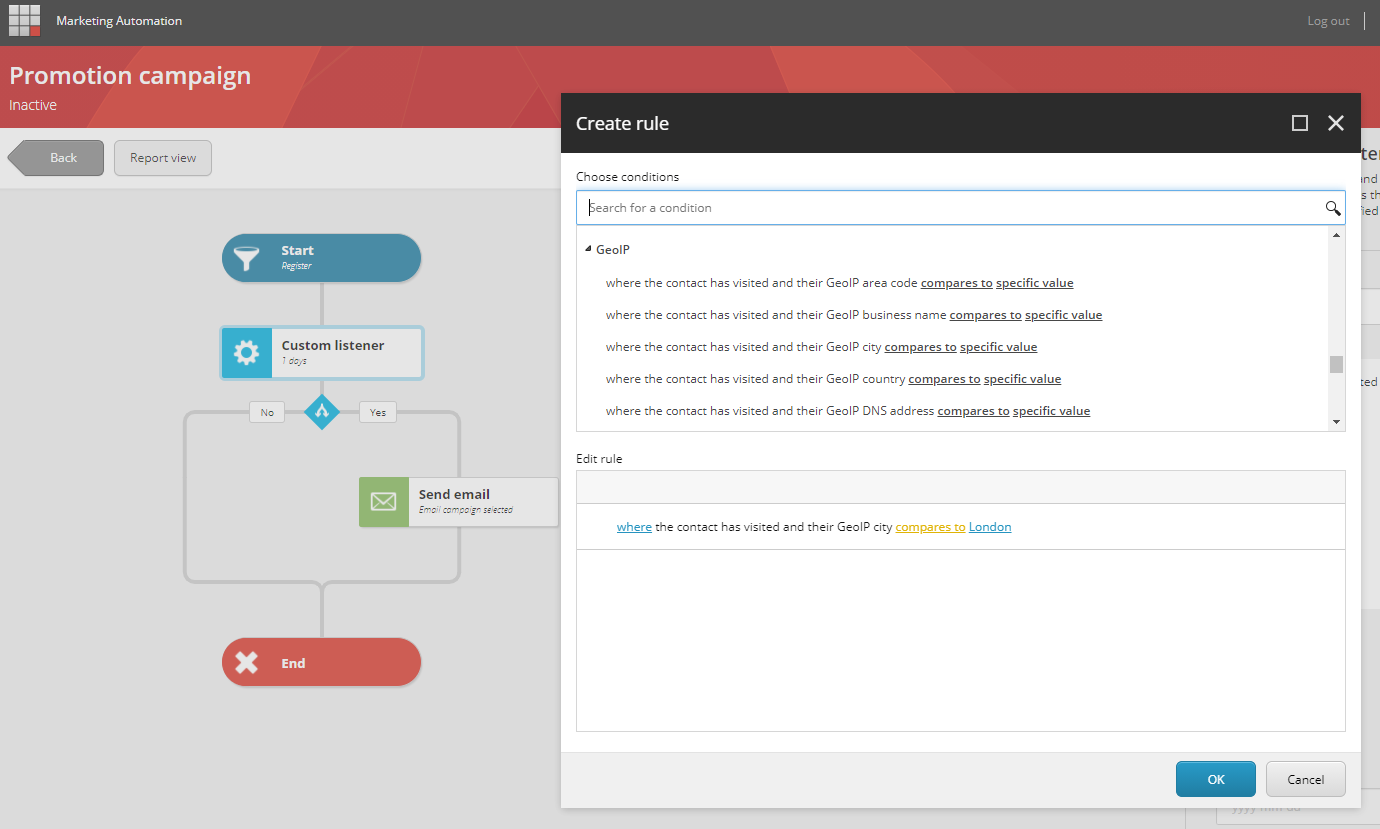
Marketers can apply geolocation conditions in their Marketing Automation plans. For example, a marketer can choose to send an email only to the customers in or from London.
Geographically segment contact lists
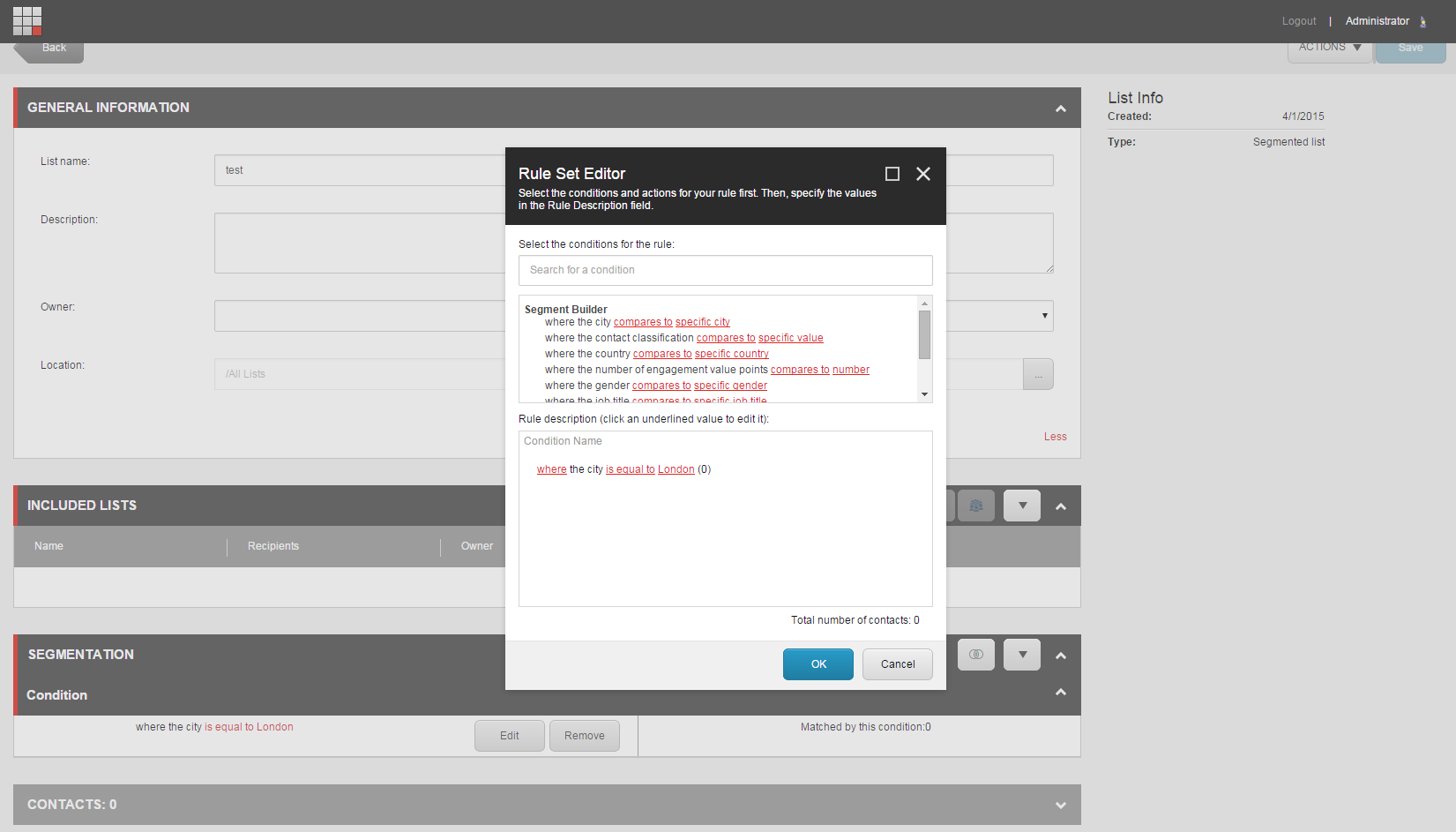
You can also segment your lists by establishing rule sets, for example by location, gender, engagement value points, and so on.
See geolocation reports
By using the *Experience Analytics* tool, you can also generate reports from tracked visitor locations, giving you a better overview of the behavior of visitors at different locations.
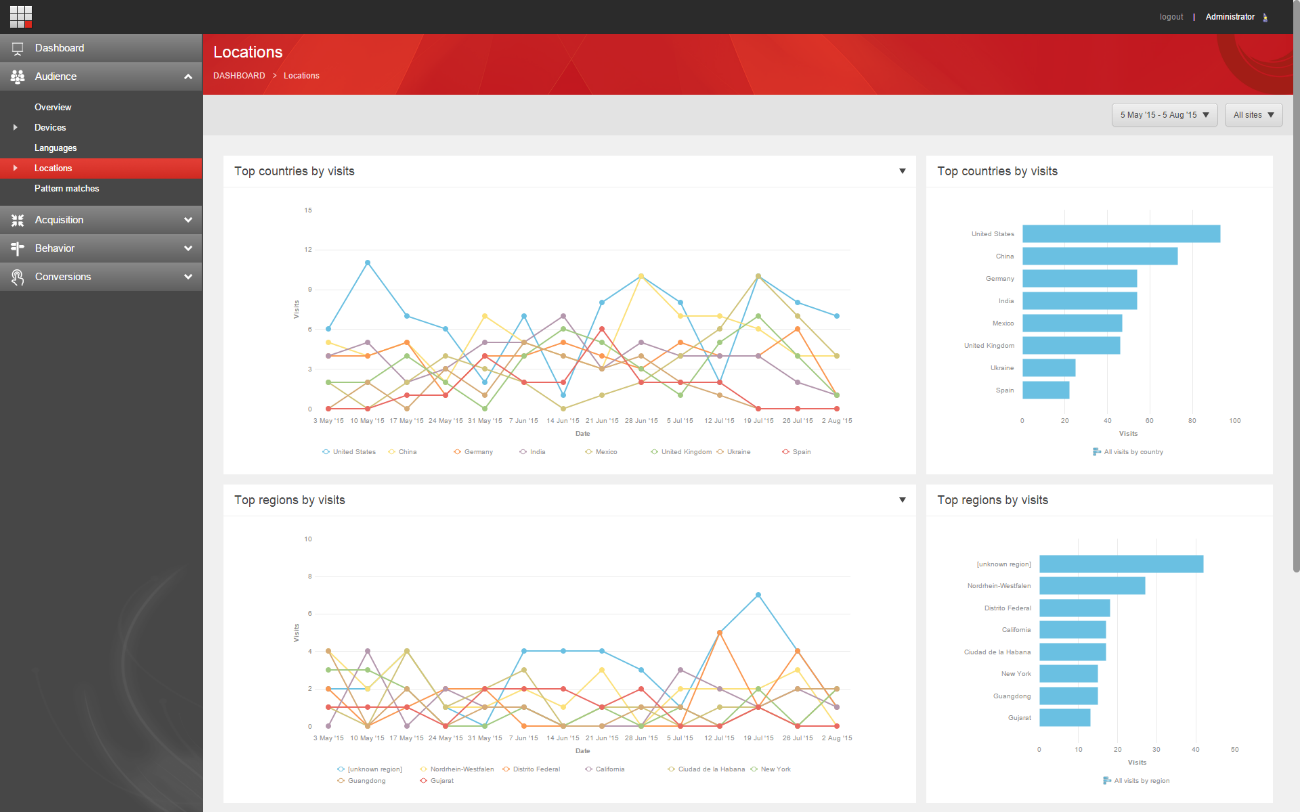
Find geolocation details in contact experience profiles
Using the Sitecore IP Geolocation Service, you can gather geolocation details of the visitor such as the country, state, city, and the registered company name to build an [Experience Profile](https://doc.sitecore.com/xp/en/users/102/sitecore-experience-platform/experience-profile.html) for them.