---
title: "Configure Sitecore Power BI health reports"
slug: "configure-sitecore-power-bi-health-reports"
abstract: "Use Power BI to view the enhanced health metrics of your Sitecore solution running on Azure."
---
# Configure Sitecore Power BI health reports
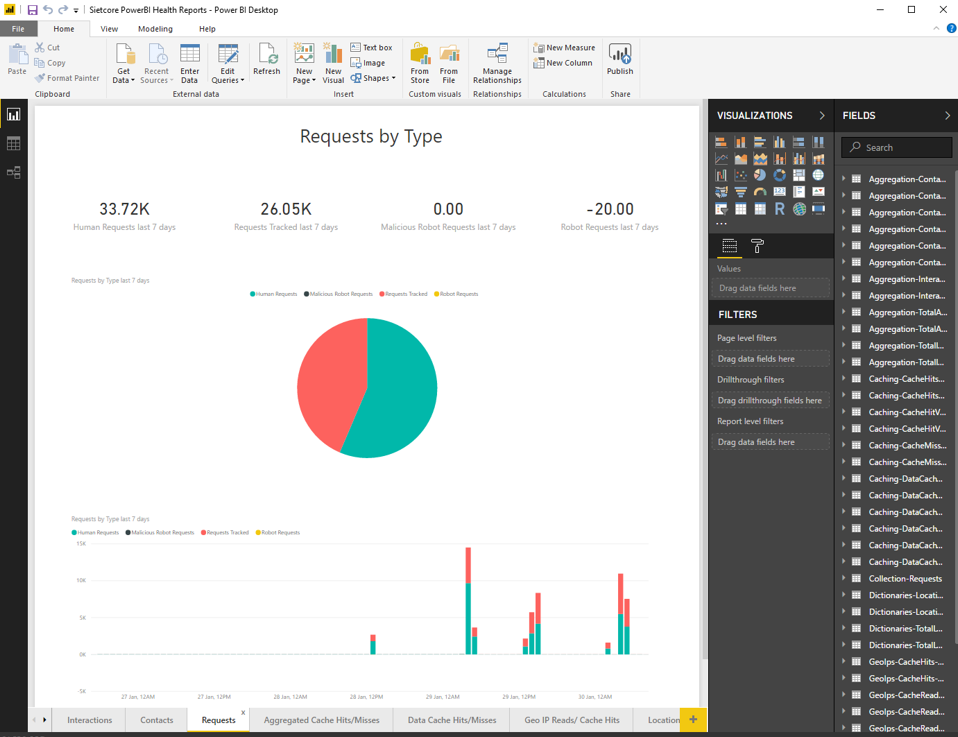
You can use the Power BI Health Reports template with the Sitecore solutions that use the Sitecore Azure Toolkit. The health reports provide summaries of the metrics for your Sitecore solution, including:
- Interactions and errors when aggregating interactions
- Contacts processed and errors when processing contacts
- Requests by type
- Cache hits and misses
Prerequisites
Before you can use the Sitecore Power BI Heath Reports template and configure the reports to extract information from your Azure subscription, you must have the following:
- The [Microsoft Power BI Desktop app](https://powerbi.microsoft.com/en-us/desktop/).
- The `Sitecore Power BI Health Reports.pbit` file (available from [dev.sitecore.net](https://dev.sitecore.net/Downloads/Sitecore_Azure_Toolkit/))
- A Sitecore installation running on the Microsoft Azure subscription
Connect the template file to Azure Application Insights
To view the metrics in your Power BI health reports, you must connect your `Sitecore Power BI Health Reports.pbit` file to the Microsoft Power BI desktop application.
To connect the template file to your Azure Application Insights:
1. In the **PowerBI** application, to open the `Sitecore Power BI Health Reports.pbit` file, double-click the file or click **File open**.
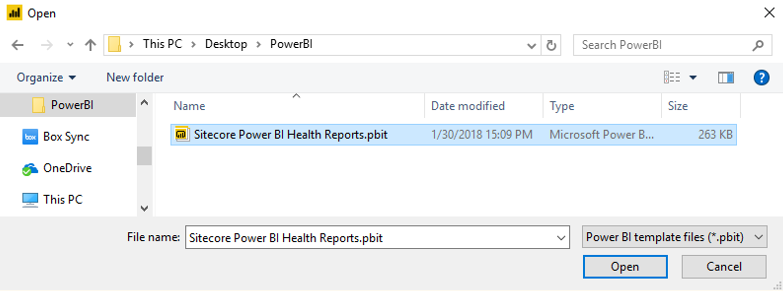
Power BI requests the application ID (AppId) of the Azure Application Insights that you want to report on.
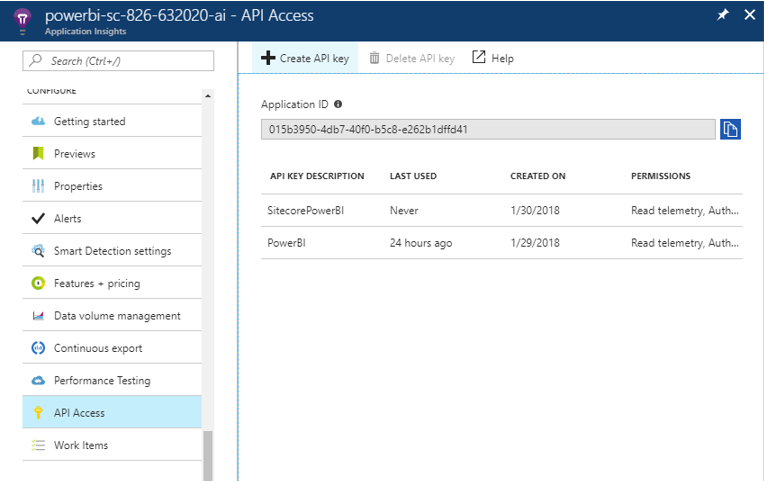
2. To locate the Application ID, log in to the Azure portal and select the relevant subscription.
3. Open the **Application Insights** instance.
4. In the menu, under **Configure**, expand the **API Access** tab.
5. To copy the Application ID, click the blue icon  to the right of the **Application ID** field.
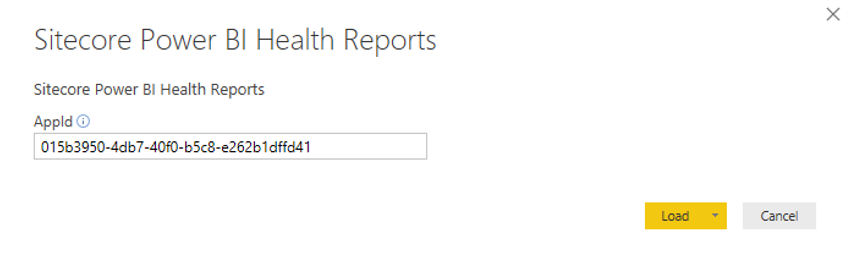
6. In Power BI, paste the Application ID into the **AppId** field, and click **Load**.
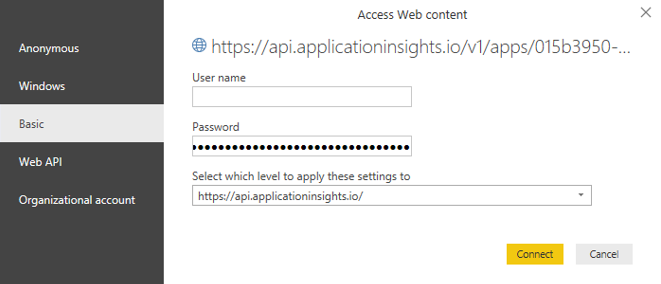
7. Power BI prompts you for authentication. The default authentication is Anonymous, however, you must change it to Basic.
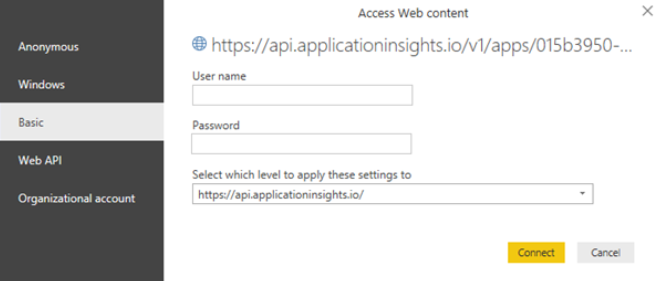
Generate a password using the Azure portal
Next, you must generate the password using the Azure portal:
1. Log in to the Azure portal.
2. Select the relevant subscription.
3. Open the **Application Insights** instance.
4. In the menu, under **Configure**, expand the **API Access** tab.
5. Click **Create API key**.
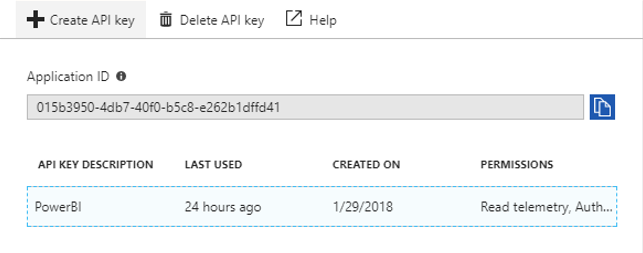
6. Enter a name for the key and select the **Read telemetry** and **Authenticate SDK control channel** check boxes.
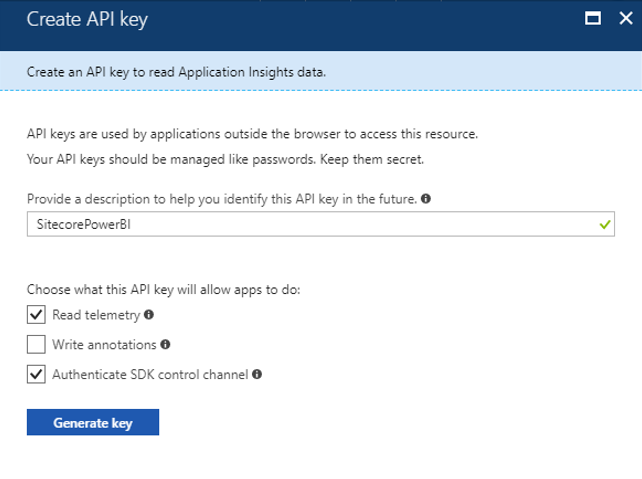
7. Click **Generate Key**. Azure assigns a key for you to use as a password in the **Basic** authentication dialog box.
8. To copy the key, click the blue icon to the right of the **Key** field.
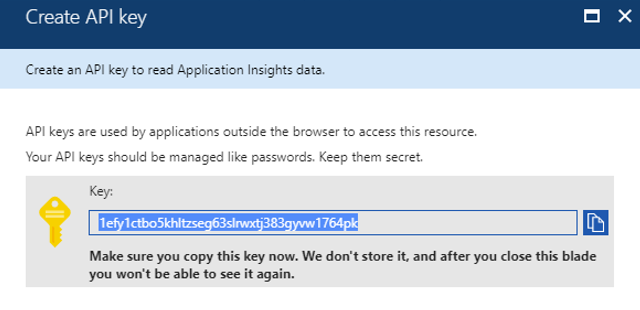
> [!note]
> Microsoft does not store the key; therefore, it is a good idea to paste the key into a text file so that you have access to it later.
9. In the **Access Web content** dialog box, paste the key into the **Password** field and click **Connect**.
View the health reports
To view the metrics of your Sitecore installation:
- In your Power BI desktop, click the tabs at the bottom of the page to access the following Power BI health reports:
- Interactions
- Contacts
- Requests
- Aggregated Cache Hits/Misses
- Data Cache Hits/Misses
- Geo IP Reads/Cache Hits
- Locations