---
title: "Walkthrough: Creating a custom form element"
slug: "walkthrough--creating-a-custom-form-element"
abstract: "How to build a custom form element."
---
# Walkthrough: Creating a custom form element
Sitecore Forms comes with default form elements that you can drag onto your form. To build a custom form element, you create:
- A new field template.
- A new class that derives from the `FieldViewModel` class (for [Simple field types](https://doc.sitecore.com/xp/en/developers/103/sitecore-experience-manager/the-simple-field-types.html "The simple field types") such as an integer field or a multi-line text field ) or from the `ListViewModel` class (for [List field types](https://doc.sitecore.com/xp/en/developers/103/sitecore-experience-manager/the-simple-field-types.html "The simple field types") such as a drop-down list).
- A razor view file.
- A field type item that uses the razor view file to do the rendering.
You can also [add custom validation](https://doc.sitecore.com/xp/en/developers/103/sitecore-experience-manager/walkthrough--creating-custom-validation.html "Walkthrough: Creating custom validation") to elements.
This walkthrough takes you through the steps to create a custom form element for a video. It describes how to:
- Create a field template
- Create a new class
- Create a razor view file
- Create the sections for the Form elements pane
- Configure the field editor parameters
- Create the field type item
- Enable the custom field type for operators
Create a field template
A Sitecore template defines form elements. To create a new element, first create a field template.
To create a field template:
1. In the Content Editor, go to `sitecore/Templates` and create a new folder (for example, a folder called *Fields*).
2. In the content tree, click the new folder and, on the **Folder** tab, click **New Template**.
3. On the **Select name** page, in the **Name** field, enter a name for the template and, in the **Base template** field, select the **Field** template (`Templates/System/Forms/Fields/Field`) and then click **Next**.
4. On the **Location** page, select the folder where you want to store the template, click **Next**, and then click **Close**.
5. In the content tree, with the new template selected, click the **Builder** tab.
6. Add the following template fields:
- URL (Single-Line Text)
- Width (Integer)
- Height (Integer)
7. For each template field, on the **Content** tab in the **Data** section, select the **Shared** check box and, in the **Message** dialog box, confirm your change.
8. In the content tree, click the new template and, on the ribbon, click the **Options** tab, and then click **Standard values**.
9. On the ribbon, click **Save** to save the template.
> [!note]
> It is important to create standard values for the field templates because the standard values are used as the default field values when the field is added from the form elements pane to the form canvas. If a field template does not have standard values, you cannot drop the element onto the form.
Create a new class
Next, create the logic for the View model by creating a new class that derives from the `FieldViewModel` class. To create a custom element by customizing an existing form element and extending its functionality, you must inherit from the respective element class. For example, if you want to create a new list element, you can inherit from the `ListViewModel` class.
> [!note]
> You control how the form element displays by arranging the HTML and inserting your own CSS classes.
To add the new class:
1. In Visual Studio, create a new class library project (for example, *FormsDemo*).
2. Add the `FieldViewModel` class. For example, add the `VideoViewModel` class:
`public class VideoViewModel : FieldViewModel`
> [!note]
> The models of the posted fields are stored in session state. They must be marked `[Serializable]` in order to be stored.
3. Add the properties. For example, add the *Url*, *Width*, and *Height*.
```csharp
namespace FormsDemo
{
[Serializable]
public class VideoViewModel : FieldViewModel
{
public string Url { get; set; }
public int Width { get; set; }
public int Height {get; set;}
protected override void InitItemProperties(Item item)
{
// on load of the form
base.InitItemProperties(item);
Url = StringUtil.GetString(item.Fields["Url"]);
Width = MainUtil.GetInt(item.Fields["Width"]?.Value, 0);
Height = MainUtil.GetInt(item.Fields["Height"]?.Value, 0);
}
```
4. Override the `InitItemProperties` and the `UpdateItemFields` methods.
```csharp
protected override void InitItemProperties(Item item)
{
// on load of the form
base.InitItemProperties(item);
Url = StringUtil.GetString(item.Fields["Url"]);
Width = MainUtil.GetInt(item.Fields["Width"]?.Value, 0);
Height = MainUtil.GetInt(item.Fields["Height"]?.Value, 0);
}
protected override void UpdateItemFields(Item item)
{
// upon save
base.UpdateItemFields(item);
item.Fields["Url"]?.SetValue(Url, true);
item.Fields["Width"]?.SetValue(Width.ToString(CultureInfo.InvariantCulture), true);
item.Fields["Height"]?.SetValue(Height.ToString(CultureInfo.InvariantCulture), true);
}
```
5. Build the project and deploy the `FormsDemo.dll` to the Sitecore website bin folder.
Create a razor view file
After you've created the new class, the next step is to create a razor view file to embed a template into your form, in this example, a video element.
To create a razor view file:
1. For example, for the video element, create the `Video.cshtml` razor view file:

2. Add the razor view file to the new class library project that you created earlier. The default razor view files for Sitecore Forms are stored in: `Website/Views/FormBuilder/FieldTemplates`. For example, add the `Video.cshtml` file to the *FormsDemo* folder and save.

Create the sections for the Form elements pane
> [!note]
> For the example in this walkthrough, you must have the Sitecore Rocks Visual Studio plugin. The plugin is compatible with Visual Studio 2019 or earlier.
Now you can add the sections that appear in the Form elements pane. For example, the Single-line text element contains the following sections: **Details**, **Validation**, **Styling**, and **Advanced settings**.
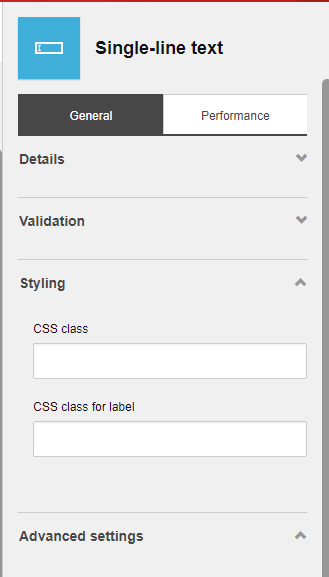
In this example, for the video element, we want the user to be able to set the Field name, URL, Width, and Height properties.
To add sections to the Form elements pane:
1. In Sitecore Rocks, expand the core database and right-click the *Settings* folder that contains the layout parameters for all field property editors: `/sitecore/client/Applications/FormsBuilder/Components/Layouts/PropertyGridForm/PageSettings/Settings`
2. Click **Add**, and click **New item**.
3. In the **Add New Item** dialog box, search for and click the *Form Parameters* template, enter a name, for example, *Video*, and click **OK**.
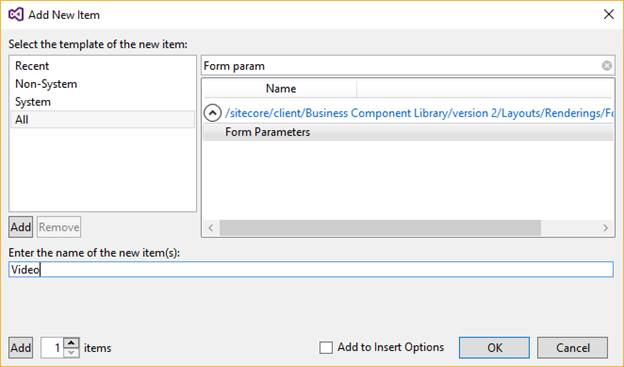
4. Right-click the *Video* item that you just created and click **Add**, **New item**.
5. To add the new sections for your custom element, search for and click the *FormSection* template.
> [!note]
> The *FormSection* template is the section visualization template for the Speak form and enables you to reuse rendering parameters for the section and field editors.
6. Enter a name for the new item and click **OK**. For example, enter *Details* to add the **Details** section.
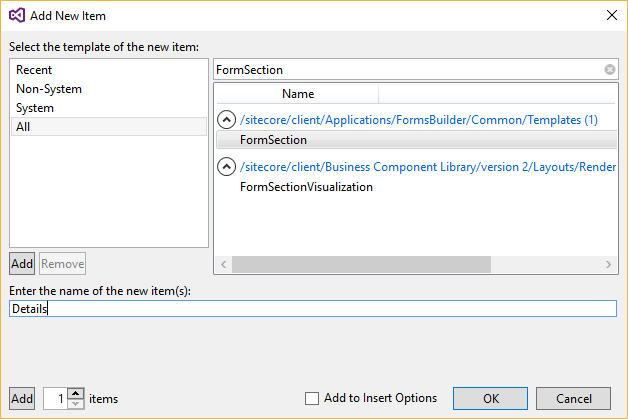
7. Right-click the *Details* item that you just created and click **Add**, **New item**.
For example, to set the FieldName, Width, Height, and URL properties of the video item, you can reuse the *FieldName* item that is used in the out-of-the-box form elements.
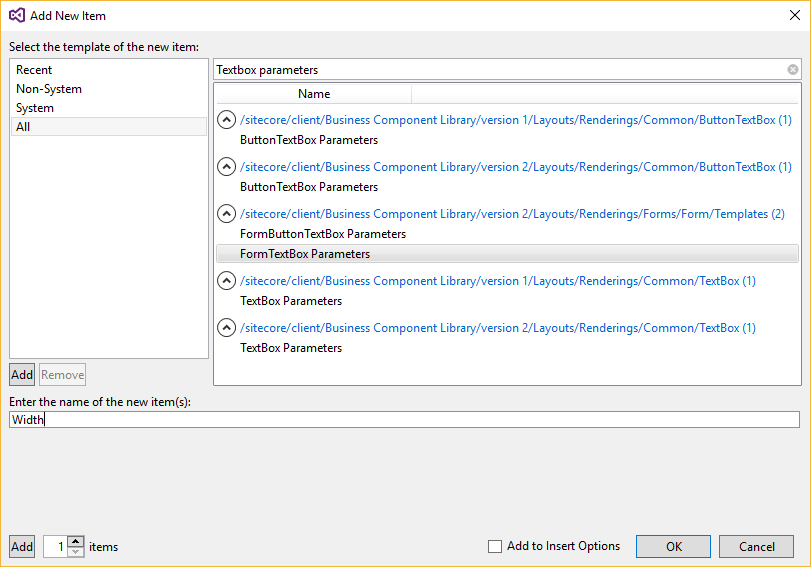
8. Search for and click **FormTextBox Parameters**, enter a name (for example, Width) and click **OK**.
> [!note]
> You must select Speak 2.0 parameters.
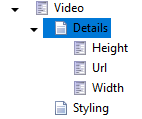
9. Repeat these steps to create all the relevant items, for example, the Height and URL items:
Configure the field editor parameters
Now you must configure the parameters for each newly created field editor. For example, you can set the text and position of the label.
To configure the field editor parameters:
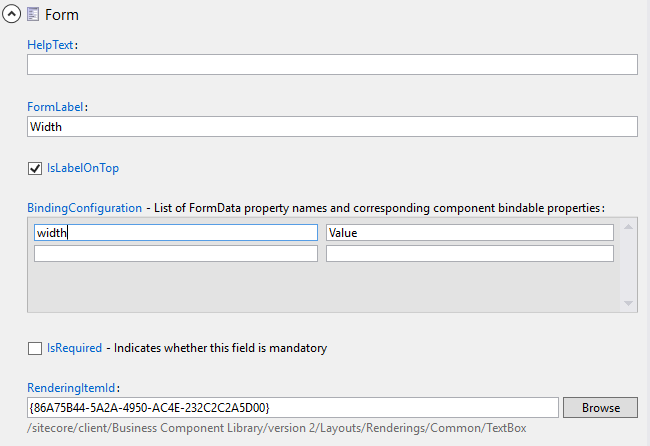
1. Open the *Width* item and go to the **Form** section. Edit the following fields:
- **FormLabel** – specify the textbox label that displays in the **Form elements** pane.
- **IsLabelOnTop** – select to position the label on top of the input. For consistency, we recommend that you select this check box for all field editor properties.
- **BindingConfiguration** – lists the FormData property names and corresponding component bindable properties. The left pane specifies the field model property (note that the property name is in camelCase) and the right pane specifies which editor property to read to update the field model property.
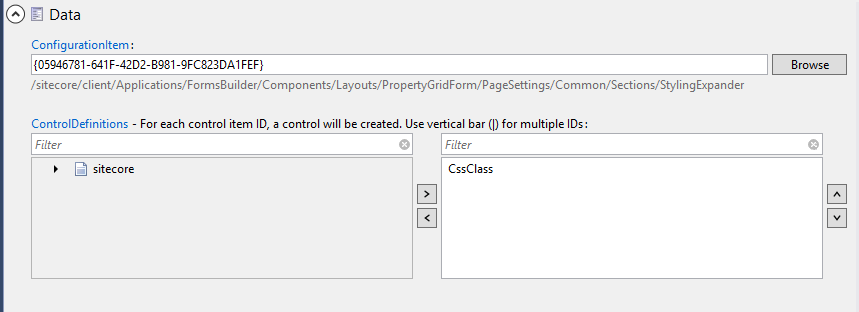
2. In the **Details** section, reference the field editors in the following fields:
- **ConfigurationItem** – specify the parameters for the Speak Expander. You can reuse the `DetailsExpander` item in: `sitecore/client/Applications/FormsBuilder/Components/Layouts/PropertyGridForm/PageSettings/Common/Sections`
- **ControlDefinitions** – specify the field editors that display in the **Form elements** pane, in order of reference. You can reuse the `Fieldname` item in: `/sitecore/client/Applications/FormsBuilder/Components/Layouts/PropertyGridForm/PageSettings/Common/Details`
3. In the **ControlDefinitions** field, click **Fieldname**, and select the Width, Height, and URL items you created earlier.
> [!tip]
> You can copy and modify sections you have already configured from other editors.
4. Create the section item using the *FormSection* template, for example, name it *Styling*.
5. To edit the *Styling* item, in the **Data** section, edit the following fields:
- **ConfigurationItem** – add the reference to the Styling Expander: `/sitecore/client/Applications/FormsBuilder/Components/Layouts/PropertyGridForm/PageSettings/Common/Sections/StylingExpander`
- **ControlDefinitions** – add the reference to the CSS Class: `/sitecore/client/Applications/FormsBuilder/Components/Layouts/PropertyGridForm/PageSettings/Common/Styling/CssClass`
### Create the field type item
After you have configured the parameters for the field editors, you can now create the custom field type, for example, to enable you to add a video to your form.
To create the field type item:
1. Go to `/sitecore/system/Settings/Forms/Field Types/Basic` folder and add a new item.
2. Base the item on the `/System/Forms/Field Type` template, enter a name and click **Insert**. For example, *Video*.
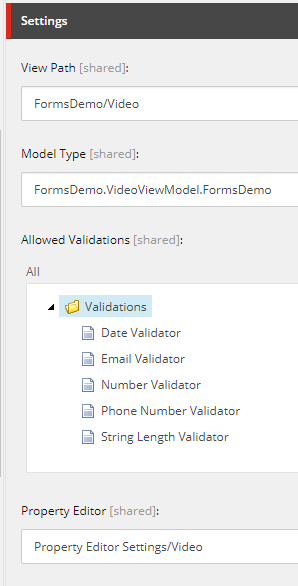
3. Edit the **Settings** section fields:
- **View Path** – specify the path that points to the razor view file. For example, `FormsDemo/Video`.
- **Model Type** – specify the model type that references the class name. For example, `FormsDemo.VideoViewModel,FormsDemo`.
- **Property Editor** – point to the item you created earlier. For example, select the property editor for the *Video* item.
4. In the **Appearance** section, edit the following fields:
- **Icon** – select the icon that will appear in the **Form elements** pane. For example, `OfficeWhite/32x32/videotape.png`.
> [!note]
> To set the icon that appears in the Content Editor, make sure the Standard fields check box is selected, and set the `_Standard Values` icon field value as the corresponding icon from the non-white Office theme *Office/32x32/videotape.png*
- **BackgroundColor** – select the background color for the icon that will appear in the **Form elements** pane. For example, *Sky*.
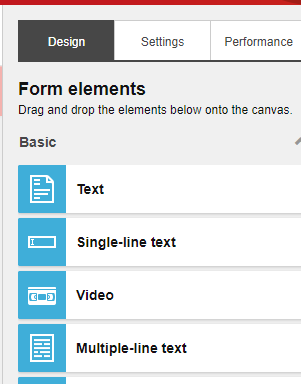
5. In the **Field template** field, specify the field template you created previously. For example, `sitecore/Templates/FormsDemo/Fields/Video`. When you now create a new form, the custom video element is available in the **Form elements** pane:
### Enable the custom field type for operators
If you want to [apply conditional logic](https://doc.sitecore.com/xp/en/developers/103/sitecore-experience-manager/use-conditional-logic-for-your-forms.html "Use conditional logic for your forms") to the new field type, you first need to enable it for the relevant operators. Otherwise, when you edit conditions for the field type, the list of operators will be empty.
To register the custom field type:
1. In the Master database, open the `/sitecore/system/Settings/Forms/Meta Data/Conditions/Operators` root.
2. In the tree, select the operator you want to update.
3. In the **Allowed Field Types** section, add the new field.