---
title: "Create a custom condition and segmentation query"
slug: "create-a-custom-condition-and-segmentation-query"
abstract: "How to create a custom condition and segmentation query that are used by the List Manager and Marketing Automation Engine."
---
# Create a custom condition and segmentation query
You can create a custom condition and segmentation query to identify contacts and enroll them into a marketing automation plan. In the following example, Sitecore:
- Segments customers by preferred cinema in order to send them the most relevant promotions each week. For example, customers who visit the Sitecore City cinema can get 3-for-2 on tickets for the upcoming Classic Films Festival.
- Changes the path a customer takes through automation plans based on their preferred cinema. For example, customers who are enrolled in the Free Popcorn plan will receive a coupon for a bar of chocolate if East Sitecore is their preferred cinema. The East Sitecore cinema accidentally ordered 20,000 bars of chocolate instead of 2000.
In this example, you create a single class, sometimes referred to as a *predicate*, that implements the following interfaces:
- The `ICondition` implementation is used by the Marketing Automation Engine.
- The `IContactSearchQueryContext` implementation is used by the List Manager to create a segmented list.
> [!note]
> In most cases it makes sense to create both a condition and a segmentation query. However, if you are targeting data that is specific to a contact - such as a membership ID - it does not make sense to create a segmentation query. In this case, do not implement `IContactSearchQueryContext`.
This example demonstrates how to create a custom condition and segmentation query class that returns true if the following conditions are met:
- The contact has at least one interaction.
- The supplied cinema name matches the contact’s preferred cinema.
> [!note]
> The Sitecore personalization engine uses a different implementation of [condition](https://doc.sitecore.com/xp/en/users/103/sitecore-experience-platform/the-rule-set-editor.html).
Create and deploy the CinemaDetails facet
You must [create a custom facet](https://doc.sitecore.com/xp/en/developers/103/sitecore-experience-platform/create-a-custom-facet.html "Create a custom facet"), for example the CinemaDetails facet, and deploy it for use in the condition class.
To create and deploy the CinemaDetails facet:
1. Create a class that inherits Sitecore.XConnect.Facet.
```csharp
using System;
using System.Linq.Expressions;
using Sitecore.Framework.Rules;
using Sitecore.XConnect;
using Sitecore.XConnect.Segmentation.Predicates;
namespace Documentation.Examples
{
// Contact facet that stores contact's preferred cinema name
[Serializable]
public class CinemaDetails : Facet
{
public const string DefaultFacetKey = "CinemaDetails";
public string PreferredCinema { get; set; }
}
}
```
2. Implement and register a [collection model](https://doc.sitecore.com/xp/en/developers/103/sitecore-experience-platform/create-a-custom-model.html "Create a custom model").
3. [Deploy](https://doc.sitecore.com/xp/en/developers/103/sitecore-experience-platform/deploy-a-custom-model.html "Deploy a custom model") the collection model.
Create a condition class
Now that you have created the CinemaDetails facet, you need to create a condition class with the condition logic that uses the custom facet.
To create a condition class:
- Create a class that inherits `ICondition` and `IContactSearchQueryFactory` as shown in the following code sample:
> [!important]
> You must use the `InteractionsCache` facet rather than the `contact.Interactions` property because joins are not supported by all search providers.
```csharp
using System;
using System.Linq.Expressions;
using Sitecore.Framework.Rules;
using Sitecore.XConnect;
using Sitecore.XConnect.Segmentation.Predicates;
using Sitecore.XConnect.Collection.Model;
using System.Linq;
namespace Documentation.Examples
{
public class PreferredCinemaMatches : ICondition, IContactSearchQueryFactory
{
public string PreferredCinema { get; set; }
// TIP: There are other operation types in theSitecore.XConnect.Segmentation.Predicates namespace
public StringOperationType Comparison { get; set; }
// Evaluates condition for single contact
public bool Evaluate(IRuleExecutionContext context)
{
var contact = context.Fact();
return Comparison.Evaluate(contact.GetFacet(CinemaDetails.DefaultFacetKey)?.PreferredCinema, PreferredCinema)
&& contact.Interactions.Any();
}
// Evaluates contact in a search context
// IMPORTANT: Use InteractionsCache() facet rather than contact.Interactions as some search providers do not provide joins.
public Expression> CreateContactSearchQuery(IContactSearchQueryContext context)
{
return contact => Comparison.Evaluate(contact.GetFacet(CinemaDetails.DefaultFacetKey).PreferredCinema, PreferredCinema)
&& contact.InteractionsCache().InteractionCaches.Any();
}
}
}
```
Create a condition descriptor
The condition descriptor defines the condition type and associated text. Sitecore users can then search for the condition text in the List Manager and Marketing Automation user interfaces.
To create a condition descriptor:
1. Deploy the custom condition and segmentation query DLL to all core roles - Content Management, Content Delivery, and xDB Processing.
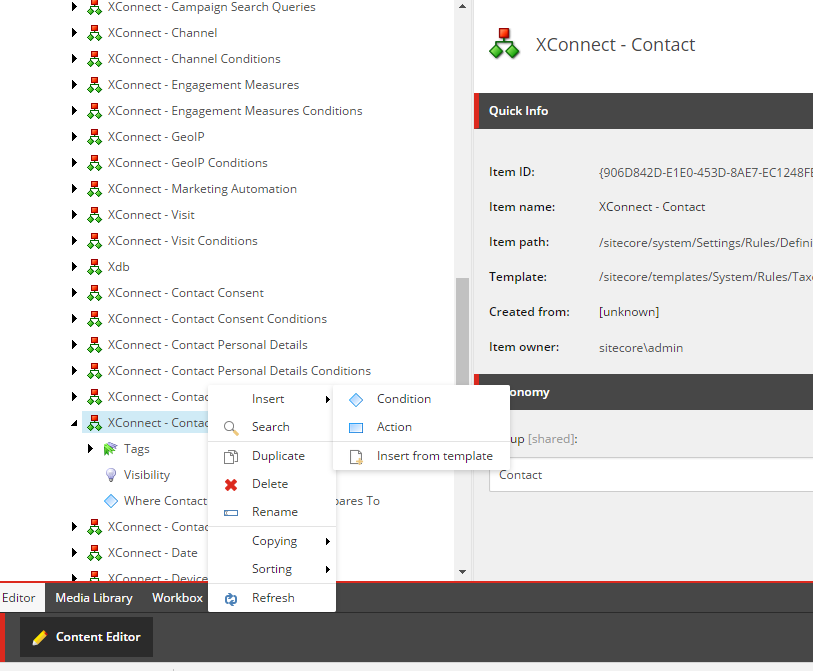
2. Choose a location for your condition under */sitecore/system/Settings/Rules/Definitions/Elements* - for example, */sitecore/system/Settings/Rules/Definitions/Elements/XConnect - Contact Personal Details*.
> [!note]
> The location of your condition determines which user interfaces the condition is available in.
3. Create a condition using the following template */sitecore/Templates/System/Rules/Condition template*:
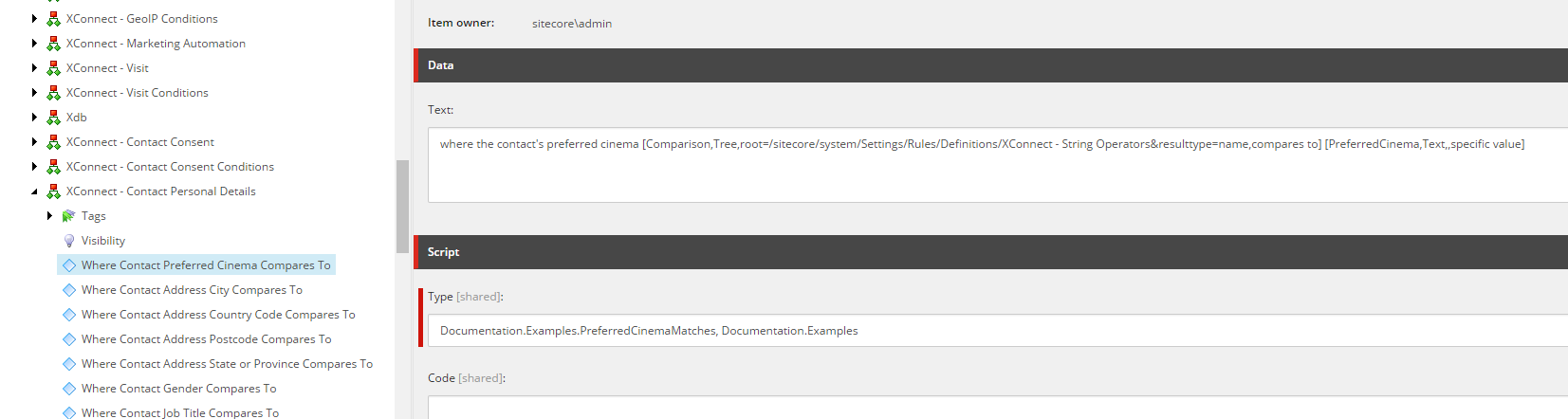
4. Specify the **Type** and **Text** fields as shown in the following example. In this example, we are using a string comparison:
Create a section in the List Manager for custom segmentation rules
To make it easier to find custom rules when creating a segment, you can create a section for them that is displayed in the **Create rule** dialog box.
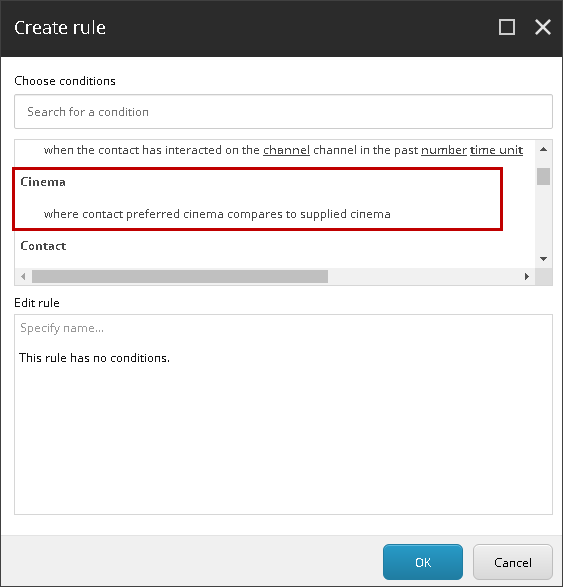
To create a section in the List Manager for custom segmentation rules:
1. Go to the */sitecore/System/Settings/Rules/Definitions* item in your Master database.
2. Right-click the *Element* folder and then click **Insert, Element Folder**.
3. In the **Message** dialog box, enter a name for the folder and click **OK**.
4. Expand the newly created *Element* folder and go to the `Tags/Default` item.
5. Select the *Default* item then on the **Content** tab, in the **Taxonomy** section, in the **Tags** field, double-click the **xConnect – Search Query** tag to move it to the **Selected** list.
6. Save your changes.
> [!note]
> The custom section is only displayed when it contains at least one rule.
Configure the Marketing Automation Engine
The Marketing Automation Engine requires a copy of the condition and segmentation query DLL in order to evaluate contacts against your custom condition.
> [!note]
> In the context of the Marketing Automation Engine, the combination of a condition and segmentation query is referred to as a *predicate* in configuration.
To configure the Marketing Automation Engine:
1. Deploy your condition and segmentation query DLL to the Marketing Automation engine.
2. Create a configuration file with the following XML and add it to `C:\path\to\xconnect\App_data\jobs\continuous\AutomationEngine\App_Data\Config\sitecore\Segmentation`. The `id` node must match the ID of the condition item in Sitecore.
```xml
{E9046292-BF68-4733-9FD4-10A74FB45E50}
Documentation.Examples.PreferredCinemaMatches, Documentation.Examples
```
> [!note]
> Default predicates are defined in the `sc.XConnect.Segmentation.Predicates.Model.xml` configuration file.