---
title: "Walkthrough: Using Apache Tika to extract media content for indexing"
slug: "walkthrough--using-apache-tika-to-extract-media-content-for-indexing"
abstract: "How to use Apache Tika, a content analysis toolkit, to extract media content for indexing."
---
# Walkthrough: Using Apache Tika to extract media content for indexing
You can use [Apache Tika](https://tika.apache.org) to extract media content for indexing as an alternative [to the other ways](https://doc.sitecore.com/xp/en/developers/104/platform-administration-and-architecture/index-content-of-media-files.html "Index content of media files") to do this.
This walkthrough describes how to:
- [Set up Apache Tika](https://doc.sitecore.com/xp/en/developers/104/platform-administration-and-architecture/walkthrough--using-apache-tika-to-extract-media-content-for-indexing.html#UUID-bf49e260-f918-e81c-156f-31cfbc6ad9a1_section-idm231868677637768 "Set up Apache Tika")
- [Make Apache Tika the primary media content extraction provider](https://doc.sitecore.com/xp/en/developers/104/platform-administration-and-architecture/walkthrough--using-apache-tika-to-extract-media-content-for-indexing.html#UUID-bf49e260-f918-e81c-156f-31cfbc6ad9a1_section-idm231868677813169 "Make Apache Tika the primary media content extraction provider")
- [Verify that indexing works](https://doc.sitecore.com/xp/en/developers/104/platform-administration-and-architecture/walkthrough--using-apache-tika-to-extract-media-content-for-indexing.html#UUID-bf49e260-f918-e81c-156f-31cfbc6ad9a1_section-idm231868677990347 "Verify that indexing works")
Set up Apache Tika
It is a prerequisite that [you have set up Solr](https://doc.sitecore.com/xp/en/developers/104/platform-administration-and-architecture/walkthrough--setting-up-solr.html "Walkthrough: Setting up Solr") and that Solr is running without problems.
To set up Apache Tika:
1. Download Apache Tika and save the `tika-server-x.x.jar` file to the folder you want to run Tika from.
> [!note]
> Apache Tika 1.22 has reached end-of-life and is no longer supported or actively maintained. If you still need version 1.22, you can download it from the [Apache archive](https://archive.apache.org/dist/tika/1.22/). We strongly recommend using a supported version—Tika 2.9.x (requires Java 8) or Tika 3.x (requires Java 11+)—which include critical security fixes and enhancements.
2. In the folder where you saved the file, open a PowerShell prompt and start Apache Tika:
```text
java -jar tika-server-x.x.jar --host= --port=
```
> [!note]
> If you do not specify `host` and `port`, Apache Tika uses the defaults of *localhost* and *9998*.
3. To confirm that Apache Tika is running, browse to the Tika server URL, `http://:`. If the server is running, you can see a *Welcome* message.
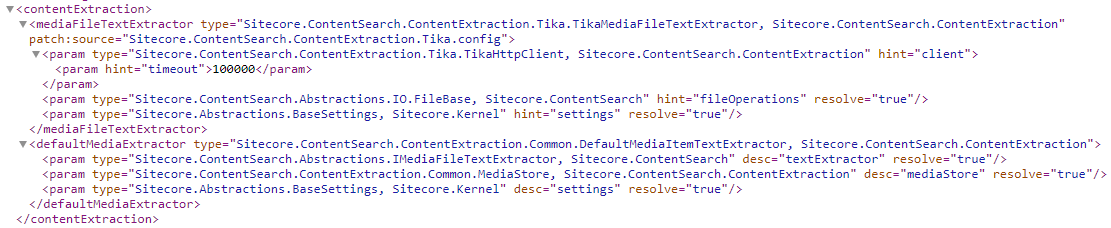
4. Go to the Sitecore Admin page (`https:///sitecore/admin/showconfig.aspx`) and check that `TikaMediaFileTextExtractor` has been added to the `` node:
Make Apache Tika the primary media content extraction provider
You can configure Apache Tika as your primary media content extraction provider.
To enable Apache Tika as the primary media content extraction provider:
1. Open the `App_Config\ConnectionStrings.config` file, and add this connection string:
```text
```
2. Restart Sitecore.
Verify that indexing works
After setting up and enabling Apache Tika, it is a good idea to verify that indexing works correctly.
To verify that indexing works:
1. On the [Sitecore Launchpad](https://doc.sitecore.com/xp/en/users/104/sitecore-experience-platform/overview-of-the-sitecore-launchpad.html), click **Control Panel** and rebuild indexes.
2. In the **Content Editor**, perform a simple search, for example for the *Home* item.