
Install the Sitecore Installation Framework Module
You can install the Sitecore Installation Framework (SIF) module directly with Microsoft PowerShell®, or you can install it manually by downloading the module as a ZIP package.
Install SIF with Microsoft PowerShell
SIF is available from the Sitecore Gallery. The Sitecore Gallery is a public feed where you can download the PowerShell modules created by Sitecore.
To install SIF with PowerShell:
-
To add the repository, in Windows, open PowerShell as an administrator and run the following cmdlet:
-
When you are prompted to add the repository, press Y, and then Enter.
-
To install the PowerShell module, run the following cmdlet:
-
When you are prompted to install the module, press Y, and then Enter.
Update the SIF Module
As new features and bug fixes are periodically released, it is recommended that you update the Sitecore Installation Framework.
This procedure is optional.
To update the Sitecore Installation Framework module:
-
Run the following cmdlet:
If you want to update SitecoreInstallFramework from version lower then 2.4.0 you need to uninstall all previous versions before installing a new version, otherwise you may get a Powershell error related to Authenticode issuer.
Install SIF manually
Sitecore Installation Framework is also provided as a ZIP package. You can download SIF from the Sitecore Downloads page. When you download the package, the ZIP package might be marked as blocked by Microsoft Windows. To continue the installation of SIF, you must first unblock the ZIP package.
Unblock a ZIP package
To unblock a ZIP package:
- In Windows Explorer, navigate to the folder where you downloaded the packages, and right-click the relevant ZIP file.
- Click Properties.
- In the Properties dialog box, on the General tab, click Unblock.
- Click OK.
Extract the Sitecore Installation Framework
The installation path that you use depends on where you want to install Sitecore Installation Framework. You can install it for all users (global path), for a specific user, or to a custom location.
| Usage | Path |
|---|---|
| All users | C:\Program Files\WindowsPowerShell\Modules |
| Specific user | C:\Users\<user>\Documents\WindowsPowerShell\Modules |
| Custom location | Any path |
For example, if you want to make SIF available to all users, extract the Sitecore Install Framework.ZIP package to the following folder:
C:\Program Files\WindowsPowerShell\Modules\SitecoreInstallFramework
Validate the installation
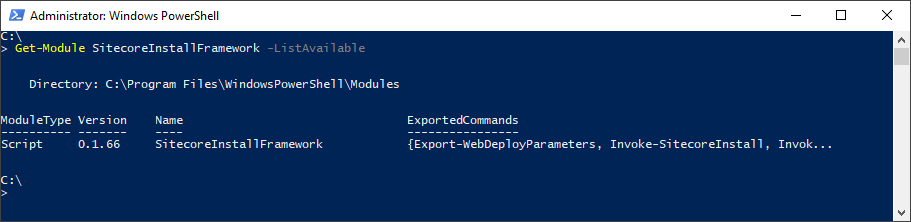
To confirm that SIF is available for use after you install it, you can validate the installation. This procedure is optional.
Validation only works if you have installed SIF for All users (global).
To validate the installation, run the following cmdlet:
Import Sitecore Installation Framework into a PowerShell session
If you have made SIF available to either All users or a Specific user, you do not have to import it, as this is done automatically, and you can immediately use it in a session by running any cmdlet that is available in the PowerShell module.
However, if you have installed SIF to a custom location, you must run the following cmdlet.