---
title: "Enable FIPS"
slug: "enable-fips"
abstract: "How to enable FIPS 140 on a Site server, and how to add encryption for FIPS in a webapp."
---
# Enable FIPS
> [!note]
> The XP service roles, including xConnect, do not support this feature.
If you enable the **Use FIPS compliant algorithms for encryption, hashing, and signing** security policy option in Windows, you must enable the correct cryptographic classes for Sitecore.
This topic describes how to:
- [Enable Sitecore FIPS support](https://doc.sitecore.com/xp/en/developers/91/platform-administration-and-architecture/enable-fips.html#UUID-0e371d23-3fb7-35c1-64d4-48e1b284c43a_section-5cdaa1540ffbe-idm45444636033520 "Enable Sitecore FIPS support")
- [Add encryption for FIPS in a WebApp](https://doc.sitecore.com/xp/en/developers/91/platform-administration-and-architecture/enable-fips.html#UUID-0e371d23-3fb7-35c1-64d4-48e1b284c43a_section-5cdaa16bd64e1-idm45444636123856 "Add encryption for FIPS in a WebApp")
Enable Sitecore FIPS support
To enable the Sitecore FIPS support:
1. Go to the `/Website/bin` folder of your Sitecore instance.
2. Right-click the `Sitecore.Kernel.dll` file and then click **Properties**.
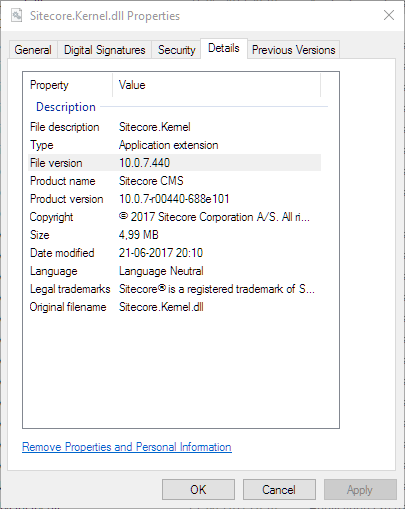
3. On the **Details** tab, note the value of the File version property:
4. Open the `machine.config` file. This file is in different folders on 32- and on 64-bit systems:
- On a 32-bit system, it is in the `%windir%\Microsoft.NET\Framework\\Config\machine.config` folder.
- On a 64-bit system, it is in the `%windir%\Microsoft.NET\Framework64\\Config\machine.config` folder.
5. Add the following node to the file:
```xml
```
Use the file version value you noted in step 3 as the value of `Sitecore.Kernel.Version` (marked as **XX.X.X.XXXX**).
6. Optionally, reset the Internet Information services.
Add encryption for FIPS in a WebApp
You cannot reliably adjust a WebApp at the machine level within the WebApp itself. However, if you want to scale up, or have a CD server in another location, you can use the following example to enable the same standard keys, as they all require the same encryption.
```csharp
protected void Application_Start()
{
/* ... */
var mkType = typeof(MachineKeySection);
var mkSection = ConfigurationManager.GetSection("system.web/machineKey") as MachineKeySection;
var rwMethod = mkType.GetMethod("Reset", BindingFlags.NonPublic | BindingFlags.Instance);
var newConfig = new MachineKeySection();
newConfig.ApplicationName = mkSection.ApplicationName;
newConfig.CompatibilityMode = mkSection.CompatibilityMode;
newConfig.DataProtectorType = mkSection.DataProtectorType;
newConfig.Validation = mkSection.Validation;
newConfig.ValidationKey = "XXXXXXXXXX";
newConfig.DecryptionKey = "XXXXXXXXXX";
newConfig.Decryption = "AES";
newConfig.ValidationAlgorithm = "SHA1";
rwMethod.Invoke(mkSection, new object[] { newConfig });
/* ... */
}
```