---
title: "Map traffic types to channels"
slug: "map-traffic-types-to-channels"
abstract: "How to convert traffic types to channels."
---
# Map traffic types to channels
In the Sitecore Experience Platform (xDB) version 8.0 and later, the Marketing Taxonomy includes channels that replace traffic types. [Channels](https://doc.sitecore.com/xp/en/users/91/sitecore-experience-platform/channels.html) enable you to classify the different paths that contacts use to interact with your website.
If you have upgraded from an earlier version of Sitecore or have created your own custom traffic types, then you need to map your existing traffic types to channels.
You can find channels in the following location in the content tree:
*/sitecore/system/Marketing Control Panel/Taxonomies/Channel*
Default mapping
The default mapping information from traffic types to channels is defined in the `Sitecore.Analytics.Compatibility.config` configuration file.
```xml
```
This configuration file takes all the standard Sitecore traffic types and converts them automatically to channels. Each traffic type is numbered and maps to a predefined channel that you can identify by the item ID.
In the following example:
```text
```
- `trafficType="15"` refers to Search Engine - Organic Branded traffic type.
- `Channel="{FB8FA660-0A07-4EE9-A9F4-930FC5D10AEC}"` refers to the Organic branded search channel.
> [!note]
> The `trafficTypeConverter` node identifies the class that performs the mapping:
>
> `Sitecore.Analytics.Data.ConfigurationBasedTrafficTypeConverter, Sitecore.Analytics`
>
> This class is instantiated via the Sitecore object factory and is derived from the `TrafficTypeConverter` class. The implementation specified in the configuration file uses the mappings specified in the configuration file.
>
> The `trafficType` node has a single attribute named `default`. If a traffic type is encountered that has no mapping specified, then this channel ID is returned by default.
Custom mapping
To map your own custom traffic types to channels, you must edit the `Sitecore.Analytics.Compatibility.config` file to include your custom mappings.
> [!note]
> Do not make changes directly to the configuration files. Instead, you must create a [patch file](https://doc.sitecore.com/xp/en/developers/91/platform-administration-and-architecture/use-a-patch-file-to-customize-the-sitecore-configuration.html "Use a patch file to customize the Sitecore configuration") that performs the required changes during run time.
To add custom mappings:
1. In the `App_Config\Sitecore\Marketing.Tracking` folder, open the `Sitecore.Analytics.Compatibility.config` file.
2. Navigate to the `` node.
3. To map a custom traffic type to a channel, create a new entry similar to one of the other entries, with the `trafficType` and `channel` attributes set to your own custom values. For example:
``
4. To find the traffic type parameter, open the Sitecore installation where you created your custom traffic type and navigate to the Traffic Type folder:
/sitecore/system/Settings/Analytics/Traffic Type/
5. Find the Custom Traffic Type item that you created and copy the **ID** from the **Value** field.
`trafficType="100"`
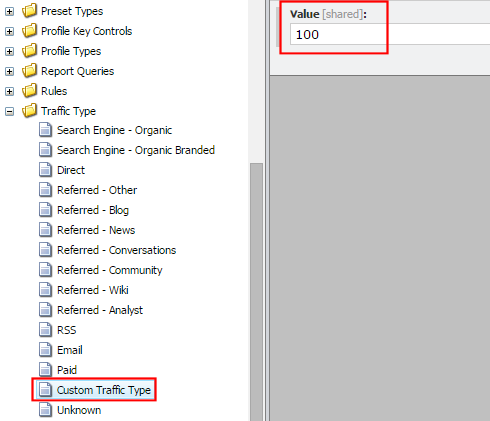
6. In the Sitecore installation where you have created your custom channel, open the Content Editor and navigate to the channel node and copy the **Item ID** of the custom channel item:
/sitecore/system/Marketing Control Panel/Taxonomies/Channel
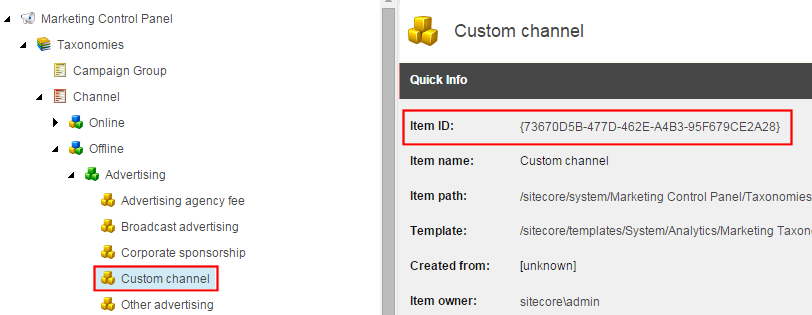
7. Replace the trafficType and channel attributes with the IDs you copied, for example:
``
Then save your changes.
8. To test your mapping, create a visit to your website using the traffic type you want to map. Once the session ends or times out the interaction is stored in the xDB.
9. In the xDB MongoDB collection, locate the interaction document for the visit. Verify that the **ChannelId** field matches the channel ID you have configured in the mapping section.
> [!note]
> If you need to create new channels for your custom traffic types, you must [customize the marketing taxonomy](https://doc.sitecore.com/xp/en/users/91/sitecore-experience-platform/create-a-channel.html).