---
title: "Restrict access to the client"
slug: "restrict-access-to-the-client"
abstract: "Restrict access to the Sitecore client with IP Security or by disabling anonymous access."
---
# Restrict access to the client
| **Applies to** | All [Core roles](https://doc.sitecore.com/xp/en/developers/91/platform-administration-and-architecture/roles-overview.html) except Content Management. |
| --- | --- |
| **Sitecore Installation Framework** | Anonymous users access to folders **is not** disabled by default. |
| **Azure Toolkit** | Anonymous user access to folders **is** disabled by default. |
Unauthorized access to client is a potential security risk, and we recommend that you prevent access to it on all instances where you do not need it.
You can restrict access to the client in the following ways:
- Disable IIS anonymous access
- Disable Forms authentication
- Deny access to the Copyrights folder
Disable IIS anonymous access
To restrict access to the client, disable IIS anonymous access:
1. Open the IIS Manager application.
2. To see a list of all you IIS websites, in the **Connections** pane, double-click the name of your server and then double-click the **Sites** icon.
3. Double-click the website of the role you want to configure.
4. Click the first folder or file from this list:
- `\App_Config\`
- `\sitecore\admin\`
- `\sitecore\debug\`
- `\sitecore\login\`
- `\sitecore\shell\`
- `\sitecore\default.aspx`
- `\sitecore modules\debug\`
- `\sitecore modules\Shell\`
- `\xsl\`
> [!note]
> To select a file instead of a folder, right-click the role website and click Switch to Content View to see the website files. Then click the file, right-click the role website again, and click Switch to Feature View.
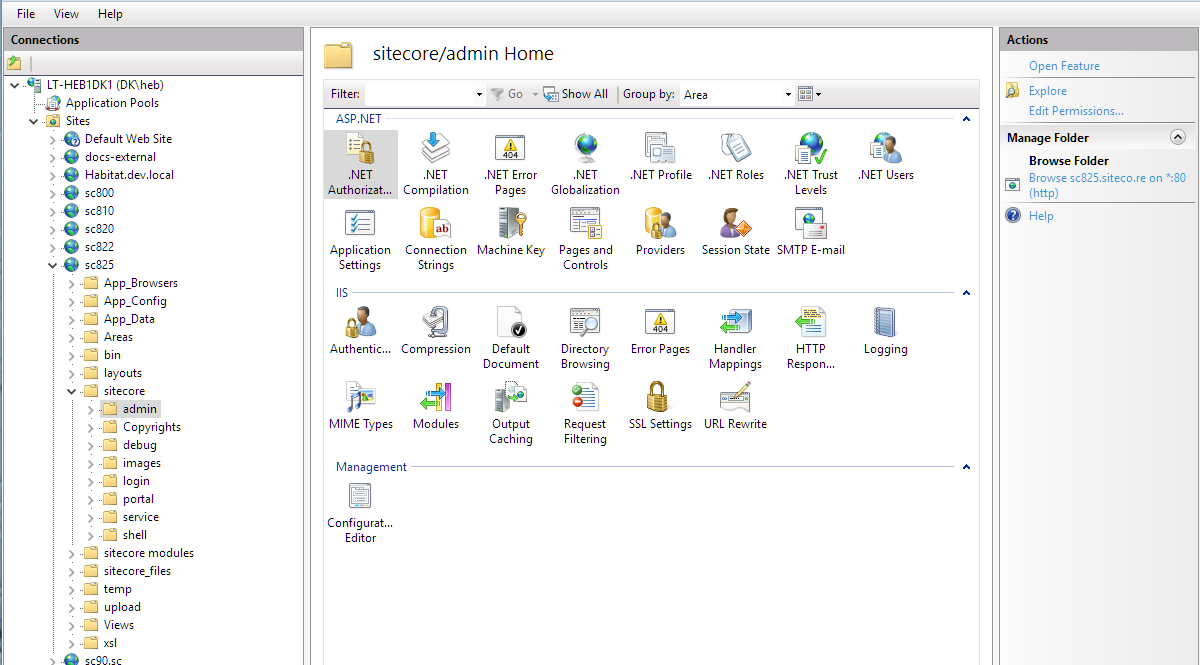
5. In the center application pane, in the **ASP.NET** section, double-click the **.NET Authorization Rules** icon.
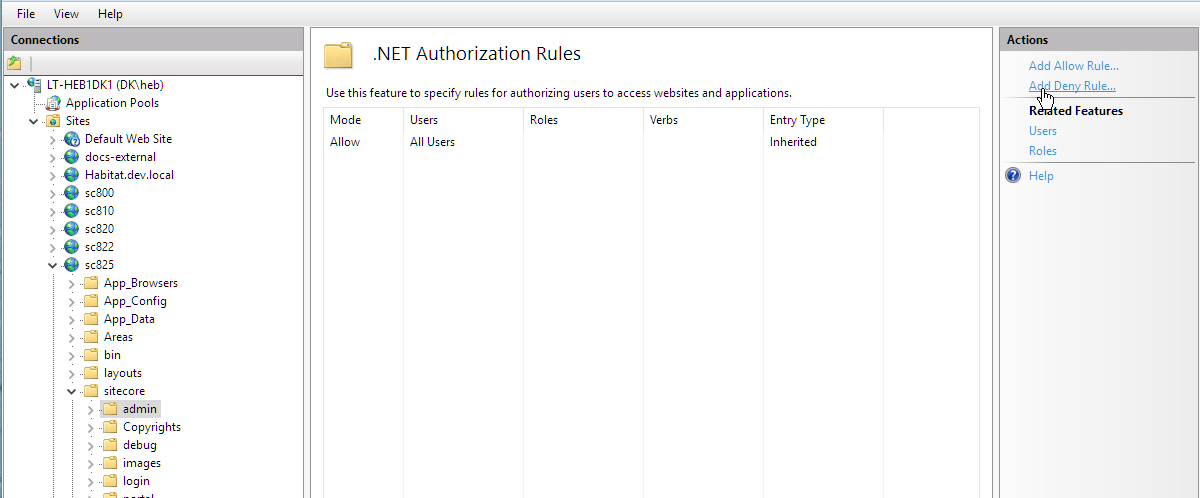
6. In the **Actions** pane, click **Add Deny Rule**.
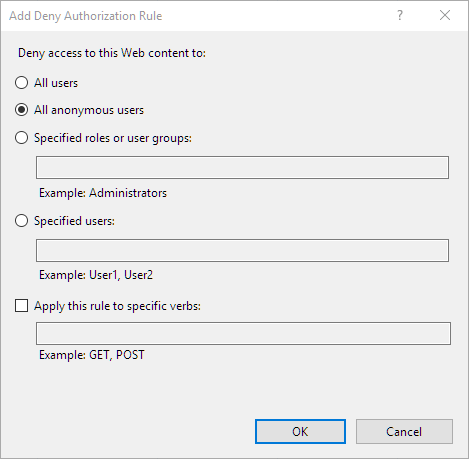
7. In the **Add Deny Authorization Rule** window, select **All anonymous users** and click **OK**.
8. Repeat steps 5 to 7 for all the listed folders and files in step 4.
9. In the **Connections** pane, click the name of your server.
10. To restart IIS and activate your configurations, in the **Actions** pane, in the **Manage Server** section, click **Restart** .
> [!note]
> This procedure creates a directory-specific `web.config` file for each folder and file. If you prefer to keep all your configurations in the application-specific `\Web.config` file, see the Microsoft documentation on [How To Make Application and Directory-Specific Configuration Settings in an ASP.NET Application](https://support.microsoft.com/en-us/help/815174/how-to-make-application-and-directory-specific-configuration-settings).
Disable Forms authentication
If you disable Forms authentication, Sitecore will not handle any requests for authentication.
To disable Forms authentication:
1. Open the `\Web.config` file.
2. Locate the `authentication` node.
3. Change the `mode` attribute from `Forms` to `None`.
```text
```
Deny access to Copyrights folder
The `sitecore/Copyrights/` folder on the CD server contains license text files for all third party components that Sitecore uses. A user can construct a URL that gives access to these files. You can configure Sitecore to deny access to this folder on the CD server.
To deny access to the folder:
- Add the following setting to the `handlers` section of the `web.config` file on your CD server:
```text
```