---
title: "Walkthrough: Setting up SolrCloud"
slug: "walkthrough--setting-up-solrcloud"
abstract: "Learn how to set up SolrCloud on Sitecore."
---
# Walkthrough: Setting up SolrCloud
Sitecore supports SolrCloud – the Solr scaled environment. This walkthrough describes how to configure Sitecore to use SolrCloud as a search provider. It does not demonstrate how to install SolrCloud itself.
> [!note]
> It is possible to use separate Solr servers for the xConnect search indexes and Content Search indexes.
> [!note]
> Check the [Solr compatibility table](https://support.sitecore.com/kb?id=kb_article_view&sysparm_article=KB0227897) to see which version is compatible with your version of Sitecore XP.
This walkthrough describes how to:
- Create a SolrCloud farm
- Upload the configuration to Zookeeper
- Create a collection
- Configure Sitecore to use SolrCloud
- Populate the Solr schema
- Enable support for SSL
## Create a SolrCloud farm
To create a SolrCloud farm:
- Follow the instructions for your version of Solr on the [Solr website](https://lucene.apache.org/solr/) to install Solr and create a scaled environment, using two or more Solr nodes, with one or more external Zookeeper ensembles.
> [!note]
> This walkthrough assumes a simple cluster with two Solr nodes and one Zookeeper ensemble.
## Upload the configuration to Zookeeper
Follow these steps to upload the Solr configuration to Zookeeper:
1. In one of the Solr nodes you have set up, locate the `configset` folder under the `server\solr\configsets` and duplicate the `_default` folder, and rename it to `sitecore_configs`.
2. In the `sitecore_configs/conf/solrconfig.xml` file , set the `autoCreateFields` setting to `false` (`update.autoCreateFields:false`).
3. In this new folder, open the `managed-schema` file in the `conf` folder and do the following:
- Set the value in `id` to `_uniqueid`.
- In the fields section, add the following field configuration for `_uniqueid:`
``
4. In the `` folder, run the following command:
`solr zk upconfig -d \sitecore_configs -n sitecore -z `
Create a collection
When you have uploaded the Solr configuration to Zookeeper, you can create collections.
To create a collection:
1. Navigate to the **Collections** page in the Solr admin UI, using one of the nodes you created.
2. Click **Add Collection**.
3. In the **config set** field, click the `sitecore` collection.
4. Specify the following fields as shown:
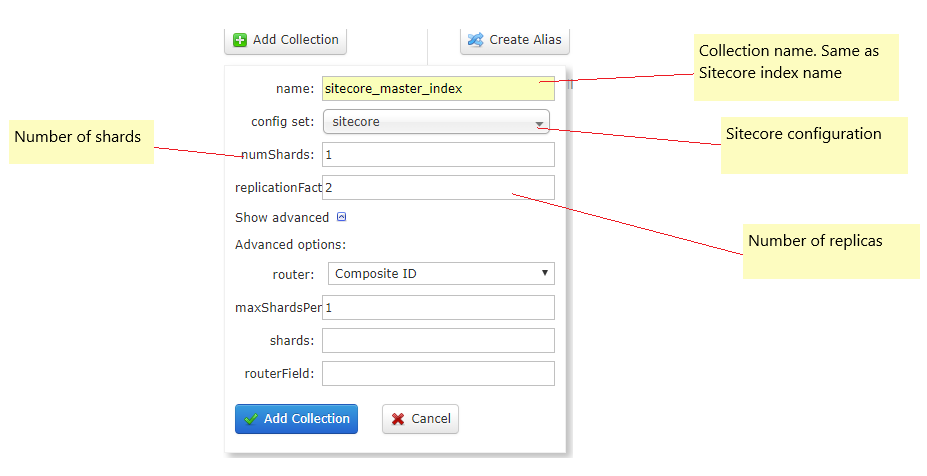
5. Repeat for all Sitecore indexes.
Configure Sitecore to use SolrCloud
Sitecore must connect to a load-balancer, and the load-balancer must handle failover for the Solr nodes.
Follow these steps to configure Sitecore to use SolrCloud as search provider:
1. Open the `App_Config\ConnectionStrings.config` file
2. Specify the value of the `solr``.search` key and add the token `solrCloud=true`:
``
If you want to configure basic authentication, you must add credentials to the connection string. For example:
``
> [!note]
> The hostname of the load balancer is localhost in the above examples. Replace as needed.
Populate the Solr schema
To populate the Solr schema:
1. Open the **Sitecore Control Panel**.
2. Click **Populate Solr Managed Schema**.
3. Select all indexes and click **Populate**.
Enable support for SSL
If you have enabled SSL for Solr, you must:
- In the `ConnectionStrings.config` file, ensure that the `contentSearch.solr` connection string is an *https* URL.