---
title: "Set up Sitecore and Visual Studio for development"
slug: "set-up-sitecore-and-visual-studio-for-development"
abstract: ""
---
# Set up Sitecore and Visual Studio for development
You use Visual Studio for more advanced development tasks and to work with a Visual Studio project. This topic describes how to set up Sitecore and Visual Studio, based on these versions:
- Visual Studio 2019
- A local instance of Sitecore 9.0 or later
The topic has two sections:
- [Concepts](https://doc.sitecore.com/xp/en/developers/93/sitecore-experience-manager/set-up-sitecore-and-visual-studio-for-development.html#UUID-378ffb8f-22c5-3868-9f61-0f7028d0417f_id__Concepts "Concepts") - describes the ideas behind the setup described here
- [Set up a Visual Studio project](https://doc.sitecore.com/xp/en/developers/93/sitecore-experience-manager/set-up-sitecore-and-visual-studio-for-development.html#UUID-378ffb8f-22c5-3868-9f61-0f7028d0417f_id__Set_up_a "Set up a Visual Studio project") - detailed instructions
Concepts
You can set up Visual Studio projects for Sitecore development in many ways. This topic describes the following setup:
- Using MVC
- Creating the Visual Studio project outside the root of the Sitecore install
- Using the NuGet package manager and the Sitecore feed
ASP.NET MVC is a web application framework from Microsoft that implements the model–view–controller (MVC) pattern. This architectural pattern separates an application into three main components: the model, the view, and the controller. Developers who are new to ASP.NET MVC should use the resources available from Microsoft to learn about the basics of working with this web application framework.
You can use MVC as a rendering engine in Sitecore. Sitecore supports both ASP.NET WebForms and MVC. You can use both rendering engines, but a single request must be rendered by either WebForms or by MVC. Sitecore is committed to use MVC in the future.
It is possible to create the Visual Studio project inside the web root of a Sitecore install. This has the advantage that changes to the Visual Studio project are immediately available on the website.
Creating the project outside the web root, however, has a number of advantages and is a recommended practice:
- It creates a clear separation between the files of your solution and the Sitecore files.
- You can upgrade Sitecore or create a new Sitecore instance and use the same Visual Studio project easily.
- It is easy to backup, restore, and move projects.
When you create the project outside the web root, you have to actively publish your solution after builds to see the changes on the Sitecore instance.
[NuGet](https://www.nuget.org/) is a package manager for the Microsoft development platform, including .NET. The [Sitecore public NuGet package](https://doc.sitecore.com/xp/en/developers/93/sitecore-experience-manager/sitecore-public-nuget-feed-faq.html "Sitecore public NuGet feed FAQ") FAQ has details about the NuGet packages that Sitecore provides. Using NuGet is the recommended way of adding Sitecore assemblies and references to these assemblies to your project.
### More practices to consider
It is worth mentioning – but beyond the scope of this topic – that large-scale development and development in larger teams need source control and because some of your work will create Sitecore items, you have a challenge: Sitecore items are not in the file system as such, and therefore not available to the source control software,
You need to serialize and deserialize the Sitecore items to move these items in and out of a source control system. There are a number of tools for this. Two of the most popular are:
- [Team Development for Sitecore](http://www.teamdevelopmentforsitecore.com/) (also known as TDS)
- [Unicorn](https://github.com/kamsar/Unicorn)
The scope of these two solutions are quite different and you must investigate what suits your need best.
Consider using the Sitecore Rocks Visual Studio plugin for developing in Sitecore. Sitecore Rocks enhances developer productivity with a wealth of features.
And, finally, there is an emerging set of best practices for doing Sitecore development on a large scale. This methodology is called [Helix](http://helix.sitecore.net/), and [Habitat](https://github.com/Sitecore/Habitat/wiki) is an example of an extensive website built using Helix.
Set up a Visual Studio project
To set up a Visual Studio 2017 project for Sitecore MVC:
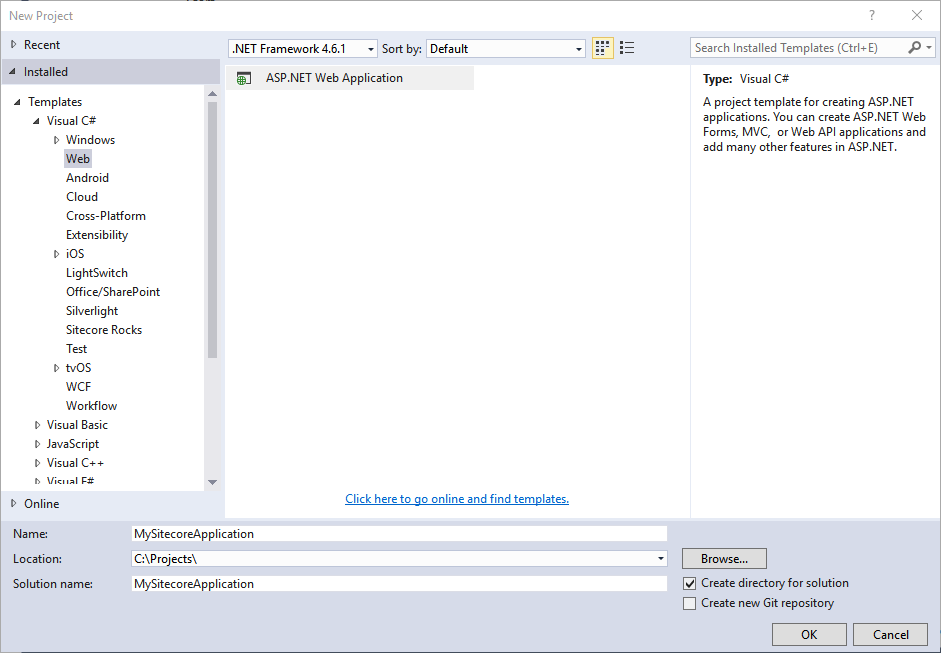
1. Open Visual Studio 2017 as an Administrator and click **File**, **New**, **Project…** and in the **New Project** dialog, browse to Templates, Visual C#, Web.. Select **ASP.NET Web Application**:
> [!note]
> Check the [compatibility table](https://kb.sitecore.net/articles/087164) for the exact version of the .NET Framework to use with your version of Sitecore.
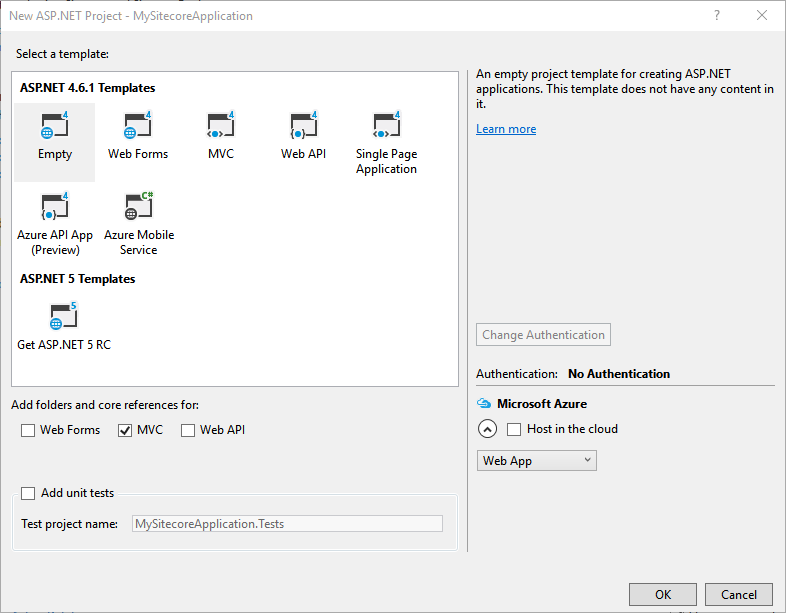
2. Click **OK**. In the **New ASP.Net Project** dialog, create an empty project with folders and references for MVC :
3. In the project folder that Visual Studio created, copy the `global.asax` file from the Website folder of the Sitecore installation, overwriting the `global.asax` file that Visual Studio added when you created the project. The file should only have this content:
`%@Application Language='C#' Inherits="Sitecore.Web.Application" %`
4. The `Web.config` file in the Visual Studio project is quite minimal, while the `Web.config` file in the Sitecore instance contains important settings. This step is to avoid that the file from Visual Studio overwrites the one in Sitecore when you publish.
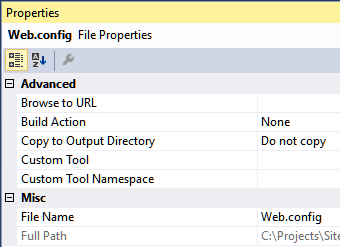
In Visual Studio, in the **Solution Explorer**, right-click the `Web.config` file in the root of the project, and select **Properties**. Set the Build Action property to `None` and the Copy to Output Directory property to `Do not copy`:
5. In the **NuGet Package Manager** in Visual Studio, add these Sitecore packages to your project:
`Sitecore.Kernel`
`Sitecore.Mvc`
`Sitecore.Mvc.Analytics`
> [!note]
> If you already have a reference to the `Microsoft.AspNet.Mvc` package, try to either delete it or to align it with the version of the `Microsoft.AspNet.Mvc` package in the Sitecore instance you develop for.
6. In the **Solution Explorer** in Visual Studio, set the Copy Local property of each DLL reference the **NuGet Package Manager** added to `False`.
7. In the `Views/web.config` file of your Visual Studio project, add the following Sitecore namespaces to the list of namespaces:
``
``
8. To set up the publishing deployment, in the **Create Publish Settings** dropdown in the Visual Studio toolbar, select **.**
9. In the **Publish Web** dialog, in the **Publish method** field, click **File System**, and in the **Target location** field, browse to the Website folder of your Sitecore instance, and then click **Publish**.
For more information about the NuGet feeds, see [Sitecore public NuGet feed FAQ](https://doc.sitecore.com/xp/en/developers/93/sitecore-experience-manager/sitecore-public-nuget-feed-faq.html "Sitecore public NuGet feed FAQ").
For more information about the NuGet packages, see [Sitecore Assembly List NuGet Packages](https://doc.sitecore.com/xp/en/developers/93/sitecore-experience-manager/sitecore-assembly-list-nuget-packages.html "Sitecore Assembly List NuGet Packages").