---
title: "Use sprites to improve the performance of the Experience Editor"
slug: "use-sprites-to-improve-the-performance-of-the-experience-editor"
abstract: "Improve page load time in Experience Editor by using sprites to decrease the number of image requests."
---
# Use sprites to improve the performance of the Experience Editor
To improve the page load time in the Experience Editor, you can use sprites to decrease the number of image requests. You can enable your existing ribbon controls to use sprites or you can create new ribbon controls and base the new item on a sprite-compatible template.
Create a new sprite
If you want new or custom sprite icons to be available on the Experience Editor ribbon, you can create a new sprite file and then add your collection of sprite icons to it.
To create a new sprite:
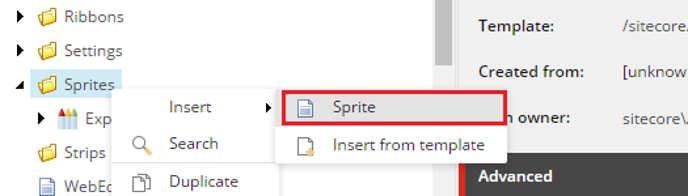
1. In the Core database, right-click the *Sprites* folder (*/sitecore/content/Applications/WebEdit/Sprites*), click **Insert** and then click **Sprite**.
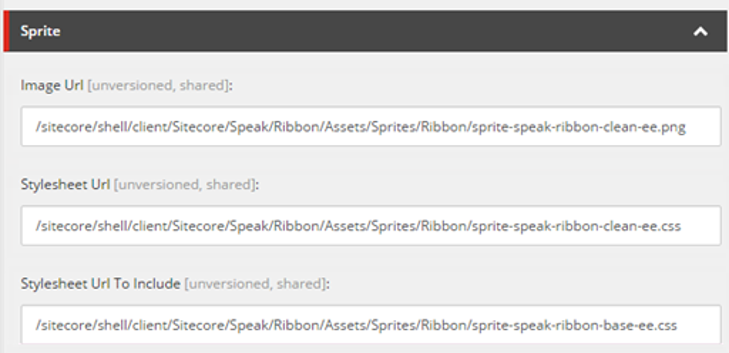
2. For the new sprite, in the **Sprite** section, specify the following two fields:
- **Image Url** – specify the sprite image output path.
- **StylesheetUrl** – specify the sprite stylesheet output path.
> [!note]
> The Stylesheet Url To Include field is optional. You can use it to define a basic stylesheet file that is included in a sprite stylesheet file.
3. Under the new sprite, you can now add your custom sprite icons. During the initialization of the Experience Editor, Sitecore regenerates all sprite resources (sprite image and stylesheet).
Add a custom icon to a sprite
When you have created a new sprite, you can add your sprite icons to it.
> [!note]
> Before you can add a sprite icon to your sprite, you must upload your icons to make them available in Sitecore.
To add a custom icon to a sprite:
1. In the Core database, navigate to the *Sprites* folder (*/sitecore/content/Applications/WebEdit/Sprites*).
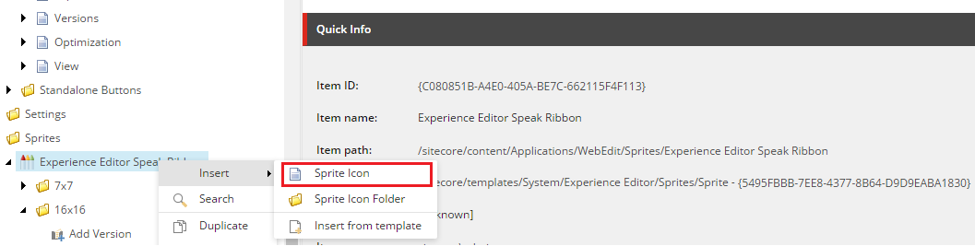
2. Right-click the relevant sprite item or the folder where you want to add the custom icon, click **Insert** and then click **Sprite Icon**.
3. For the sprite icon, specify the following:
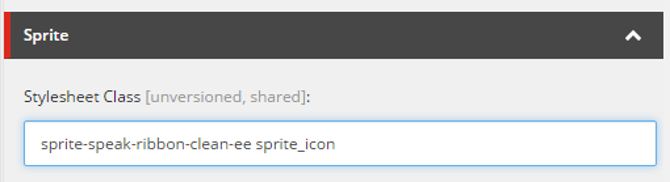
- In the **Sprite** section, in the **Stylesheet Class** field, specify the CSS class name.
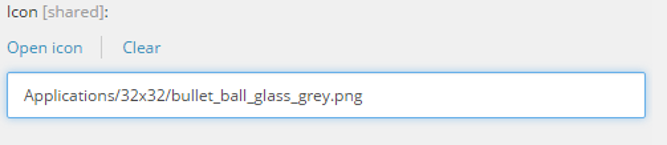
- In the **Appearance** section, in the **Icon** field, specify the path to the icon.
To find the path to a specific icon, click **Open icon**. In the **Change icon** dialog box, navigate to the relevant icon and click **OK**.
Use a sprite icon for an existing ribbon control
To load a sprite icon in the Experience Editor ribbon instead of the image, you can enable sprite support for existing ribbon controls.
To enable sprite support and assign an icon to an existing ribbon control:
1. In the Core database, navigate to */sitecore/content/Applications/WebEdit/Ribbons/WebEdit/Experience Editor/* and click the relevant ribbon control.
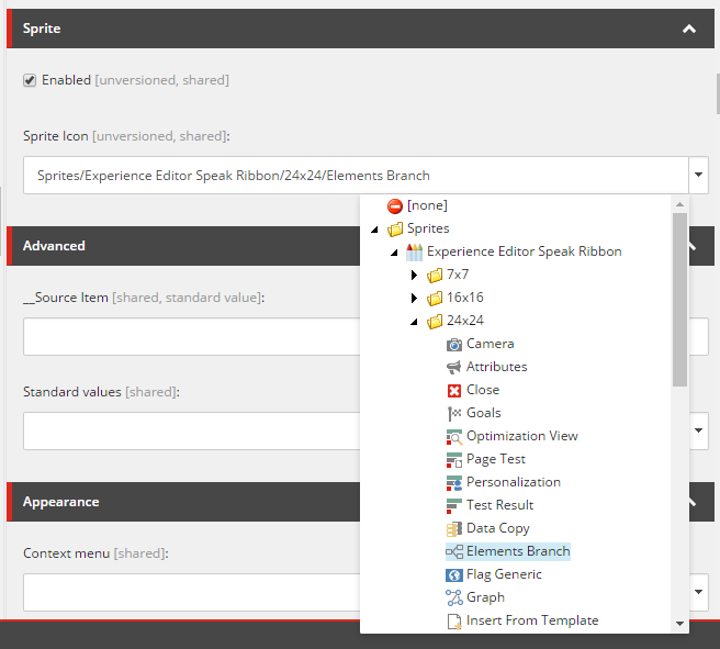
2. On the **Content** tab, in the **Sprite** section:
- Select the **Enabled** check box to enable sprite support for the current ribbon control. In this way, the sprite icon loads instead of the image.
- In the **Sprite Icon** field, specify the sprite icon that you want to use for the current ribbon control.
3. Save your changes.
Create a new sprite-compatible ribbon control
When you [create a new custom ribbon control](https://doc.sitecore.com/xp/en/developers/93/sitecore-experience-manager/customize-the-experience-editor-ribbon.html "Customize the Experience Editor ribbon"), you can make it sprite compatible by basing the new ribbon control on a sprite-compatible template.
To use a sprite-compatible ribbon item:
- Add a sprite-compatible ribbon item under the ribbon chunk item and configure the presentation details as you usually would.
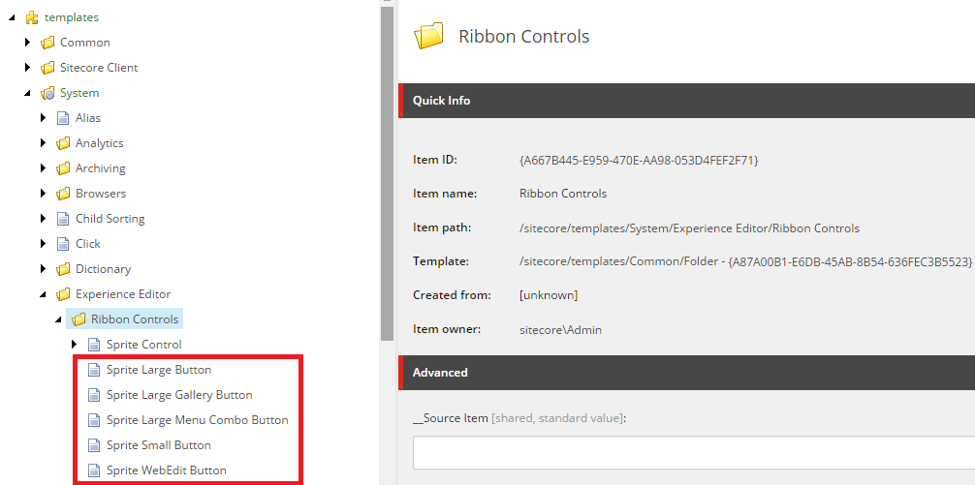
All the sprite-compatible ribbon templates are located in the Core database, in the *Ribbon Controls* folder (*/sitecore/templates/System/Experience Editor/Ribbon Controls*):