---
title: "Create a template for value accessor sets"
slug: "create-a-template-for-value-accessor-sets"
abstract: "How to display only one type of value accessors by creating a custom value accessor set template in Sitecore Data Exchange Framework."
---
# Create a template for value accessor sets
You use a value accessor set to group a set of related value accessor objects.
You can create a custom template that only supports certain types of value accessors. In this example, all the value accessors you use are based on the *Array Value Accessor* template. Therefore the example shows you how to create a value accessor set that only allows array value accessors.
Create a template for value accessor sets
To create a value accessor set template that displays only array value accessors:
1. In the Content Editor, navigate to *Templates*.
2. On the menu ribbon, on the **Home** tab, click **New Template**.
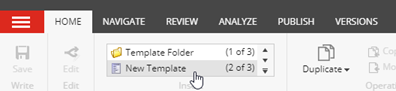
3. In the **Select name** dialog, enter the following values:
| Field | Value |
| --- | --- |
| **Name** | *Array Value Accessor Set* |
| **Base template** | *Templates/Data Exchange/Framework/Data Access/Value Accessor Sets/Value Accessor Set* |
4. Click **Next**.
5. In the **Location** dialog, select *Templates/Data Exchange/Providers/File System/Data Access/Value Accessor Sets*.
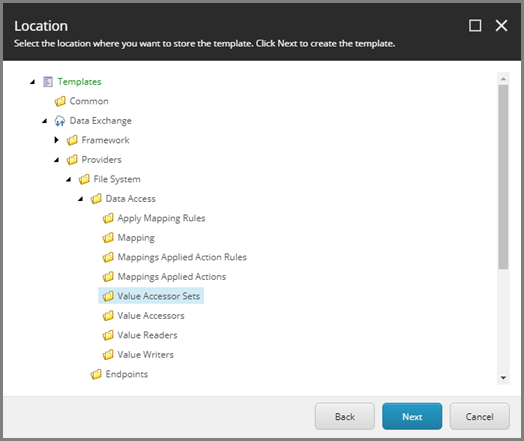
6. Click **Next**.
7. In the confirmation dialog, click **Close**.
Set an icon
To set an icon:
1. Select the new template, for example, *Templates/Data Exchange/Providers/File System/Data Access/Value Accessor Sets/Array Value Accessor Set*.
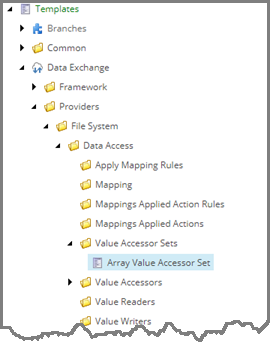
2. In the right-hand pane, on the **Content** tab, click the icon next to the title.
3. Click the icon next to the title.
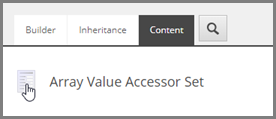
4. In the **Change Icon** dialog, in the **Icon** field, enter `Office/32x32/radio_button_group.png`.
5. Click **OK**.