---
title: "Configure the xDB Reference Data Client endpoint"
slug: "configure-the-xdb-reference-data-client-endpoint"
abstract: "How to configure the xDB reference data client endpoint"
---
# Configure the xDB Reference Data Client endpoint
You use an endpoint to identify a data source to read from, or a data target to write to. If you want Data Exchange Framework to connect to xDB, you must configure an xDB Reference Data Client endpoint.
To configure an xDB Reference Data Client endpoint:
1. In the Content Editor, navigate to your tenant.
2. In the tenant folder structure, navigate to *Endpoints/Providers/xConnect/xDB Reference Data Client Endpoint*.
3. On the **Content** tab, in the **Settings** section, enter values for the following fields:
- **Client Connection String**
- **Client Certificate Connection String Name**
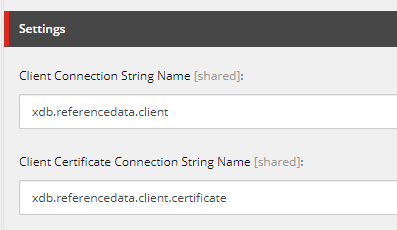
The following table describes the fields in the **Settings** section:
| Field name | When required | Description |
| --- | --- | --- |
| **Client Connection String Name** | Always | Identifies the xDB Reference Data Client settings.
By default, the value is blank. |
| **Client Certificate Connection String Name** | If SSL is enabled on the xConnect server | Identifies the certificate to use for a secure connection to the xDB Reference Data server.
By default, the value is blank. |
4. If your xDB Reference Data Client server uses a self-signed certificate for SSL, select the **Allow Invalid Certificates** check box.
5. Save the item.
6. On the menu ribbon, click **Run Troubleshooter**. A message indicates if a connection to your xDB Reference Data Client server can be established. Click **OK** to close the message.