---
title: "Walkthrough: Implementing a pipeline step"
slug: "walkthrough--implementing-a-pipeline-step"
abstract: "Guide to implementing a custom pipeline step in Sitecore Data Exchange Framework in order to create a custom provider."
---
# Walkthrough: Implementing a pipeline step
This walkthrough is part three of the [Implementing a custom provider for text files](https://doc.sitecore.com/xp/en/developers/def/80/data-exchange-framework/implementing-a-custom-provider-for-text-files-walkthrough-series.html "Implementing a custom provider for text files walkthrough series") walkthrough series and describes how to implement a pipeline step. A pipeline step represents the logic that runs during a data synchronization process. In this example, the pipeline step represents the ability to read the lines in a text file.
This walkthrough describes how to:
- Create a template for pipeline steps
- Add a field to a pipeline step template
- Implement a pipeline step converter
- Implement a pipeline step processor
- Set default values on a pipeline step template
Create a template for a pipeline step
You use a pipeline step to read data from a text file. You must have a template in order to specify which text file (endpoint) to read from.
To create a template:
1. In the Content Editor, navigate to *Templates*.
2. On the menu ribbon, on the **Home** tab, in the **Insert** group, click **New Template** to add a new template.
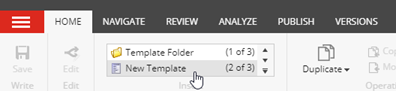
3. In the **Select name** dialog, enter the following values:
| Field | Value |
| --- | --- |
| **Name** | *Read Text File Pipeline Step* |
| **Base template** | *Templates/Data Exchange/Framework/Pipeline Steps/Base Pipeline Steps/Base Pipeline Step* |
4. Click **Next**.
5. In the **Location** dialog, select *Templates/Data Exchange/Providers/File System/Pipeline Steps*. Click **Next**.
6. On the confirmation dialog, click **Close**.
7. To set an icon for the new template, in the content tree, select the template, for example, *Templates/Data Exchange/Providers/File System/Pipeline Steps/Read Text File Pipeline Step*.
8. In the right-hand pane, on the **Content** tab, click the icon next to title.

9. In the **Change Icon** dialog, in the **Icon** field, enter, for example, `Office/32x32/element.png`
Add a field to a pipeline step template
In the pipeline step template, you must configure the settings that tell Sitecore which endpoints to use for the pipeline steps. You do this by adding a template field.
To add a template field:
1. In the content tree, select the pipeline step template. Add a template section, and name it *Endpoints*.
2. In **Endpoints**, add a template field, and name it *EndpointFrom*. Fill in the following fields:
| Field | Value |
| --- | --- |
| **Name** | *EndpointFrom* |
| **Type** | *Droptree* |
| **Source** | `query:./ancestor-or-self::*[@@templateid='{327A381B-59F8-4E88-B331-BEBC7BD87E4E}']//descendant-or-self::*[@@templateid='TEMPLATE-ID']` |
| **Shared** | selected |
> [!important]
> In the Source field, you must replace `TEMPLATE-ID` with the Item ID for the template named *File System Endpoints Root*. This template represents the folder used to store endpoint items for your provider.
>
> This template was created automatically when you used the Data Exchange Framework SDK to create the provider. The template is located at */sitecore/templates/Data Exchange/Providers/File System/Folders/File System Endpoints Root*. You can find the ID on the Content tab.
The query in the **Source** field limits the droptree field type to the endpoints in the current tenant that are in the folder used to organize endpoints for this provider.
The ID `{327A381B-59F8-4E88-B331-BEBC7BD87E4E}` is for the tenant template that is provided with the framework. You must not change this value.
3. Select the **Shared** check box. Save the item.
> [!note]
> When you save the item, a message tells you that the item contains broken links. This is expected behavior related to the expression set in step 2. Click OK to continue.
Implement a pipeline step converter
You must use a converter to convert the settings on a pipeline step item into a plugin. The plugin identifies the endpoint that the pipeline step will read from.
To implement a pipeline step converter:
1. In Visual Studio, add the following class:
```csharp
using Sitecore.DataExchange.Attributes;
using Sitecore.DataExchange.Converters.PipelineSteps;
using Sitecore.DataExchange.Models;
using Sitecore.DataExchange.Plugins;
using Sitecore.DataExchange.Repositories;
using Sitecore.Services.Core.Model;
using System;
using System.Collections.Generic;
using System.Linq;
using System.Text;
using System.Threading.Tasks;
namespace Examples.DataExchange.Providers.FileSystem
{
[SupportedIds(ReadTextFileStepTemplateId)]
public class ReadTextFileStepConverter : BasePipelineStepConverter
{
public const string ReadTextFileStepTemplateId = "[PIPELINE STEP TEMPLATE ID]";
public const string TemplateFieldEndpointFrom = "EndpointFrom";
public ReadTextFileStepConverter(IItemModelRepository repository) : base(repository)
{
}
protected override void AddPlugins(ItemModel source, PipelineStep pipelineStep)
{
//
//create the plugin
var settings = new EndpointSettings
{
//
//populate the plugin using values from the item
EndpointFrom = this.ConvertReferenceToModel(source, TemplateFieldEndpointFrom)
};
//
//add the plugin to the pipeline step
pipelineStep.AddPlugin(settings);
}
}
}
```
> [!important]
> You must change the value of `[PIPELINE STEP TEMPLATE ID]` to match the ID from the pipeline step template named *Read Text File Pipeline Step*.
2. Compile the project.
3. Deploy `Examples.DataExchange.Providers.FileSystem.dll` to the Sitecore server.
By inheriting from `[BasePipelineStepConverter](base-pipeline-step-converter.md "Base pipeline step converter")` you get access to a number of methods that facilitate reading values from fields on a Sitecore item.
In addition to being able to read simple values like strings, numbers, and dates, methods are available to automatically convert referenced items into the appropriate Data Exchange Framework component.
Implement a pipeline step processor
You use a processor to implement the business logic for a component. In this example, a processor is needed to implement the business logic for the pipeline step responsible for reading data from the text file that corresponds to the endpoint assigned to the pipeline step.
A pipeline step does not exist in a vacuum. It is designed to be a part of a data synchronization process. This means that the processor for a pipeline step might require certain conditions to exist when it runs. In this example, the processor requires that a *TextFileSettings* plugin is included in the endpoint’s plugin collection.
A processor might also create conditions that are required by subsequent pipeline steps. In this example, the processor adds a plugin *IterableDataSettings* to the pipeline context’s plugin collection.
To implement a pipeline step processor:
1. In Visual Studio, add the following class:
```csharp
using Sitecore.DataExchange.Attributes;
using Sitecore.DataExchange.Contexts;
using Sitecore.DataExchange.Models;
using Sitecore.DataExchange.Plugins;
using Sitecore.DataExchange.Processors.PipelineSteps;
using Sitecore.Services.Core.Diagnostics;
using System;
using System.Collections.Generic;
using System.IO;
using System.Linq;
using System.Text;
using System.Threading.Tasks;
namespace Examples.DataExchange.Providers.FileSystem
{
[RequiredEndpointPlugins(typeof(TextFileSettings))]
public class ReadTextFileStepProcessor : BaseReadDataStepProcessor
{
public ReadTextFileStepProcessor()
{
}
protected override void ReadData(
Endpoint endpoint,
PipelineStep pipelineStep,
PipelineContext pipelineContext,
ILogger logger)
{
if (endpoint == null)
{
throw new ArgumentNullException(nameof(endpoint));
}
if (pipelineStep == null)
{
throw new ArgumentNullException(nameof(pipelineStep));
}
if (pipelineContext == null)
{
throw new ArgumentNullException(nameof(pipelineContext));
}
if (logger == null)
{
throw new ArgumentNullException(nameof(logger));
}
//
//get the file path from the plugin on the endpoint
var settings = endpoint.GetTextFileSettings();
if (settings == null)
{
return;
}
if (string.IsNullOrWhiteSpace(settings.Path))
{
logger.Error(
"No path is specified on the endpoint. " +
"(pipeline step: {0}, endpoint: {1})",
pipelineStep.Name, endpoint.Name);
return;
}
if (!File.Exists(settings.Path))
{
logger.Error(
"The path specified on the endpoint does not exist. " +
"(pipeline step: {0}, endpoint: {1}, path: {2})",
pipelineStep.Name, endpoint.Name, settings.Path);
return;
}
//
//add the data that was read from the file to a plugin
var data = this.GetIterableData(settings);
var dataSettings = new IterableDataSettings(data);
//
//add the plugin to the pipeline context
pipelineContext.AddPlugin(dataSettings);
}
protected virtual IEnumerable GetIterableData(TextFileSettings settings)
{
//
//read the file, one line at a time
var separator = new string[] { settings.ColumnSeparator };
using (var reader = new StreamReader(File.OpenRead(settings.Path)))
{
var firstLine = true;
while (!reader.EndOfStream)
{
var line = reader.ReadLine();
if (firstLine && settings.ColumnHeadersInFirstLine)
{
firstLine = false;
continue;
}
if (string.IsNullOrWhiteSpace(line))
{
continue;
}
//
//split the line into an array, using the separator
var values = line.Split(separator, StringSplitOptions.None);
yield return values;
}
}
}
}
}
```
> [!note]
> By inheriting from [BaseReadDataStepProcessor](https://doc.sitecore.com/xp/en/developers/def/80/data-exchange-framework/pipeline-step-processors.html "Pipeline step processors") you get access to methods that facilitate reading data from an endpoint.
>
> The base class does not specify what happens with the data that is read. Instead, the data is added to an *IterableDataSettings* plugin. You can implement a subsequent pipeline step processor to iterate over the data and specify how it is handled.
2. Compile the project.
3. Deploy `Examples.DataExchange.Providers.FileSystem.dll` to the Sitecore server.
Set default values on a pipeline step template
When you use a pipeline step template, you must add default values to the template.
To add default values to the template:
1. In the Content Editor, navigate to *Templates/Data Exchange/Providers/File System/Endpoints/Endpoint*.
2. In the right-hand pane, click the **Builder** tab.
3. On the menu ribbon, on the **Builder OPTIONS** tab, in the **Template** group, click **Standard values**.

4. Select the new item.

5. In the right-hand pane, on the **Content** tab, set the following default field values:
| Field | Value |
| --- | --- |
| **Converter Type** | *Examples.DataExchange.Providers.FileSystem.ReadTextFileStepConverter, Examples.DataExchange.Providers.FileSystem* |
| **Processor Type** | *Examples.DataExchange.Providers.FileSystem.ReadTextFileStepProcessor, Examples.DataExchange.Providers.FileSystem* |
> [!note]
> The Converter Type field is in the Data Exchange Framework section. You might have to expand the section before you see the field.
6. Save the item.