---
title: "Walkthrough: Implementing an endpoint"
slug: "walkthrough--implementing-an-endpoint"
abstract: "Guide to implementing a custom endpoint in Sitecore Data Exchange Framework as part of implementing a custom provider."
---
# Walkthrough: Implementing an endpoint
This walkthrough is part two of the [Implementing a custom provider for text files](https://doc.sitecore.com/xp/en/developers/def/80/data-exchange-framework/implementing-a-custom-provider-for-text-files-walkthrough-series.html "Implementing a custom provider for text files walkthrough series") walkthrough series and describes how to implement a custom endpoint. An endpoint represents something that can be read from and/or written to. In this example, the endpoint represents a text file that can be read from.
This walkthrough describes how to:
- Create a template for an endpoint
- Add a template field to an endpoint
- Implement an endpoint settings plugin
- Implement an endpoint converter
- Set standard values on an endpoint template
Create a template for an endpoint
You use the Sitecore Content Editor to model the data synchronization processes. This lets you use a familiar interface for doing the configuration. The configuration requires a template that you can use to represent a text file that Sitecore can read from.
To create a template:
1. In the Content Editor, navigate to *Templates*.
2. On the menu ribbon, in the **Insert** group, click **New Template**.
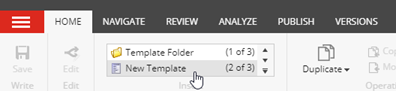
3. In the **Select name** dialog, enter the following values:
| Field | Value |
| --- | --- |
| **Name** | *Text File Endpoint* |
| **Base template** | *Templates/Data Exchange/Framework/Endpoints/Base Template/ Base Endpoint* |
4. Click **Next**.
5. In the **Location** dialog, select *Templates/Data Exchange/Providers/File System/Endpoints*. Click **Next**.
6. In the confirmation dialog, click **Close**.
7. To set an icon for the new template, in the content tree, select the template, for example, *Templates/Data Exchange/Providers/File System/Endpoints/Text File Endpoint*.
8. In the right-hand pane, on the **Content** tab, click the icon next to title.

9. In the **Change Icon** dialog, in the **Icon** field, enter, for example, `Office/32x32/cloud.png`
Add a template field
In the text file endpoint, you must configure the settings that tell Sitecore how to parse the text file. For example, you can specify if data is on a single line or multiple lines, which column separator the file uses, and whether the file contains a line with column headers.
To add these settings:
1. Navigate to *Data Exchange/Providers/File System/Endpoints/Text File Endpoint*.
2. Add a template section. Name it *Settings*.
3. On the **Builder** tab, in the **Settings** section, add the following template fields:
| Name | Type | Shared |
| --- | --- | --- |
| *Path* | *Single-Line Text* | selected |
| *ColumnSeparator* | *Single-Line Text* | selected |
| *ColumnHeadersInFirstLine* | *Checkbox* | selected |
4. Save the item.
Implement an endpoint settings plugin
The endpoint settings are configured using the endpoint template. In this example, settings such as the path of the file that can be read and whether the first line of the file contains column headers can be configured.
The endpoint template provides design-time access to the endpoint settings. Runtime access to the endpoint settings is provided through plugins. You must use a plugin to handle the specific settings on the endpoint.
To implement an endpoint settings plugin:
1. In Visual Studio, add the following class:
```csharp
using Sitecore.DataExchange;
using System;
using System.Collections.Generic;
using System.Linq;
using System.Text;
using System.Threading.Tasks;
namespace Examples.DataExchange.Providers.FileSystem
{
public class TextFileSettings : IPlugin
{
public TextFileSettings() { }
public bool ColumnHeadersInFirstLine { get; set; }
public string ColumnSeparator { get; set; }
public string Path { get; set; }
}
}
```
2. Add the following class:
```csharp
using Sitecore.DataExchange.Models;
using System;
using System.Collections.Generic;
using System.Linq;
using System.Text;
using System.Threading.Tasks;
namespace Examples.DataExchange.Providers.FileSystem
{
public static class EndpointExtensions
{
public static TextFileSettings GetTextFileSettings(this Endpoint endpoint)
{
return endpoint.GetPlugin();
}
public static bool HasTextFileSettings(this Endpoint endpoint)
{
return (GetTextFileSettings(endpoint) != null);
}
}
}
```
> [!note]
> This extension method makes it easier to access the plugin when it is needed.
>
> Providing extension methods to access a plugin is a best practice to consider when implementing a provider for Data Exchange Framework.
Implement an endpoint converter
You must have a converter in order to convert a Sitecore item that represents a component into an actual component. In this example, a converter converts the settings on an endpoint item into an endpoint settings plugin. You can then add that plugin to the endpoint.
To implement an endpoint converter:
1. In Visual Studio, add the following class:
```csharp
using Sitecore.DataExchange.Attributes;
using Sitecore.DataExchange.Converters.Endpoints;
using Sitecore.DataExchange.Models;
using Sitecore.DataExchange.Repositories;
using Sitecore.Services.Core.Model;
using System;
using System.Collections.Generic;
using System.Linq;
using System.Text;
using System.Threading.Tasks;
namespace Examples.DataExchange.Providers.FileSystem
{
[SupportedIds(TextFileEndpointTemplateId)]
public class TextFileEndpointConverter : BaseEndpointConverter
{
public const string TextFileEndpointTemplateId = "[ENDPOINT TEMPLATE ID]";
public const string TemplateFieldColumnSeparator = "ColumnSeparator";
public const string TemplateFieldColumnHeadersInFirstLine = "ColumnHeadersInFirstLine";
public const string TemplateFieldPath = "Path";
public TextFileEndpointConverter(IItemModelRepository repository) : base(repository)
{
}
protected override void AddPlugins(ItemModel source, Endpoint endpoint)
{
//
//create the plugin
var settings = new TextFileSettings
{
//
//populate the plugin using values from the item
ColumnHeadersInFirstLine = this.GetBoolValue(source, TemplateFieldColumnHeadersInFirstLine),
ColumnSeparator = this.GetStringValue(source, TemplateFieldColumnSeparator),
Path = this.GetStringValue(source, TemplateFieldPath)
};
//
//add the plugin to the endpoint
endpoint.AddPlugin(settings);
}
}
}
```
> [!important]
> You must change the value of `[ENDPOINT TEMPLATE ID]` to match the ID from the endpoint template named *Text File Endpoint*.
> [!note]
> By inheriting from `[BaseEndpointConverter](base-endpoint-converter.html "Base endpoint converter")` you get access to a number of methods that facilitate reading values from fields on a Sitecore item.
2. Compile the project.
3. Deploy `Examples.DataExchange.Providers.FileSystem.dll` to the Sitecore server.
Set standard values on an endpoint template
Before you can use the endpoint template, you must specify default values for the fields on the template.
To set values on an endpoint template:
1. In the Content Editor, navigate to *Templates/Data Exchange/Providers/File System/Endpoints/Text Field Endpoint*.
2. To create a new item, on the ribbon, on the **Builder OPTIONS** tab, click **Standard values**.

3. Set the following field values:
| Field | Value |
| --- | --- |
| Column Separator | *,* |
| Column Headers in First Line | selected |
| Converter Type | *Examples.DataExchange.Providers.FileSystem.TextFileEndpointConverter, Examples.DataExchange.Providers.FileSystem* |
> [!note]
> The Converter Type field is in the Data Exchange Framework section. You might have to expand the section before you see the field.
4. Save the item.