---
title: "Upgrade Data Exchange Framework on-prem"
slug: "upgrade-data-exchange-framework-on-prem"
abstract: "How to upgrade Data Exchange Framework in an on-prem Sitecore installation."
---
# Upgrade Data Exchange Framework on-prem
> [!note]
> This upgrade guide is for updating from Data Exchange Framework versions below 7.0 to version 9.0. For upgrading from 7.0 to 9.0 or 8.0 to 9.0, please see the topic [Upgrade Data Exchange Framework from 7.0/8.0 to 9.0](https://doc.sitecore.com/xp/en/developers/def/90/data-exchange-framework/upgrade-data-exchange-framework-from-7.0-8.0-to-9.0.html). DEF 9.0 is only compatible with Sitecore 10.4.
If you are upgrading to Sitecore Experience Platform 10.2 or higher, you can upgrade from any previous Data Exchange Framework (DEF) version directly to DEF version 9.0.
> [!important]
> If you are upgrading to Sitecore 10.2 or higher, you must upgrade all modules, including the DEF connector module, as part of the overall Sitecore upgrade process.
>
> This topic assumes you are upgrading Sitecore from a previous release to Sitecore 10.4 and DEF 9.0.
Prerequisites
Before you can upgrade DEF to version 9.0, you must:
- Review the [Upgrade Guide for Sitecore Experience Platform](https://dev.sitecore.net/Downloads/Sitecore_Experience_Platform.aspx) for SXP 10.4.
- Create backups of your current Sitecore databases.
- Create a backup copy of Sitecore folders under `wwwroot` (for your current Sitecore instance).
Upgrade process
To upgrade DEF you must clean up your Sitecore databases. This is a one-time operation that you must perform when you upgrade from a previous version of Data Exchange Framework (DEF). Then you can install the new version of DEF on top of the old version.
> [!note]
> In Sitecore 10.1 and earlier, DEF items were stored in the databases. Starting with Sitecore 10.2 DEF items are stored as resources instead.
To upgrade DEF:
1. Follow the Sitecore 10.4.0 *[Upgrade Guide for Sitecore Experience Platform](https://dev.sitecore.net/Downloads/Sitecore_Experience_Platform.aspx)* to install and set up the [Sitecore.UpdateApp tool](https://dev.sitecore.net/Downloads/Sitecore_UpdateApp_Tool).
2. [Download](https://dev.sitecore.net/Downloads/Resource files for Modules/) the `Data Exchange Framework Upgrade resources` package, and extract it to a local directory, keeping the folder structure intact.
3. Navigate to the `Data Exchange Framework Upgrade resources.1.0.0\\Data\Items` folder for the version you are upgrading from. Copy the `.dat` files that are included in the *core*, *master*, and *web* folders to the corresponding folder paths under `\Sitecore.UpdateApp\`. For example:
- Copy the `Data\Items\core\items.core.def.dat` file, and paste it in the `\Sitecore.UpdateApp\Data\Items\core` folder.
- Copy the `Data\Items\master\items.master.def.dat` files and paste it in the `\Sitecore.UpdateApp\Data\Items\master` folder.
- Copy the `Data\Items\web\items.web.def.dat` file, and paste it in the `\Sitecore.UpdateApp\Data\Items\web` folder.
> [!note]
> Each folder under the path `\Sitecore.UpdateApp\Data\Items\` now contains two files, that is, the file you just copied and the `items..dat` file.
4. Open the `Data Exchange Framework Upgrade resources 1.0.0\\Data\` folder.
5. In the *Data* folder, navigate to the `Items\core\localization` folder, copy all the `.dat` files, and paste them in the `\Sitecore.UpdateApp\Data\Items\core\localization` folder.
6. In the *Data* folder, navigate to the `Items\master\localization` folder, copy all the `.dat` files, and paste them in the `\Sitecore.UpdateApp\Data\Items\master\localization` folder.
7. In the *Data* folder, navigate to the `Items\web\localization` folder, copy all the `.dat` files, and paste them in the `\Sitecore.UpdateApp\Data\Items\web\localization` folder.
8. In the `Sitecore.UpdateApp\App_config` folder, update the `ConnectionStrings.config` file with the connections to your databases. If you do not have a security database, use the connection to the core database for the security connection string.
> [!note]
> If you have more than one Web database, you must repeat [Step 8](https://doc.sitecore.com/xp/en/developers/def/90/data-exchange-framework/upgrade-data-exchange-framework-on-prem.html#UUID-a1fcc857-bb18-acf5-dacc-8e076e2ac709_N1637250185033 "Step 8") for every Web database.
>
> You must update the connection string to each Web database as you run the tool, and not change the connection strings to the other databases.
9. Follow the steps in the *Upgrade Guide for Sitecore Experience Platform* to run the update tool. Check the logs in the `Data\logs` folder for detailed information about any modified items that were skipped by the clean up. The update tool displays the number of items it removed in the command prompt window. For example:
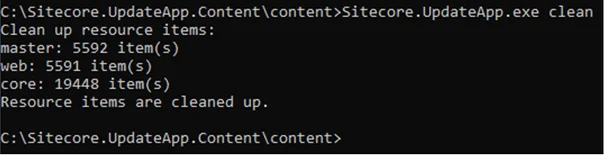
10. On all the servers where you have DEF installed, follow the instructions in [Installing Data Exchange Framework](https://doc.sitecore.com/xp/en/developers/def/90/data-exchange-framework/installing-data-exchange-framework.html "Installing Data Exchange Framework")[Installing Data Exchange Framework](https://doc.sitecore.com/xp/en/developers/def/90/data-exchange-framework/installing-data-exchange-framework.html "Installing Data Exchange Framework") to install the new version of DEF on top of the old version.