---
title: "Map data from MongoDB to contact facet"
slug: "map-data-from-mongodb-to-contact-facet"
abstract: "How to map contact data from MongoDB to an xConnect contact facet in xDB Data MIgration Tool."
---
# Map data from MongoDB to contact facet
Update the xConnect endpoint
When a connection is made to xConnect, a model must be specified. The model defines which facets are available. In order to write loyalty program data to xConnect, xDB Data Migration Tool must be configured to use the model you created and deployed to xConnect.
1. In Content Editor, select your tenant.
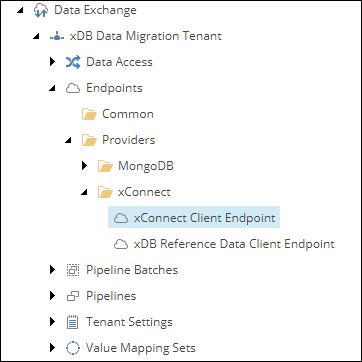
2. Navigate to *Endpoints / Providers / xConnect / xConnect Client Endpoint*
3. On the toolbar, click **Show Deployed Models**.
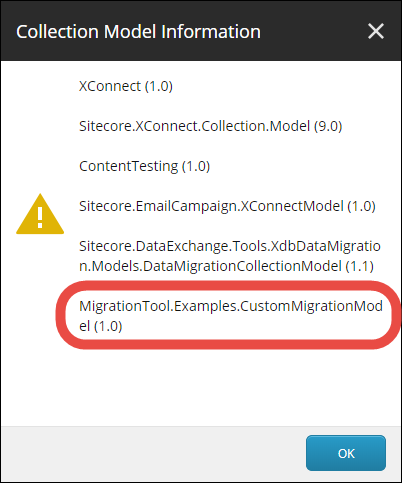
4. In the popup dialog, the custom model you created and deployed to xConnect should appear. Click **OK**.
> [!note]
> If your custom model is not listed, it means the model was not deployed to the xConnect server. Before you continue, you must deploy the model.
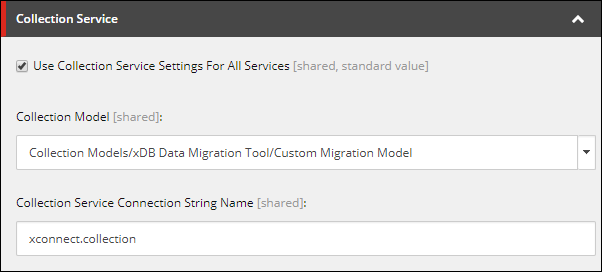
5. In the **Collection Model** field, select the custom model you created.
6. Save the item.
Update the pipeline step that resolves the contact model
1. In Content Editor, select your tenant.
2. Navigate to *Pipelines / MongoDB Contacts to xConnect Migration Pipelines / Process Single Contact from MongoDB Pipeline / Resolve Contact Model by xDB Tracker Id from xConnect*
3. Locate the field **Facets to Read**.
4. Add the following item to the list of selected facets: *Collection Models > xDB Data Migration Tool > Custom Migration Model > Facets > Contact > LoyaltyProgram*
5. Save the item.
Specify data to read from MongoDB
In order to read data from a contact in MongoDB, xDB Data Migration Tool must be told how to find the data in a MongoDB document. This section describes how to configure the tool so it can read the loyalty program data from a contact stored in MongoDB.
1. In Content Editor, select your tenant.
2. Navigate to *Data Access / Value Accessor Sets / Providers / MongoDB / MongoDB Contact*
3. Add the following item:
| | |
| --- | --- |
| Template | **MongoDB Document Field Value Accessor** |
| Item name | **Loyalty Program on MongoDB Contact** |
4. Select the new item.
5. Set the following field values:
| Field | Value |
| --- | --- |
| Field Name | `LoyaltyProgram` |
6. Save the item.
7. Select your tenant.
8. Navigate to *Data Access / Value Accessor Sets / Providers / MongoDB*
9. Add the following item:
| | |
| --- | --- |
| Template | **MongoDB Document Value Accessor Set** |
| Item name | **MongoDB Contact Loyalty Program** |
10. Select the item **MongoDB Contact Loyalty Program**.
11. Add the following item:
| | |
| --- | --- |
| Template | **MongoDB Document Field Value Accessor** |
| Item name | **Enrollment Date on MongoDB Contact Loyalty Program** |
12. Select the new item.
13. Set the following field values:
| Field | Value |
| --- | --- |
| Field Name | **EnrollmentDate** |
| BSON Field Value Reader | *Bson Value Readers > Bson Date Time Value Reader* |
14. Save the item.
15. Select the item **MongoDB Contact Loyalty Program**.
16. Add the following item:
| | |
| --- | --- |
| Template | **MongoDB Document Field Value Accessor** |
| Item name | **Home Store Id on MongoDB Contact Loyalty Program** |
17. Select the new item.
18. Set the following field values:
| Field | Value |
| --- | --- |
| Field Name | **HomeStoreId** |
| BSON Field Value Reader | *Bson Value Readers > Bson String Value Reader* |
19. Save the item.
20. Select the item **MongoDB Contact Loyalty Program**.
21. Add the following item:
| | |
| --- | --- |
| Template | **MongoDB Document Field Value Accessor** |
| Item name | **Membership Id on MongoDB Contact Loyalty Program** |
22. Select the new item.
23. Set the following field values:
| Field | Value |
| --- | --- |
| Field Name | `MembershipId` |
| BSON Field Value Reader | *Bson Value Readers > Bson Int32 Value Reader* |
24. Save the item.
Specify data to write to xConnect contact facet
In order to write data to a contact in xConnect, xDB Data Migration Tool must be told how to write that data. This section describes how to configure the tool so it can write the loyalty program data to the custom contact facet you created for that data.
1. In Content Editor, select your tenant.
2. Navigate to *Data Access / Value Accessor Sets / Providers / xConnect*
3. Add the following item:
| | |
| --- | --- |
| Template | **xConnect Entity Facet Value Accessor Set** |
| Item name | **xConnect Contact Loyalty Program Info Facet** |
4. Select the item **xConnect Contact Loyalty Program Info Facet**.
5. Add the following item:
| | |
| --- | --- |
| Template | **xConnect Entity Facet Property Value Accessor** |
| Item name | **Enrollment Date on Loyalty Program Info Facet on xConnect Contact** |
6. Select the new item.
7. Set the following field values:
| Field | Value |
| --- | --- |
| Facet Property | *Collection Models > xDB Data Migration Tool > Custom Migration Model > Facets > Contact > LoyaltyProgram > EnrollmentDate* |
8. Save the item.
9. Select the item **xConnect Contact Loyalty Program Info Facet**.
10. Add the following item:
| | |
| --- | --- |
| Template | **xConnect Entity Facet Property Value Accessor** |
| Item name | **Home Store Id on Loyalty Program Info Facet on xConnect Contact** |
11. Select the new item.
12. Set the following field values:
| Field | Value |
| --- | --- |
| Facet Property | *Collection Models > xDB Data Migration Tool > Custom Migration Model > Facets > Contact > LoyaltyProgram > HomeStoreId* |
13. Save the item.
14. Select the item **xConnect Contact Loyalty Program Info Facet**.
15. Add the following item:
| | |
| --- | --- |
| Template | **xConnect Entity Facet Property Value Accessor** |
| Item name | **Membership Id on Loyalty Program Info Facet on xConnect Contact** |
16. Select the new item.
17. Set the following field values:
| Field | Value |
| --- | --- |
| Facet Property | *Collection Models > xDB Data Migration Tool > Custom Migration Model > Facets > Contact > LoyaltyProgram > MembershipId* |
18. Save the item.
Configure mapping from MongoDB contact to xConnect contact facet
Next you must configure how the data defined in the previous sections is mapped. This means connecting each field from the MongoDB document to a property on the xConnect contact facet.
1. In Content Editor, select your tenant.
2. Navigate to *Value Mapping Sets / MongoDB to xConnect Contact Mappings*
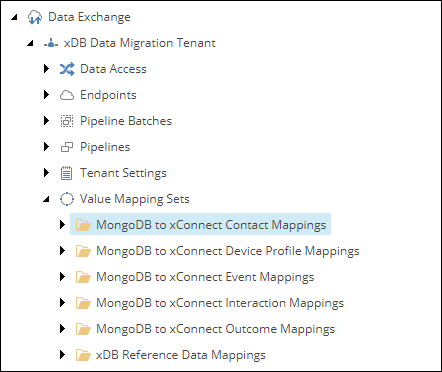
3. Add the following item:
| | |
| --- | --- |
| Template | **Value Mapping Set** |
| Item name | **MongoDB Loyalty Program to Loyalty Program Info Facet on xConnect Contact** |
4. Select the item **MongoDB Loyalty Program to Loyalty Program Info Facet on xConnect Contact**.
5. Add the following item:
| | |
| --- | --- |
| Template | **Value Mapping** |
| Item name | **Enrollment Date** |
6. Select the new item.
7. Set the following field values:
| Field | Value |
| --- | --- |
| Source Accessor | *Data Access > Value Accessor Sets > Providers > MongoDB > MongoDB Contact Loyalty Program > Enrollment Date on MongoDB Contact Loyalty Program* |
| Target Accessor | *Data Access > Value Accessor Sets > Providers > xConnect > xConnect Contact Loyalty Program Info Facet > Enrollment Date on Loyalty Program Info Facet on xConnect Contact* |
8. Save the item.
9. Select the item **MongoDB Loyalty Program to Loyalty Program Info Facet on xConnect Contact**.
10. Add the following item:
| | |
| --- | --- |
| Template | **Value Mapping** |
| Item name | **Home Store Id** |
11. Select the new item.
12. Set the following field values:
| Field | Value |
| --- | --- |
| Source Accessor | *Data Access > Value Accessor Sets > Providers > MongoDB > MongoDB Contact Loyalty Program > Home Store Id on MongoDB Contact Loyalty Program* |
| Target Accessor | *Data Access > Value Accessor Sets > Providers > xConnect > xConnect Contact Loyalty Program Info Facet > Home Store Id on Loyalty Program Info Facet on xConnect Contact* |
13. Save the item.
14. Select the item **MongoDB Loyalty Program to Loyalty Program Info Facet on xConnect Contact**.
15. Add the following item:
| | |
| --- | --- |
| Template | **Value Mapping** |
| Item name | **Membership Id** |
16. Select the new item.
17. Set the following field values:
| Field | Value |
| --- | --- |
| Source Accessor | *Data Access > Value Accessor Sets > Providers > MongoDB > MongoDB Contact Loyalty Program > Membership Id on MongoDB Contact Loyalty Program* |
| Target Accessor | *Data Access > Value Accessor Sets > Providers > xConnect > xConnect Contact Loyalty Program Info Facet > Membership Id on Loyalty Program Info Facet on xConnect Contact* |
18. Save the item.
Specify how xConnect contact facet is populated
Next you must specify how the loyalty program facet on the xConnect contact is populated. This means connecting the facet to the mapping that you configured in the previous section.
1. In Content Editor, select your tenant.
2. Navigate to *Data Access / Value Accessor Sets / Providers / xConnect / xConnect Contact*
3. Add the following item:
| | |
| --- | --- |
| Template | **xConnect Entity Facet Value Accessor Set** |
| Item name | **Loyalty Program Info Facet on xConnect Contact** |
4. Select the new item.
5. Set the following field values:
| Field | Value |
| --- | --- |
| Facet Definition | *Collection Models > xDB Data Migration Tool > Custom Migration Model > Facets > Contact > LoyaltyProgram* |
| Mapping Set | *Value Mapping Sets > MongoDB to xConnect Contact Mappings > MongoDB Loyalty Program to Loyalty Program Info Facet on xConnect Contact* |
6. Save the item.
Add mapping for xConnect contact facet to entity model for contact
In order to support submitting batches of changes to xConnect (as opposed to submitting each change individually), xDB Data Migration Tool uses an object called an entity model to store changes to contacts until those changes are ready to be submitted.
You must add a mapping for the new contact facet.
> [!note]
> For information on what entity models are and why they are needed, see the developer documentation for the xConnect Provider for Data Exchange Framework.
1. In Content Editor, select your tenant.
2. Navigate to *Value Mapping Sets / MongoDB to xConnect Contact Mappings / MongoDB Contact to Contact Model*
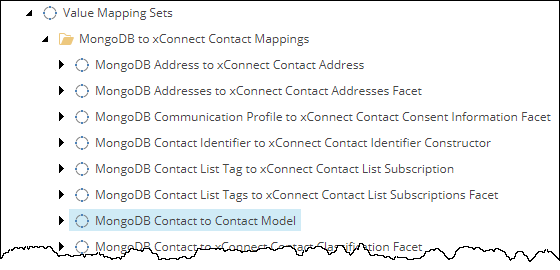
3. Add the following item:
| | |
| --- | --- |
| Template | **Value Mapping** |
| Item name | **Loyalty Program Info Facet** |
4. Select the new item.
5. Set the following field values:
| Field | Value |
| --- | --- |
| Source Accessor | *Data Access > Value Accessor Sets > Providers > MongoDB > MongoDB Contact > Loyalty Program on MongoDB Contact* |
| Target Accessor | *Data Access > Value Accessor Sets > Providers > xConnect > xConnect Contact > Loyalty Program Facet on xConnect Contact* |
6. Save the item.