---
title: "Walkthrough: Building a custom message template"
slug: "walkthrough--building-a-custom-message-template"
abstract: "How to use EXM to build a custom message template for your email campaign."
---
# Walkthrough: Building a custom message template
In the Content Editor, you can build a custom message template that you can use for email campaigns in the Email Experience Manager (EXM). These message templates are different to the regular item templates in Sitecore. To build a custom message template, you create a branch template, a message template, a layout, and a view, and then bind these together and make them available in EXM.
> [!note]
> This walkthrough provides HTML examples. Before you begin making your message template, you must have the HTML code that you want to use for the layout in the final custom template. For inspiration on what to include in your custom template, refer to standard EXM email message templates.
This walkthrough describes how to:
- [Create a branch template](https://doc.sitecore.com/xp/en/developers/exm/103/email-experience-manager/walkthrough--building-a-custom-message-template.html#UUID-4e35caa9-2647-2ac9-4f6d-22cafed43acd_N1529485804937 "Create a branch template")
- [Create a message template](https://doc.sitecore.com/xp/en/developers/exm/103/email-experience-manager/walkthrough--building-a-custom-message-template.html#UUID-4e35caa9-2647-2ac9-4f6d-22cafed43acd_N1529485820703 "Create a message data template")
- [Create the layout and view](https://doc.sitecore.com/xp/en/developers/exm/103/email-experience-manager/walkthrough--building-a-custom-message-template.html#UUID-4e35caa9-2647-2ac9-4f6d-22cafed43acd_N1529485834960 "Create the layout and view")
- [Bind the layout and the message template](https://doc.sitecore.com/xp/en/developers/exm/103/email-experience-manager/walkthrough--building-a-custom-message-template.html#UUID-4e35caa9-2647-2ac9-4f6d-22cafed43acd_N1529485846452 "Bind the layout and the message template")
- [Make your template available in EXM](https://doc.sitecore.com/xp/en/developers/exm/103/email-experience-manager/walkthrough--building-a-custom-message-template.html#UUID-4e35caa9-2647-2ac9-4f6d-22cafed43acd_N1529485860273 "Make your template available in EXM")
- [Include a custom template in a condition filter](https://doc.sitecore.com/xp/en/developers/exm/103/email-experience-manager/walkthrough--building-a-custom-message-template.html#UUID-4e35caa9-2647-2ac9-4f6d-22cafed43acd_N1529485860273 "Make your template available in EXM")
Create a branch template
To create a custom message template, you need a branch template. You can base one of these on the existing EXM message templates. The custom message template is based on the *Branch data* template that consists of a branch template definition item and the *$name* item.
To create a branch template from an existing EXM message template:
1. Open the Content Editor, and navigate to */sitecore/templates/Branches/System/Email/Messages*. In the **Options** window, click **New Branch**.
![Folder tab showing the New Branch button to create a new branch.]()
2. To make sure that your email campaign is AB testable, in the **Create a new branch** dialog box that opens, navigate to *System/Email/Messages*, click **AB Testable Message**, and then click **Create**.
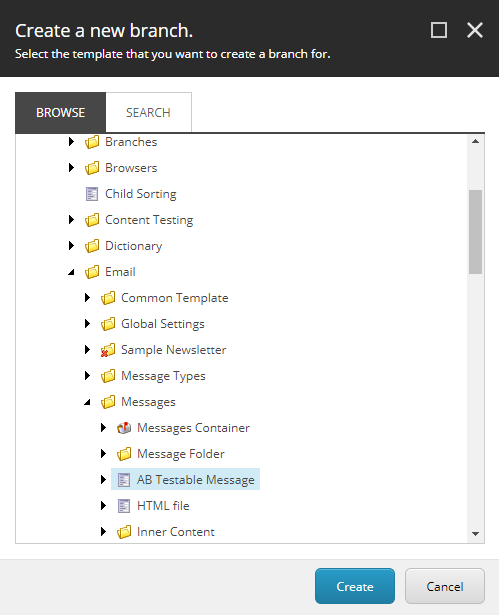
3. Rename the branch. To do so, either right-click and select **Rename**, or press F2. In the following example, we have named it *Simple Email.*
4. On the **Content** tab for your branch, navigate to the **Appearance** tab, and upload a new thumbnail with the size 180x249 pixels. The thumbnail is used for your message template when users create a new email campaign in EXM. Also on the **Content** tab, scroll to the **Help** section, and add a **Long Description**. The long description is the text users see below the thumbnail when they create new messages using a template.
> [!note]
> If you do not see these options for thumbnail and description on the Content tab, on the View tab in the top navigation bar, select the Standard Fields check box.
5. To bind your message template with the content layout, you must insert a message root under the `$name` item. Right-click the `$name` item, and click **Insert**, **Insert from template**.
6. In the **Insert from Template** dialog box, navigate to */Templates/System/Email/Messages/ Inner Content/Message Root*, and in the **Item name** field, enter a name, for example, *Message root*, and click **Insert**.
7. To connect the message root with the `$name `item, click the `$name` item, and in the **Message** section, in the **Body** field, click the drop-down arrow and navigate to the message root.
Your new branch template now looks like this:
![Content Editor Templates node showing your branch template, including a $name, message root, and content file.]()
Create a message data template
Create a new template to specify the standard values that you want to use as the default message content, for example, the text in the header and footer.
To create a message data template:
1. In the Content Editor, navigate to *sitecore/Templates/System/Email/Messages/Inner Content*.
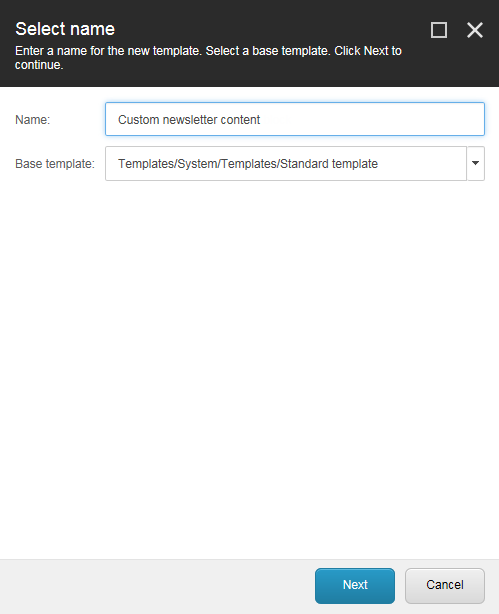
2. On the **Folder Tab**, under **Options**, click **New Template**. In the **Select Name** window that opens, give your template a name, and click **Next**.
3. For your new template, on the **Builder** tab, in the **Add a new section** field, add the relevant data template fields, for example, header text and footer text.
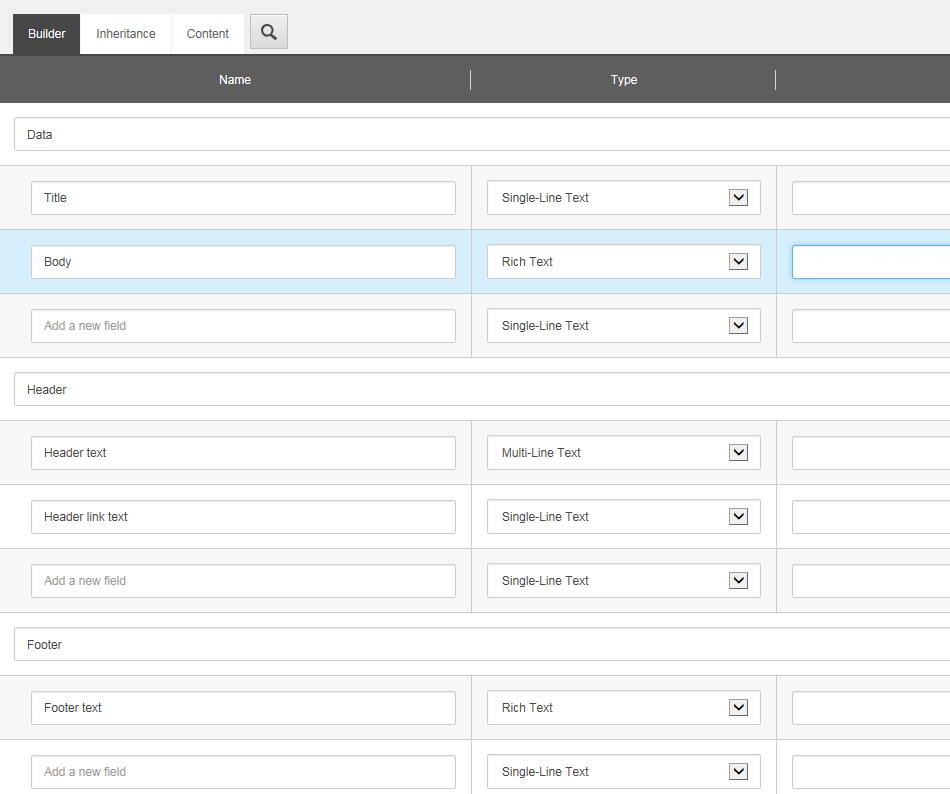
4. Save your changes.
5. In the tree navigation, go to the **Message Root** of your custom template, and create a *Content* child item. This means that you can now add content to your email messages.
Create the layout and view
For layouts, Sitecore uses the ASP.NET MVC framework. For more information on this, see [MVC and renderings](https://doc.sitecore.com/xp/en/developers/103/sitecore-experience-manager/en/mvc-and-renderings.html).
To create the layout of your message template using MVC:
1. On your computer, navigate to `\sitecore modules\Web\EXM\layouts`, and create a `.cshtml` file with the following content:
```xml
@using Sitecore.Mvc
@using Sitecore.Mvc.Presentation
@Html.Sitecore().Placeholder("msg-html-title")
@Html.Sitecore().Placeholder("msg-html-body")
```
2. In Sitecore, in the Content Editor, navigate to */sitecore/Layout/Layouts/System/Email/*. On the **Folder** tab, under **Options**, **Layout**, enter a new name for your layout, for example, *Simple Email Layout*, and click **OK**.
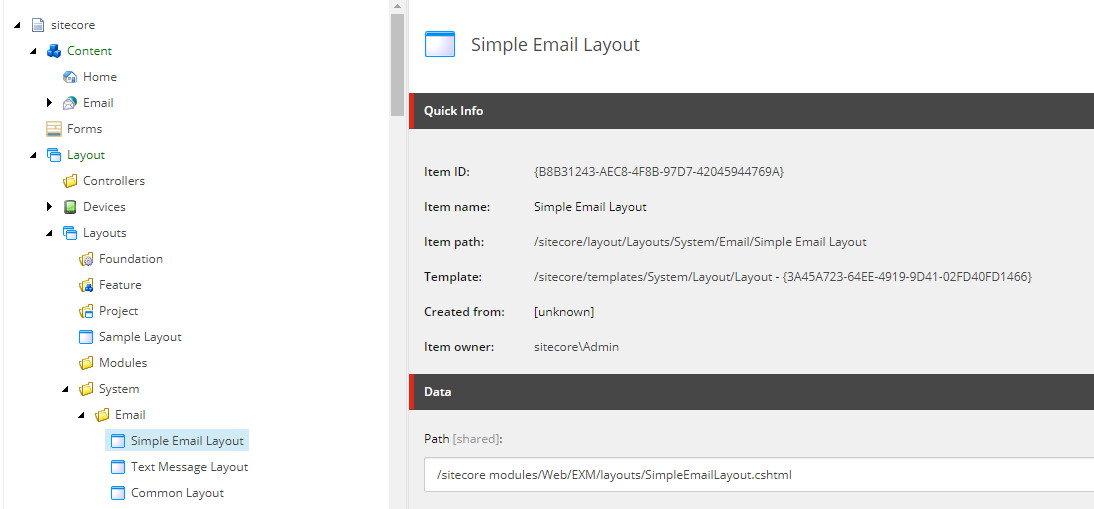
3. In the content tree, select the new layout and, on the **Content** tab, in the **Data** section, click in the **Path** field and navigate to where the layout file is saved, for example, `/sitecore modules/Web/EXM/Layouts/SimpleEmailLayout.cshtml`.
4. On your computer, navigate to `\Views`, and create another `.cshtml` file with the following content:
```xml
@using Sitecore.Mvc.Presentation
@using Sitecore.Mvc
@model RenderingModel
@Html.Sitecore().Field("Header", Model.Item)
@Html.Sitecore().Field("Body", Model.Item)
```
5. In Sitecore, the Content Editor, navigate to */sitecore/layout/Renderings/System/Email*. On the **Folder** tab, under **Options**, click **View rendering** to create a new view rendering for your template. Set the **Path** to *~/Views/.cshtml*.
Bind the layout and the message template
To bind the layout and view to the message template:
1. Navigate to the message root of the branch template that you created, for example, */sitecore/Templates/Branches/System/Email/Messages//Name/Message root*.
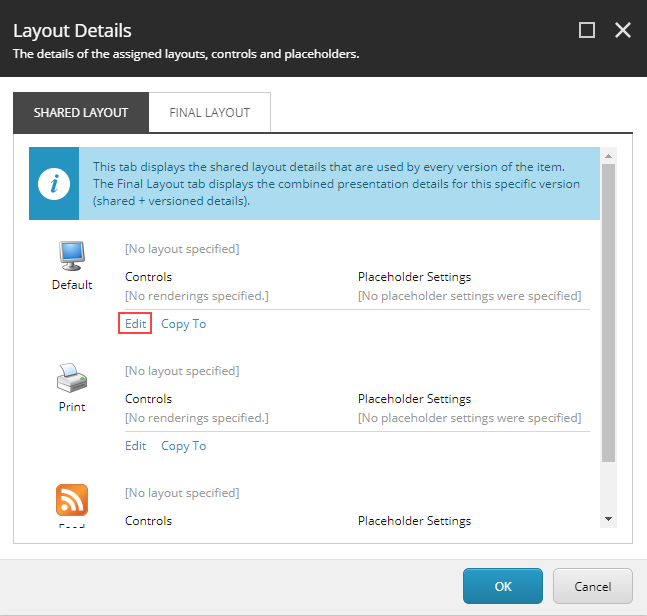
2. On the **Presentation** tab, in the **Layout** group, click **Details**.
3. In the **Layout Details** dialog box, for the **Default** device, click **Edit**.
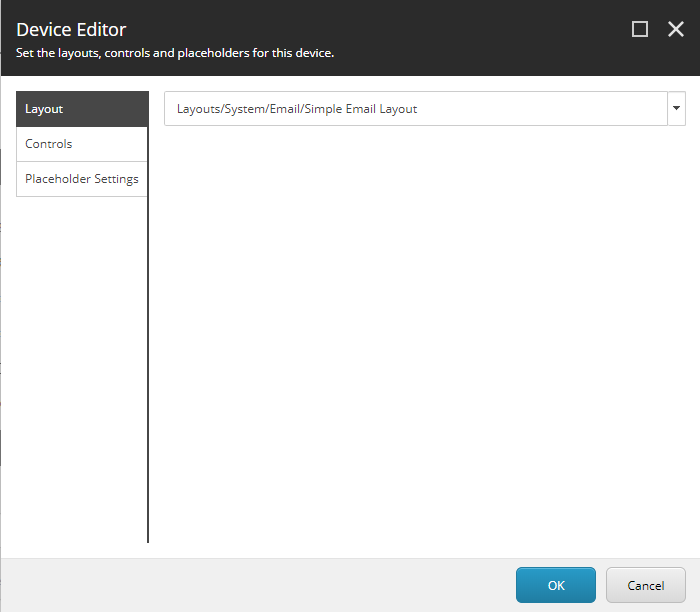
4. In the **Device Editor** dialog box, on the **Layout** tab, click the drop-down menu and navigate to the layout that you created. In this example, we created *Simple Email Layout*.
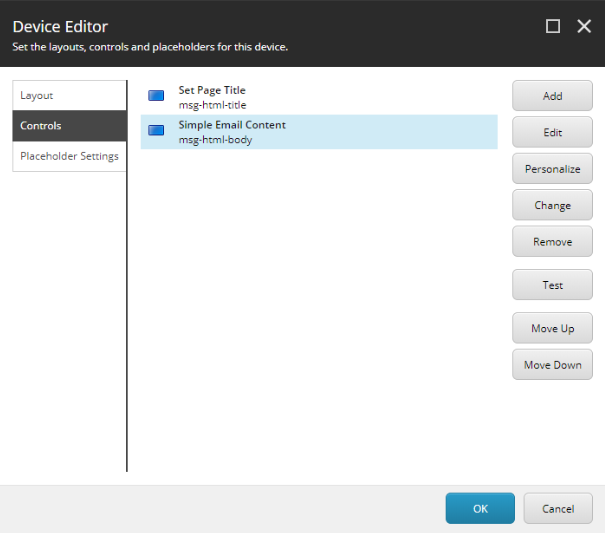
5. Under **Controls**, click **Add**, and navigate to **Renderings**, **System**, **Email**. Expand the menu for your custom template. You must map the content from your MVC code snippet to the placeholders. As a minimum, add and map the following controls:
- **Set Page Title** - under **Add to Placeholder**, map this to `msg-html-title`.
- ** Content** - under **Add to Placeholder**, map this to `msg-html-body`. Under **Data Source**, write the path for your custom template's message root: */sitecore/Templates/Branches/System/Email/Messages//Name/Message root/*.
6. Under **Control Properties**, in the **Caching** section, select the following check boxes:
- **Cacheable**
- **Vary by Data**
- **Vary by Parameters**
- **Vary by Query String**
7. Click **OK**.
Make your template available in EXM
To make the template available for your users in EXM:
1. In the Content Editor, navigate to *sitecore/Content/Email/Message Types*.
2. Expand the message type where you want to add the new message template and click the **Default** item.
3. On the **Configure** tab, in the **Insert Option** group, click **Assign**.
4. In the **Insert Options** dialog box, navigate to your message template, for example, */templates/Branches/System/Email/Messages/Simple Email*, find your custom template, and add it to the **Selected** pane.
5. Click **OK** and save your changes.
In EXM, your users can now choose your message template from the list of templates when they create a new message. If you uploaded a thumbnail and added a long description when you created your branch template, these display with the template. In the following example, we created the *Simple Email* template.
![A visual example of the templates, including your new custom template.]()