---
title: "Walkthrough: Building a custom message template"
slug: "walkthrough--building-a-custom-message-template"
abstract: "How to build a custom message template that you can use for email campaigns in the Email Experience Manager (EXM)."
---
# Walkthrough: Building a custom message template
In the Content Editor, you can build a custom message template that you can use for email campaigns in the Email Experience Manager (EXM). To build a custom message template, you create a branch template, a message template, and a layout, and then bind these together.
> [!note]
> Before you begin, make sure you have the HTML code that you want to use as the layout for your custom message template.
This walkthrough explains how to:
- [Create a branch template](https://doc.sitecore.com/xp/en/developers/exm/91/email-experience-manager/walkthrough--building-a-custom-message-template.html#UUID-b09a53c2-61e5-0b2c-a5b4-98c9efcbda25_N1529485804937 "Create a branch template")
- [Create a message template](https://doc.sitecore.com/xp/en/developers/exm/91/email-experience-manager/walkthrough--building-a-custom-message-template.html#UUID-b09a53c2-61e5-0b2c-a5b4-98c9efcbda25_N1529485820703 "Create a message template")
- [Create the layout](https://doc.sitecore.com/xp/en/developers/exm/91/email-experience-manager/walkthrough--building-a-custom-message-template.html#UUID-b09a53c2-61e5-0b2c-a5b4-98c9efcbda25_N1529485834960 "Create the layout")
- [Bind the layout and the message template](https://doc.sitecore.com/xp/en/developers/exm/91/email-experience-manager/walkthrough--building-a-custom-message-template.html#UUID-b09a53c2-61e5-0b2c-a5b4-98c9efcbda25_N1529485846452 "Bind the layout and the message template")
- [Make your template available in EXM](https://doc.sitecore.com/xp/en/developers/exm/91/email-experience-manager/walkthrough--building-a-custom-message-template.html#UUID-b09a53c2-61e5-0b2c-a5b4-98c9efcbda25_N1529485860273 "Make your template available in EXM")
- [Include a custom template in a condition filter](https://doc.sitecore.com/xp/en/developers/exm/91/email-experience-manager/walkthrough--building-a-custom-message-template.html#UUID-b09a53c2-61e5-0b2c-a5b4-98c9efcbda25_N1529485860273 "Make your template available in EXM")
Create a branch template
The custom message template is based on the Branch data template that consists of a branch template definition item and the $name item.
To create a branch template:
1. In the Content Editor, in the *Messages* folder (`Templates/Branches/System/Email/Messages`), insert a new branch folder, for example, *Custom newsletter*, and then click **OK**.
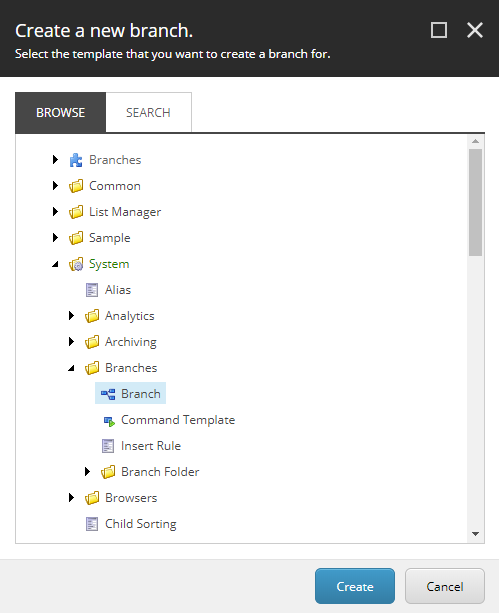
2. In the branch folder, insert a new branch and in the **Create a new branch** dialog box, navigate to `System/Branches/Branch`, and then click **Create**.
3. Rename the branch, for example, to **Monthly newsletter**, and on the **Content** tab, click the icon to change it. The icon is used for your message template when users create a new email campaign in EXM.
4. To perform an AB test on an email campaign that is based on your message template, the *$name* item must be based on the *AB Testable Message* template. In the tree, click the *$name* item and, on the ribbon, click the **Configure** tab, and then, in the **Template** group, click **Change**.
![The Change button on the Configure tab]()
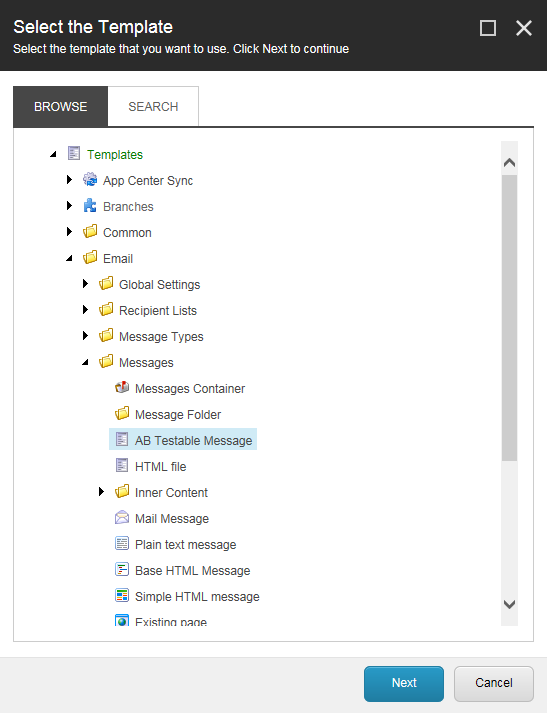
5. In the **Select the Template** dialog box, navigate to `Templates/System/Email/Messages/AB Testable Message`, and click **Next**.
6. Click **Next** to confirm the change and then click **Close**.
7. To be able to bind your message template with the content layout, you must insert a message root under the *$name* item. Right-click the *$name* item and select **Insert** , **Insert from template**.
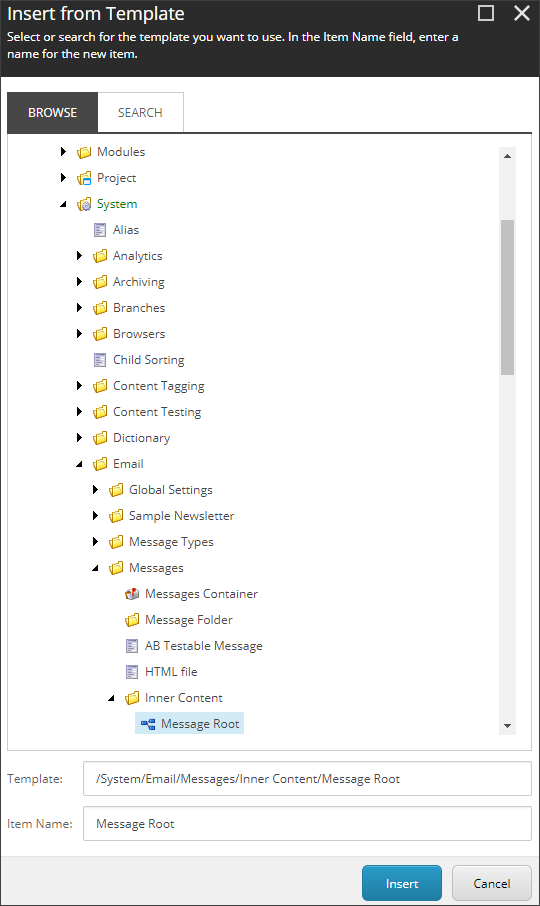
8. In the **Insert from Template** dialog box, navigate to `Templates/System/Email/Messages/ Inner Content/Message Root`, and in the **Item name** field, enter a name, for example, *Message root*, and click **Insert**.
9. To connect the message root with the *$name* item, click the *$name* item, and in the **Message** section, in the **Body** field, click the drop-down arrow and navigate to the message root.
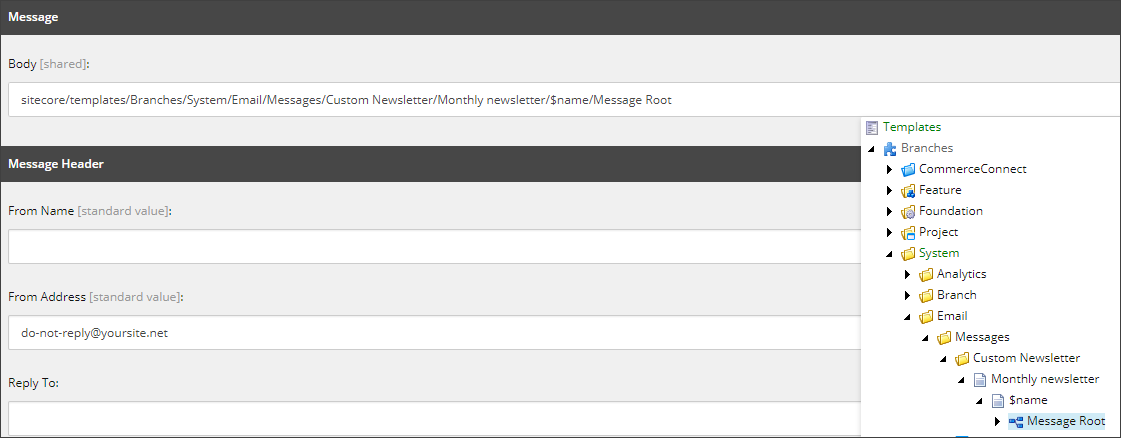
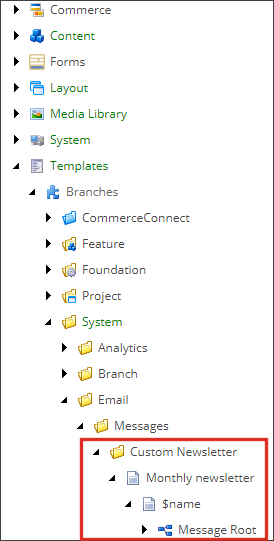
Your new branch template should look like this:
Create a message template
Create a new template to specify the standard values that you want to use as the default message content, for example, the text in the header and footer.
To create a template:
1. In the Content Editor, navigate to `/Templates/System/Email/Messages/Inner Content` and insert a new template folder, for example *Custom newsletter*. Click **OK**.
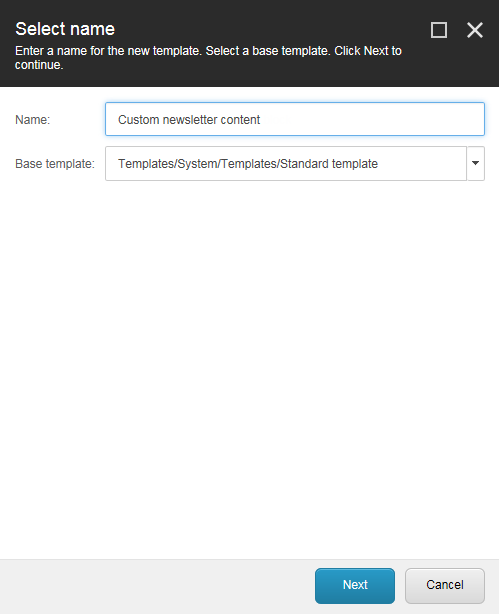
2. In the template folder, insert a new template, for example, *Custom newsletter content*.
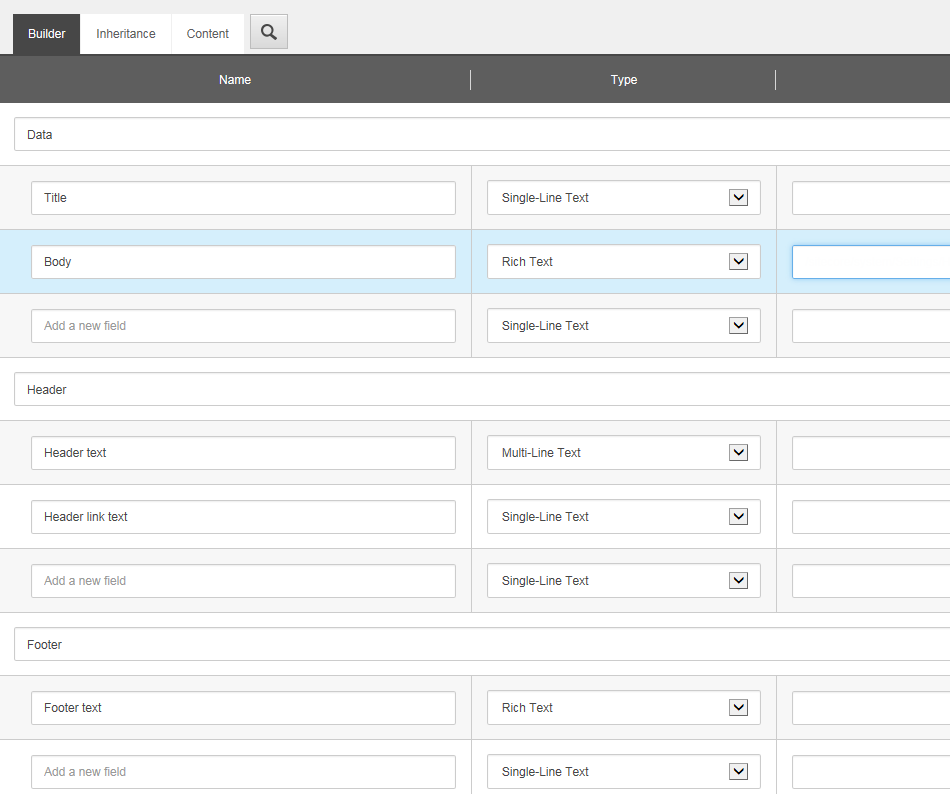
3. For your new template, click the **Builder** tab, and then add the relevant data template fields in the **Add a new section** field, for example, header text and footer text.
4. Save your changes.
Create the layout
To create the layout of your message template:
1. In the Content Editor, navigate to` /sitecore/Layout/Layouts/System/Email/` and insert a new layout, for example, *Monthly Newsletter*.

2. In the content tree, select the new layout and, on the **Content** tab, in the **Data** section, click in the **Path** field and navigate to the where the layout file is saved (for example, `/sitecore modules/web/exm/layouts/Two Column Layout.aspx`).
3. In the webroot file structure of your Sitecore installation, navigate to where you placed the new layout file, for example,` /Website/layouts/EmailCampaign/Sitecore Newsletter`.
4. Open the relevant file and insert the custom HTML code that you want to use for the layout.
For example, for a newsletter layout:
```xml
<%@ Register TagPrefix="sc" Namespace="Sitecore.Web.UI.WebControls"
Assembly="Sitecore.Kernel" %>
<%@ Register TagPrefix="sc" Namespace="Sitecore.Web.UI.WebControls"
Assembly="Sitecore.Analytics" %>
<%@ OutputCache Location="None" VaryByParam="none" %>
<!-- Used for storing title of the email -->
<sc:Placeholder Key="mn-title" runat="server" />
```
Bind the layout and the message template
To bind the layout to the message template:
1. Navigate to the message root of the branch template that you created, for example, /sitecore/Templates/Branches/System/Email/Messages/Custom newsletter/Monthly newsletter/Name/Message root.
2. On the **Presentation** tab, in the **Layout** group, click **Details**.
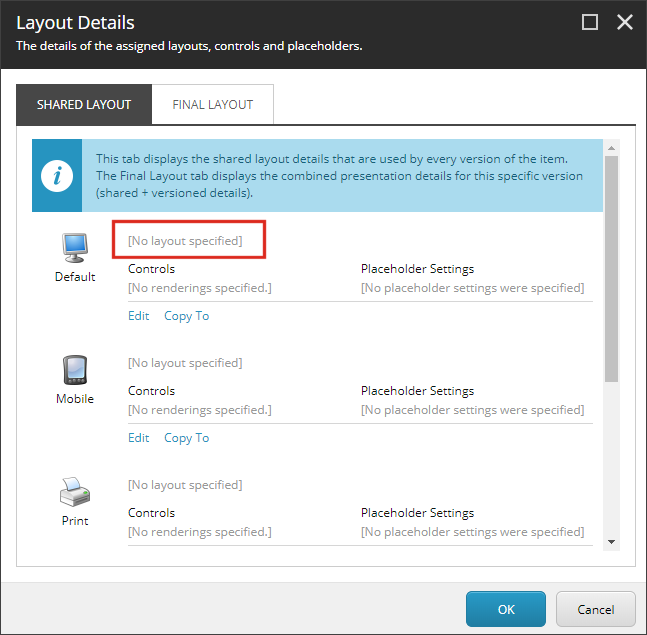
3. In the **Layout Details** dialog box, for the **Default** device, click the *\[No layout specified\]* link.
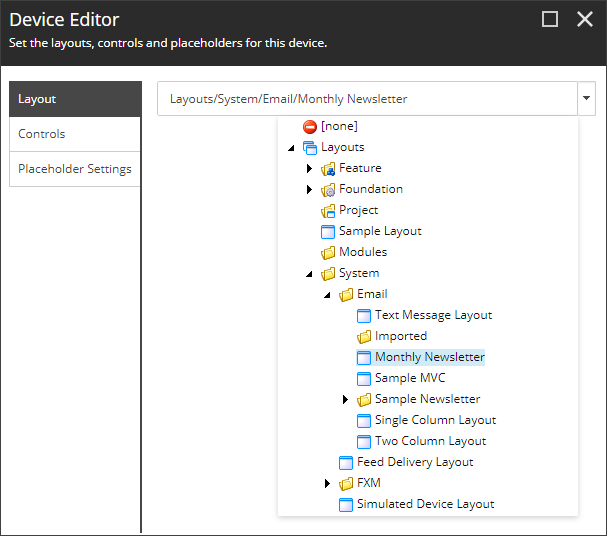
4. In the **Device Editor** dialog, on the **Layout** tab, click the drop-down menu and navigate to the layout that you created, for example, *Monthly newsletter*.
5. On the **Controls** tab, add the relevant controls. As a minimum, in `/Renderings/System/Email`, add the control **Set Page Title**.
6. Click **OK**.
Make your template available in EXM
To make the template available for your users in EXM:
1. In the Content Editor, navigate to `sitecore/Content/Email/Message Types`.
2. Expand the message type where you want to add the new message template and click the **Default** item.
3. On the **Configure** tab, in the **Insert Option** group, click **Assign**.
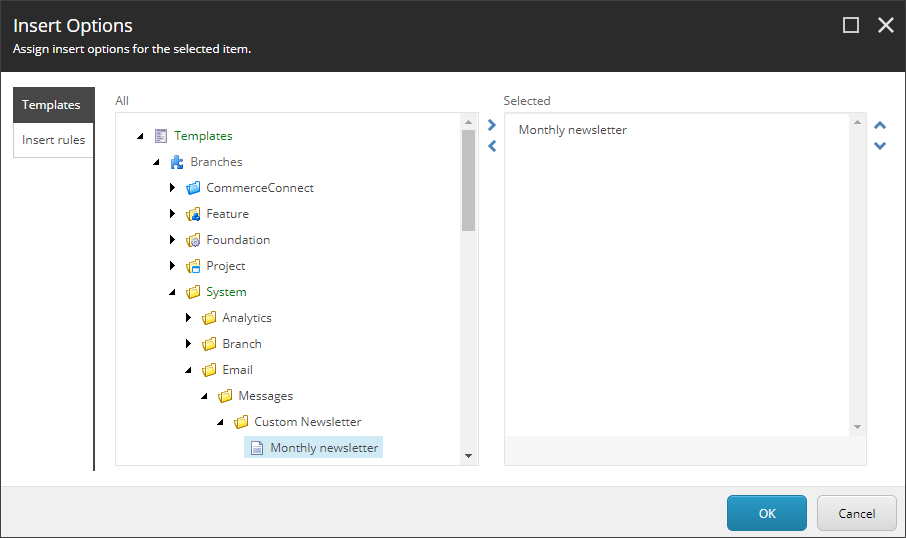
4. In the **Insert Options** dialog, navigate to your message template, for example, `/templates/Branches/System/Email/Messages/Custom Newsletter/Monthly Newsletter` and add it to the **Selected** pane.
5. Click **OK** and save your changes.
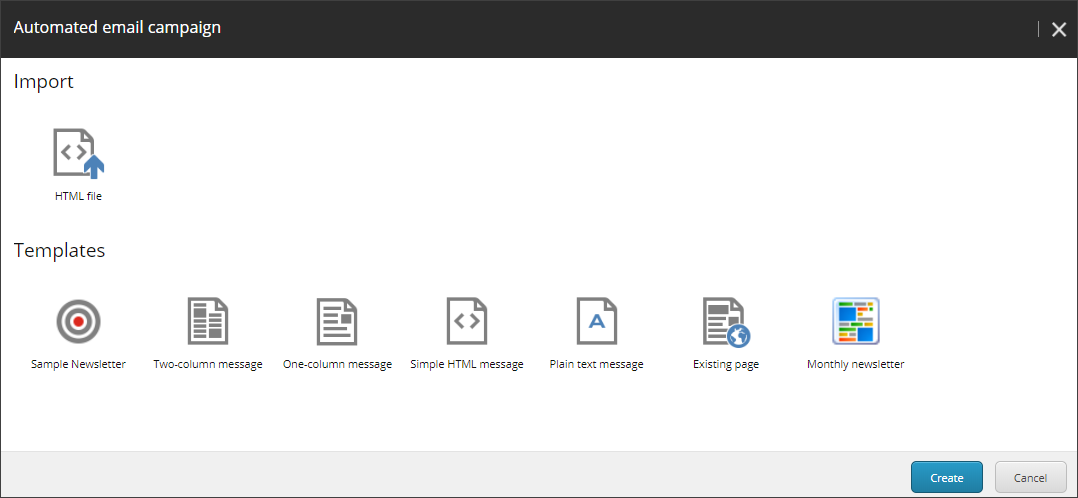
In EXM, your users can now choose your message template from the list of templates when they create a new message.