---
title: "Customize rendering HTML per site"
slug: "customize-rendering-html-per-site"
abstract: "Override the component view path."
---
# Customize rendering HTML per site
All SXA renderings come with default HTML views. If you want to change the HTML for a rendering, SXA lets you specify site-specific views for renderings. For example, if you have a site that uses the Promo rendering a lot, but you don't like the HTML view, you can create a custom Promo rendering with a different HTML view. SXA will try to find overridden views under the specified path and if a site-specific view file exists, this file will be rendered. Otherwise, the functionality will fallback to the view from default views location.
To create the site-specific view folder:
1. Navigate to `C:\inetpub\wwwroot\\` and create a new folder to store the site-specific views. For example, create a *Custom Views* folder for a customized component HTML for the Promo rendering: `C:\inetpub\wwwroot\\MyCustomViews\`
2. Your new folder must have the same structure as in the root folder. Therefore, you must add a *Views* folder: `C:\inetpub\wwwroot\\MyCustomViews\Views\`
3. If, for example, you want to customize the Promo component, go to `C:\inetpub\wwwroot\\Views`, copy the Variants folder and paste it in the `Views` folder you just created:
`C:\inetpub\wwwroot\\MyCustomViews\Views\Variants\Promo.cshtml`
4. Navigate to `C:\inetpub\wwwroot\\Views`, copy the `web.config` file and paste it in the folder you just created.
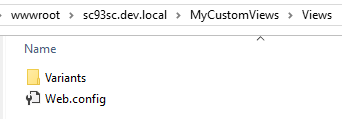
5. Modify the HTML.
6. In the Content Editor, navigate to *sitecore/Content///Settings* and in the **Site Configuration** section, in the `CustomRenderingViewPath` field specify the relative path to the main custom views folder that you just created.