---
title: "Copy and customize a rendering"
slug: "copy-and-customize-a-rendering"
abstract: "Learn how scaffolding lets you add custom renderings."
---
# Copy and customize a rendering
With SXA, you can quickly create a copy of an SXA rendering by using the clone script. With a cloned rendering, you have an exact copy of the rendering definition item, rendering parameters template, data source templates, and branches. You copy the existing rendering, and you name and style it differently. This can be convenient, for example, when you want many Promo renderings that are all styled differently.
Because the standard SXA toolbox sections are overwritten with SXA updates, we recommend that you create a separate toolbox section for derivative renderings. You can do this by adding a new module to SXA.
Add a new module
To add a new module:
1. Navigate to */sitecore/system/Settings*, right-click **Features** or **Foundation**, and insert a new folder.
2. Right-click the new folder, click **Insert**, and click **Module**.
3. Enter a name and group the module under the new folder.
Copy and customize a rendering
To copy and customize a rendering:
1. To clone the rendering that you want to use, navigate to */sitecore/Layout/Renderings/* and right-click the rendering that you want to clone.
2. Click **Scripts**, and click **Clone Rendering**.
3. In the **Create derivative rendering** dialog box, fill in the following fields:
| **Tab** | **Field** | **Description** |
| --- | --- | --- |
| **General** | New rendering name | Enter the name for the new rendering. |
| | Add to module | Select the module the new rendering belongs to. Because the standard SXA toolbox sections are overwritten with SXA updates, we recommend that you add your own module for derivative renderings. |
| | Rendering CSS class | Enter the CSS class for the rendering. |
| **Parameters** | Rendering Parameters | Select the rendering parameters copy mode:
- Inherit from existing rendering parameters– creates a new item and sets the `__Base template` to point to the source rendering parameters template.
- Make a copy of original rendering parameters– creates a copy of the source rendering parameters in a new location. This enables you to extend, remove, and/or reorder parameters.
|
| **Datasource** | Datasource | Select the data source copy mode:
- Inherit from existing datasource – creates a new item and set its `__Base template` to point to the source data source template. Select this option when you want to change the styling of the rendering only.
- Make a copy of original datasource – creates a copy of the source data source template in a new location. Select this option when you want to extend the standard data item with additional fields. For example, if you want to use an image field as a background.
|
| **View** | View | Select the view copy mode:
- Use original MVC view file – uses the view from the prepopulated **Path to the rendering view** field. If the **View** field is not specified then the `StandardController` tries to resolve the view based on rendering the item name. Select this option when you only want to change the styling.
- Copy MVC view file (specify path below) – copies the source view to a location specified in the **Path to rendering view** field. Select this option when you want to extend and/or modify the existing markup.
- Select existing MVC view file (specify path below) – uses the view specified in the **Path to rendering view** field but does not create a copy.
|
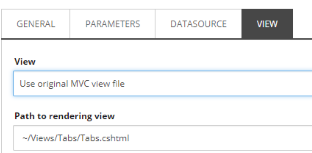
| | Path to rendering view | Enter the location of the view. For example:
 |
Now you can add the rendering to appear in the toolbox in your site.
Add a rendering to the toolbox
To add the rendering to the toolbox:
1. Navigate to the Presentation folder of your site and right-click **Available Renderings**.
2. Click **Insert** and click **Available Renderings**.
3. Enter the section name for the rendering that you want to add and click **OK**.
4. Click the new section that you just created, and in the **Data** section, click **Edit**.
5. In the **Select Item** dialog box, in the Renderings folder, click the relevant rendering, and click the right arrow to move it to the list of selected items. Click **OK**.
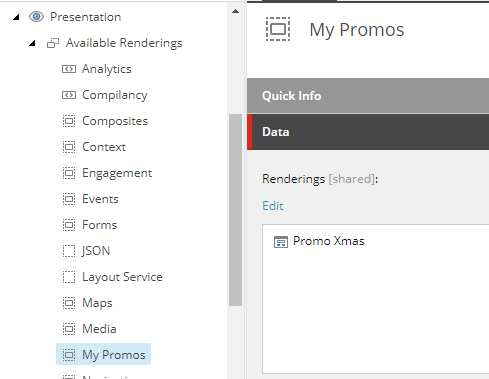
Your new rendering is now available for use in the Experience Editor.