---
title: "Automating tasks using SXA CLI"
slug: "automating-tasks-using-sxa-cli"
abstract: "Learn more about common SXA CLI tasks."
---
# Automating tasks using SXA CLI
[SXA CLI](https://www.npmjs.com/package/@sitecore/sxa-cli) is a useful command line tool that helps you automate tasks for an SXA project. This topic describes the most common tasks. For a complete list of all tasks and possible additions, go to [The SXA watch, build, and upload tasks](https://doc.sitecore.com/xp/en/developers/sxa/105/sitecore-experience-accelerator/the-sxa-cli-watch,-build,-re-build,-and-upload-tasks.md "The SXA CLI watch, build, re-build, and upload tasks").
Creating a new theme
If you have all the [prerequisites](https://doc.sitecore.com/xp/en/developers/sxa/105/sitecore-experience-accelerator/add-a-theme-using-sxa-cli.html "Add a theme using SXA CLI") in place, you can add a new theme for your SXA project using the following task:
```text
sxa new
```
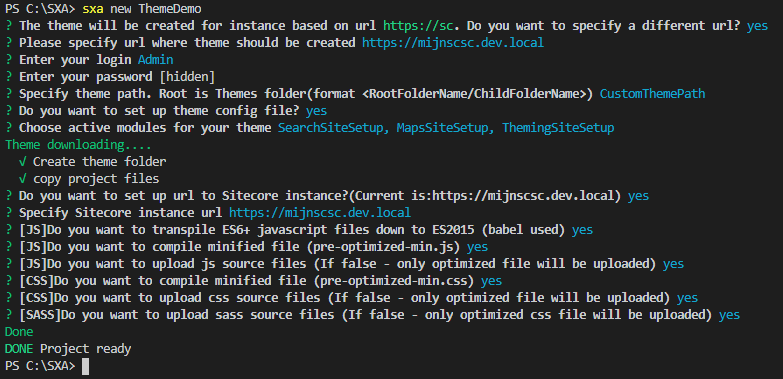
This task runs the create theme pipeline and after you answer a list of questions it stores the theme both locally and in Sitecore.
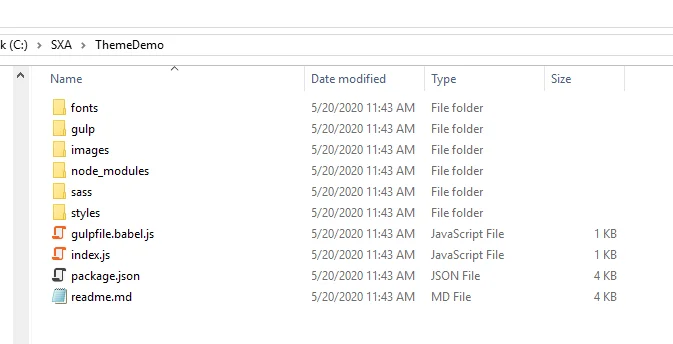
All assets are stored locally. You can use GitHub or any other version control system to work together on styles and scripts.
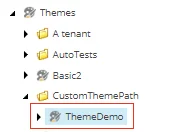
In Sitecore, there is a placeholder for the theme. By default, this folder does not contain any assets:
Configuring theme settings
You can reconfigure theme settings at any time. For example, if you first chose not to upload CSS source files but later want to change this, you can (re)configure theme settings using the following task:
```text
sxa config
```
Seeing the changes
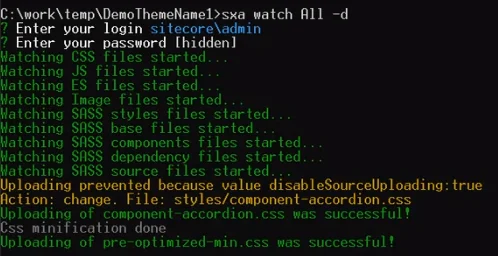
If you finish developing and want to upload the changes, you can upload modified files automatically using the following task:
```text
sxa watch All
```
For example, if you changed the sass styling of the accordion:
Building preoptimized min
If you want to build all Sass tasks and the minification. The following task updates all files locally but does not upload to the server.
```text
sxa build
```
Updating assets
You can update and upload assets to your theme at any time, for example, if you work in a team and you want to update your local theme with the latest changes made by your colleagues. You can update your theme using the following task:
```text
sxa rebuild All
```
This tasks uploads all scripts, images, and styles to the theme in Sitecore.
Uploading assets
You can upload assets to your theme at any time. For example, if you made some changes in CSS and you want to upload these files only.
```text
sxa upload Css
```