---
title: "Create a custom grid"
slug: "create-a-custom-grid-1188195"
abstract: "Create grid theme, definition item, and setup item to add your own custom CSS framework."
---
# Create a custom grid
By default, SXA comes with Bootstrap 5, but you can add your own custom CSS framework.
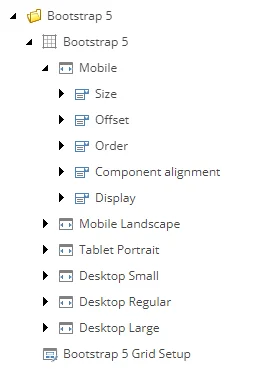
Grid systems are stored as a feature in Sitecore and include:
- The grid theme – includes the CSS file with all grid classes.
- The grid definition item – includes all grid-system specific items (the devices and their classes).
- The grid setup item – the scaffolding item to include the grid in the drop-down list of the site creation wizard.
Create a grid theme
Your custom grid must have a grid theme assigned. SXA comes with a base grid theme that contains scripts and styles. You can use this base theme for your custom grid theme.
To create a grid theme:
1. Navigate to *sitecore/Media Library/Feature* and create a new folder for your grid theme. The default grid themes are saved in the *Experience Accelerator* folder (*sitecore/Media Library/Feature/Experience Accelerator*). Because SXA overwrites the standard SXA sections with SXA updates, we recommend that you create a separate folder for your grid themes.
2. Right-click the new folder and click **Insert from template**.
3. In the **Insert from template** dialog box, navigate to *sitecore/templates/Foundation/Experience Accelerator/Grid/* and click **Grid Theme**.
4. Right-click the new grid theme and click **Insert**, **Styles**. Upload your CSS file here.
Create the grid definition item
Your custom theme needs a grid definition item that includes all grid-system specific items (the devices and their classes).
To create the grid definition item:
1. Navigate to *sitecore/System/settings/Feature/* and create a new folder for your grid definition item. The default grid definition items are saved in the Experience Accelerator folder (*sitecore/system/Settings/Experience Accelerator*). Because SXA overwrites the standard SXA sections with SXA updates, we recommend that you create a separate folder for your grid definition items.
2. Right-click the new folder and click **Insert from template**.
3. In the **Insert from template** dialog box, navigate to */sitecore/templates/Foundation/Experience Accelerator/Grid/* and click **Grid Definition**.
4. Fill in the following fields:
- **Name** - The name of the grid system as you want it to display in the site creation wizard.
- **Rendering parameters field type** - Determines the way the grid parameters are rendered. If you do not want to customize, use the default field renderer: `Sitecore.XA.Foundation.Grid.Fields.FieldRenderers.GridRenderingParametersFieldRenderer, Sitecore.XA.Foundation.Grid`
- **Default component layout** - Sets the default column size for renderings that you drag on the page.
- **Grid theme** - Links to the theme used for the grid.
- **Grid field parser type** - Determines the parser type to parse the grid fields. If you do not need customization, use the default: `Sitecore.XA.Foundation.Grid.Parser.GridFieldParser,Sitecore.XA.Foundation.Grid`
- **Grid body view path** - Path to your cshtml file that defines the body layout of a page. You must include all necessary placeholders such as header, main, and footer.
Create the grid scaffolding setup
To add the new grid as one of the grid options in the site creation wizard, you must add the grid setup.
To add the grid setup:
1. Right-click the new grid and click **Insert from template**.
2. In the **Insert from template** dialog box, navigate to *sitecore/Templates/Foundation/Experience Accelerator/Scaffolding/Roots* and click **Grid Setup**.
3. Fill in the following fields:
- **Name** - The name of the grid system as you want it to display in the site creation wizard.
- **Dependencies** - Specify the order to install the modules.
- **Grid Definition** - Refers to the grid definition item. For example, for the custom grid in this example: *Settings/Feature//*
4. You can now select your custom grid on the in the **Grid mapping** field of the site settings.