---
title: "Create and assign a page design in the Experience Editor"
slug: "create-and-assign-a-page-design-in-the-experience-editor-1188202"
abstract: "Work with groups of partial layouts to create the design for a page."
---
# Create and assign a page design in the Experience Editor
You work with reusable pieces of content and layout. A page design is a group of partial layouts that make up the design of a webpage.
For example, you might need a reusable page structure for a blog page. By creating a page design for a blog, you can create a basic template that content authors can use to create content without having to worry about the design of the page.
> [!warning]
> Do not add components directly to page designs. Page designs cannot hold the information on their own, but refer to the information stored in the partial designs. So if you add components directly to the page designs, they do not render on the page.
Create a page design
You can set up a page design to determine the layout of a page.
To create a page design in the Experience Editor:
1. On the ribbon, on the **Experience Accelerator** tab, click **Page Designs,** and then click **Insert Page Design**.
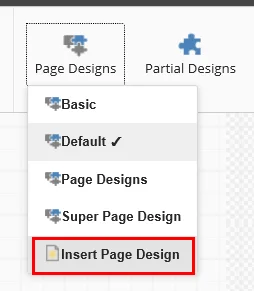
2. In the **Insert Item** dialog box, click **Page Design,** enter a name, and click **OK**.
> [!note]
> If you want to add a group of related page designs, click Page designs. This can be convenient if you have a complex site that requires a large number of partial designs. You can divide your page into sections of partial designs, for example, blogs, news, products, and careers.
3. In the **Select items** dialog, select the partial designs that you want to add, click the right arrow  to move it to the list of selected items, and click **OK**.
When you are no longer using a page design, you might want to delete it.
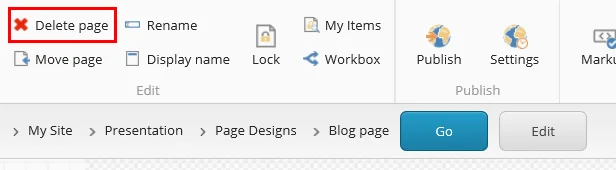
To delete a page design in the Experience Editor:
1. On the ribbon, on the **View** tab, select **Navigation bar** , go to the **Presentation** layer of your site and click the page design that you want to delete, and then click **Go**.
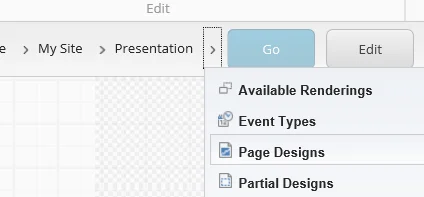
2. On the **Home** tab of the page design, click **Delete page**.
Assign a page design
You can use page designs to map content types to your page layouts. By doing this, you keep the layout of your site consistent. For web pages that you use often, such as landing pages, product pages, and navigation pages, you can keep them consistent by assigning a page design to the template for that page. In this way, you link the content to the design.
To assign a page design to a template:
1. On the ribbon, on the **Experience Accelerator** tab, click **Site Page Designs**.
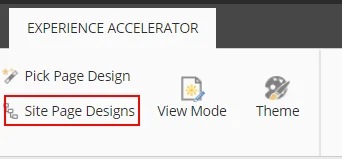
2. In the dialog box that appears, in the left column, select a template and, to associate it to the page design, in the right column, select the page design.
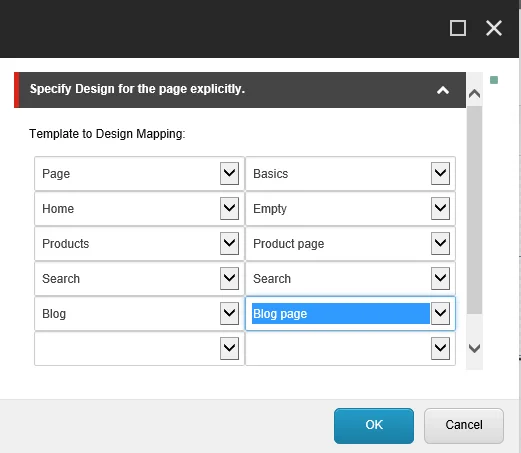
3. Click **OK** and **Save** to apply the changes.
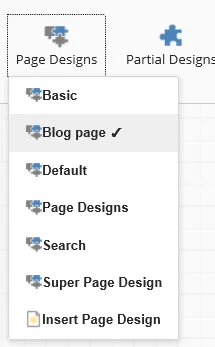
To see the page design assigned to a page, click **Page Designs**. The assigned page design is marked, for example, **Blog page**.
> [!note]
> If you don't use a particular design very often or you want to override a particular page design, you can assign a page design to a specific page. To do this, on the ribbon, on the Experience Accelerator tab click Pick Page Design, select the page, click OK and Save to apply the changes.