---
title: "Embed HTML in SXA"
slug: "embed-html-in-sxa"
abstract: "Add HTML to SXA pages using the Plain HTML components."
---
# Embed HTML in SXA
To help you add specific HTML to pages, two components come with SXA: the Plain HTML and Plain HTML (reusable) component and the HTML Snippet component.
You use the Plain HTML and Plain HTML (reusable) component to embed (and store) HTML code for visual elements that you want to place on your page, for example, to embed a YouTube video. This component adds the default wrapper that SXA uses for all components.
You use the generic HTML Snippet component to put on meta partial designs to make HTML elements work in the background. It lets you integrate with an external system. For example, to integrate Google Tag Manager or customer server chat functionality. This component comes without any extra surrounding markup.
Add the Plain HTML component
Plain HTML is a generic component that lets you include arbitrary static HTML blocks. You can insert the Plain HTML (reusable) component for single use as well as for reuse on multiple pages across the whole site.
To add the Plain HTML component:
1. In the Experience Editor, navigate to the page (design) or partial design you want to add the HTML to. If you do not need the HTML to display across multiple pages, you can also add it to a page.
2. Open the Toolbox. In the **Page Content** group, click **Plain HTML (reusable)** and drag it to the page.
3. In the **Select the Associated Content** dialog box, click **Create**.
4. In the **Insert Item** dialog box, click **Insert HTML Code**.
5. Save the page.
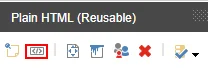
6. In the **Plain HTML (Reusable)** toolbar, click **Edit HTML source**.
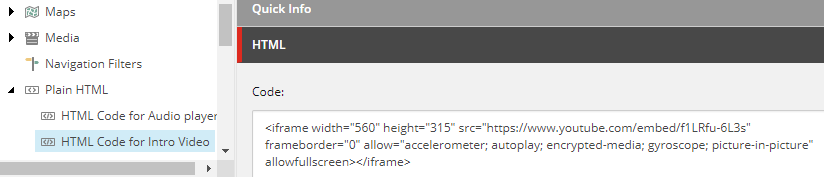
7. Your HTML Code item now opens in the Content Editor. In the **HTML** section, in the **Code** field, enter your HTML code.
> [!note]
> For complex components, you might consider using the Plain HTML rendering because it provides complete freedom regarding the HTML you can place in it. However, this way of adding content to a page can be difficult for your editors to work with because not all content editors know how to edit the HTML code. Consider using clones, variants, or the HTML snippet instead of the Plain HTML rendering.
Add an HTML Snippet
The HTML Snippet is a meta component that you can add to the Metadata Partial Design. It can be used to add custom HTML to the `` section, directly after the `` tag or before the closing `` tag of each page. This can be convenient when you want to embed a third-party component (widget, tracking script, and so on), or when none of the available components suit your custom needs.
To add an HTML snippet:
1. In the Experience Editor, click **Partial Design** and click **Meta Partial**.
2. In the SXA Toolbox, in the **Generic Meta Rendering** category, drag and drop the **HTML Snippet** component. You can add meta renderings to the following containers: to the `head` section, directly after the `body` tag, or before the closing `/body` tag of each page.
If, for example, you want to integrate Google Tag Manager, it is important to add it to the head.
3. In the **Select the Associated Content** dialog box, click **Create**.
4. In the **Insert Item** dialog box, click **HTML snippet**.
5. Save the page.
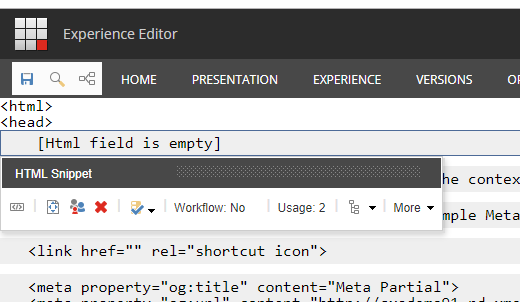
6. In the **HTML snippet** toolbar, click **Edit HTML source**.
7. Your HTML Code item now opens in the Content Editor. In the **HTML Snippet** section, in the **html** field, enter your HTML code.