---
title: "Walkthrough: Using a query to render items"
slug: "walkthrough--using-a-query-to-render-items"
abstract: "Specify a query to run on a current context item"
---
# Walkthrough: Using a query to render items
This walkthrough describes how to create a rendering variant for a blog post that renders the related products and all its child items. We will use rendering variants with a query item to accomplish this. This walkthrough also describes a more complex scenario of how to display a list of authors that share the same tag as the blog post.
The starting point for this walkthrough is the same as the scenario described in the [Creating a rendering variant for a blog post](https://doc.sitecore.com/xp/en/developers/sxa/105/sitecore-experience-accelerator/walkthrough--creating-a-rendering-variant-for-a-blog-post.html "Walkthrough: Creating a rendering variant for a blog post") walkthrough. To execute the step described for this scenario, you need an additional product list and tags.
## The scenario
This scenario includes the following:
- A site that contains blog posts.
- A product list.
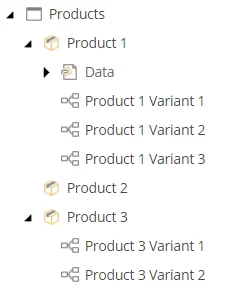
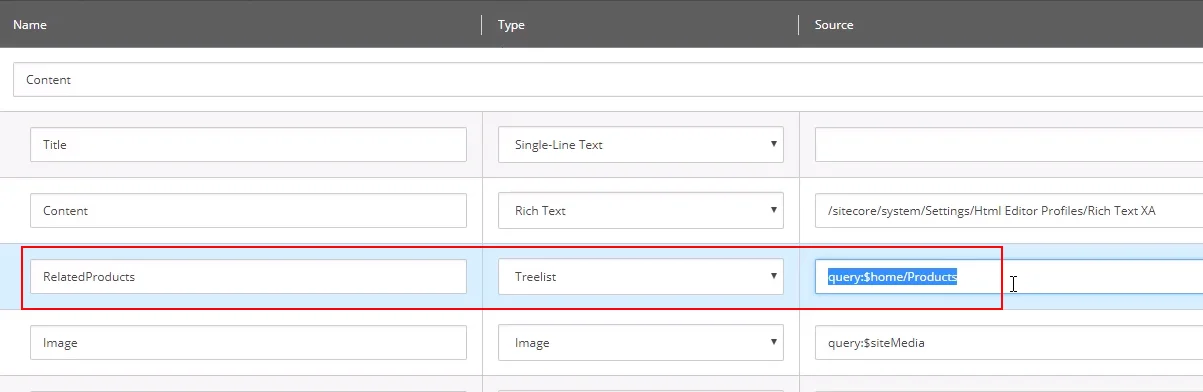
- A page template that refers to the product list using a query:
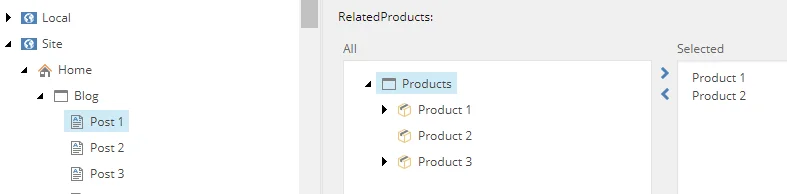
- The blog pages have the related products selected from a list:
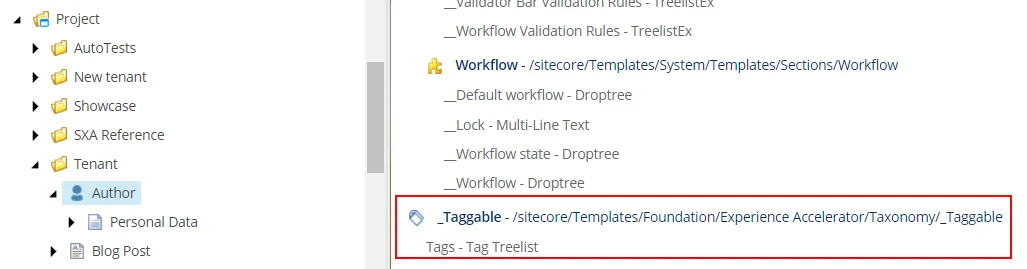
- The author template inherits the `_taggable` base template:
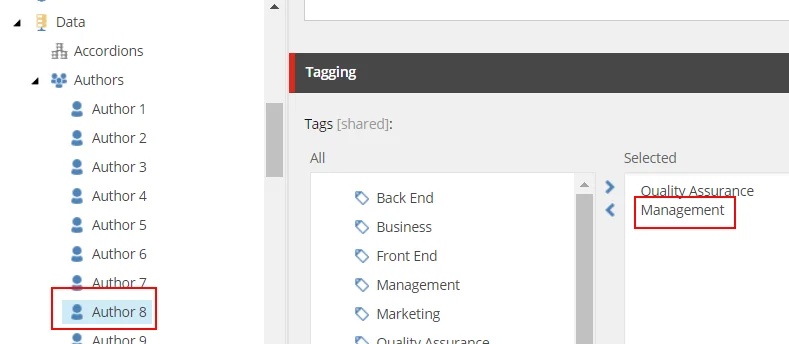
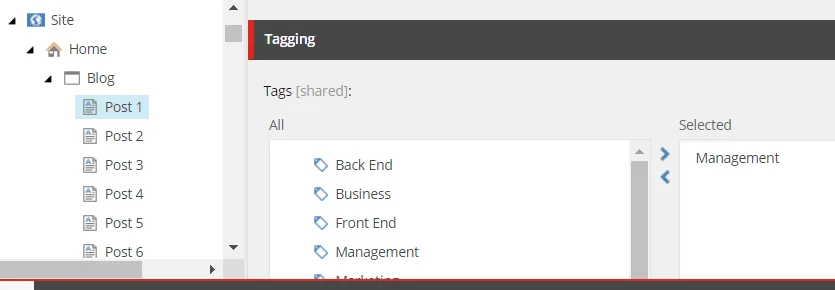
- The blog posts and the authors have tags assigned from a list:
This walkthrough describes how to:
- [Add the rendering variant](https://doc.sitecore.com/xp/en/developers/sxa/105/sitecore-experience-accelerator/walkthrough--using-a-query-to-render-items.html#UUID-d1b16545-5419-fbbc-032f-367246a6f5ec_section-idm45811180802976 "Add the rendering variant")
- [Add the reference item](https://doc.sitecore.com/xp/en/developers/sxa/105/sitecore-experience-accelerator/walkthrough--using-a-query-to-render-items.html#UUID-d1b16545-5419-fbbc-032f-367246a6f5ec_section-idm45285759982096 "Add the reference item")
- [Add the query item](https://doc.sitecore.com/xp/en/developers/sxa/105/sitecore-experience-accelerator/walkthrough--using-a-query-to-render-items.html#UUID-d1b16545-5419-fbbc-032f-367246a6f5ec_N1540277358321 "Add the query item")
- [Add a query item that uses a token](https://doc.sitecore.com/xp/en/developers/sxa/105/sitecore-experience-accelerator/walkthrough--using-a-query-to-render-items.html#UUID-d1b16545-5419-fbbc-032f-367246a6f5ec_section-idm45811180850640 "Add a query item that uses a token")
Add the rendering variant
To be able to display a list of related products on every blog post, we will first create a rendering variant for the Page Content rendering:
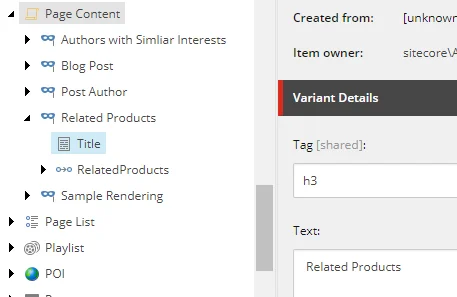
1. In the Content Editor, navigate to *Presentation/Rendering Variants*, right-click **Page Content**, and click **Insert**, **Variant Definition**.
2. Enter *Related Products* and click **OK**.
3. Next, to create a title field, right-click the **Related Products** variant, click **Insert**, click **Text**, enter *Title*, and click **OK**.
4. In the **Variant Details** section, in the **Tag** field, select *h3* and in the **Text** field, enter *Related Products*.
Add the reference item
Next, we will create a rendering variant reference item that goes to the **RelatedProducts** field of the blog post, and renders the content of that field. A rendering variant reference item displays a field from a referenced item. If you want to display a field from a referenced item, you can define this field in the **Pass through field** field.
To create a rendering variant reference item:
1. Right-click the **Related Products** variant, click **Insert**, click **Reference**, enter *RelatedProducts*, and click **OK**.
The **Pass through field** field defines the name of the field from the nested item. The rendering variant now passes through the **Related Products** field.
2. To list the products by their title, right-click the **Related Products** variant, click **Field**, enter *Title*, and click **OK**.
3. In the **Variant Details** section, in the **Tag** field, select *h4*.
If you now add the Page content variant to the blog page, it will look like this:
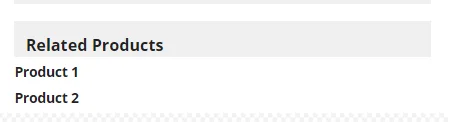
The reference passes through the **RelatedProducts** field and renders the content:

Add the query item
To be able to list the product's child items, if there are any, let's use a query.
To add the query child item to a rendering variant:
1. Right-click **Related Products** variant, click **Query**, and click **OK**.
2. In the **Variant Details** section, in the **Query** field, add a query that searches for all children but leaves out the title: `query:./*[@@templatename!='Page Data']`
If you now add the **Page content** variant to the blog page, it will look like this:
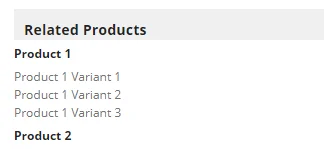
The query passes through the Product list and renders the content: Product 1 with three variants and Product 2 with no variants.

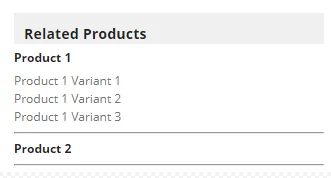
3. To add a dividing line between the different products, right-click **Related Products** variant, click **HTML Tag**, enter *Line*, and click **OK**.
4. In the **Variant Details** section, in the **Tag** field, select *hr*.
Add a query item that uses a token
You can build more complex queries. For example, if you want to run a query on authors with similar tags.
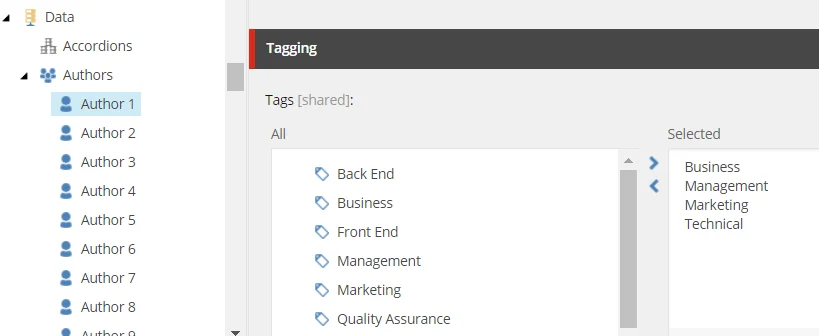
In this scenario, the blog pages and the authors contain tags.

> [!note]
> If you want to execute the scenario as described in this walkthrough, you must make sure the Author template inherits the SXA `_Taggable` base template.
>
> 
>
> And inherits the template:
>
> 
For this example, we will build a query to list all authors that have a similar tag as a blog post page.
To create a query item that uses a token:
1. In the Content Editor, navigate to `Presentation/Rendering Variants`, right-click **Page Content**, and click **Insert**, **Variant Definition**.
2. Enter *Authors with similar interest* and click **OK**.
3. Right-click **Authors with similar interest** variant, click **Field**, enter *Title*, and click **OK**.
4. Right-click **Authors with similar interest** variant, click **Query**, enter *Query for authors* and click **OK**.
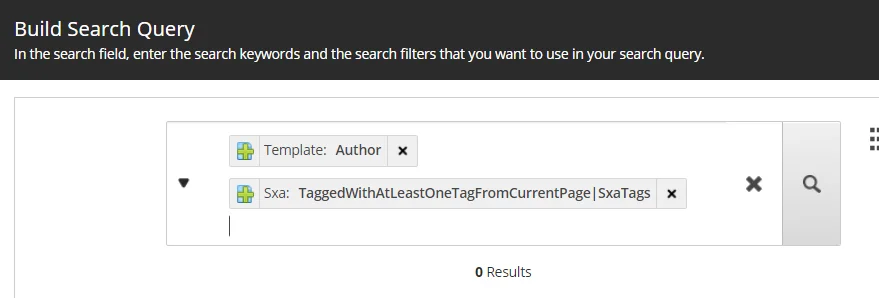
5. In the **Query** field, click **Build Query**.
6. In the **Build Search Query** dialog box, first search for the Authors' template: Enter *template*, and *Authors*.
7. You can scope your search by adding the default SXA token: `TaggedWithAtLeastOneTagFromCurrentPage|SxaTags`
8. The variant also needs a Header Wrapper that contains the fields to display for the author. For example add fields for the First Name, the Last Name, and the Picture:
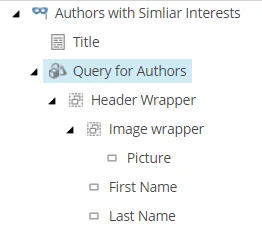
9. If you now add the rendering variant to blog post 1, all the authors that have the same tag as blog post 1 - *Management*\- will be listed: