---
title: "Walkthrough: Using the rendering variant reference item to display fields from a linked item"
slug: "walkthrough--using-the-rendering-variant-reference-item-to-display-fields-from-a-linked-item"
abstract: "Pass through links to get content from items that are linked."
---
# Walkthrough: Using the rendering variant reference item to display fields from a linked item
The rendering variant reference item lets you display fields from a referenced item. This walkthrough describes how to add author information to a blog post. It uses the same scenario as described in the [Walkthrough: Creating a rendering variant for a blog post](https://doc.sitecore.com/xp/en/developers/sxa/105/sitecore-experience-accelerator/walkthrough--creating-a-rendering-variant-for-a-blog-post.html "Walkthrough: Creating a rendering variant for a blog post").
This example describes how to create a rendering variant reference item that goes to the author field of the blog post, goes through the items that are linked, and renders the fields from those items.
## The scenario and the end result
The scenario involves:
- A site that contains blog posts.
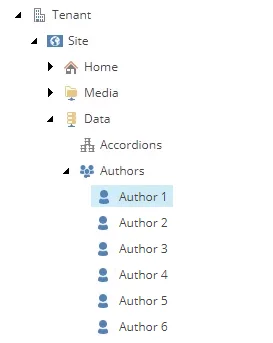
- A site data folder that contains a list of authors that includes their first name, last name, bio, photo, and related media items:
- A page template that refers to this data source using a query:

- The blog pages have the related products selected from a list:

The end result looks like this:

This walkthrough describes how to:
- [Create the rendering variant reference item](https://doc.sitecore.com/xp/en/developers/sxa/105/sitecore-experience-accelerator/walkthrough--using-the-rendering-variant-reference-item-to-display-fields-from-a-linked-item.html#UUID-8fa719e8-cd79-2f84-516a-81c357262ab4_N1539764056763 "Create the rendering variant reference item")
- [Render the fields](https://doc.sitecore.com/xp/en/developers/sxa/105/sitecore-experience-accelerator/walkthrough--using-the-rendering-variant-reference-item-to-display-fields-from-a-linked-item.html#UUID-8fa719e8-cd79-2f84-516a-81c357262ab4_section-idm46365220235728 "Render the fields")
- [Render related media](https://doc.sitecore.com/xp/en/developers/sxa/105/sitecore-experience-accelerator/walkthrough--using-the-rendering-variant-reference-item-to-display-fields-from-a-linked-item.html#UUID-8fa719e8-cd79-2f84-516a-81c357262ab4_N1539764026772 "Render related media")
Create the rendering variant reference item
A rendering variant reference item displays a field from a referenced item. If you want to display a field from a referenced item, you can define this field in the **Pass through field** field.
To create a rendering variant reference item:
1. In the Content Editor, navigate to *Presentation/Rendering Variants*, right-click **Page Content**, and click **Insert**, **Variant Definition.**
2. Enter *Post Author* and click **Ok**.
3. Next, lets create a rendering variant reference item that goes to the author field of the blog post, and renders the content of that field.
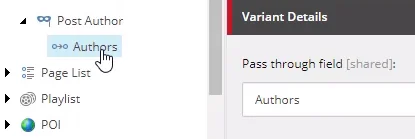
Right-click the **Post Author** variant, click **Insert**, click **Reference**, enter *Authors*, and click **Ok**. The **Pass through field** field defines the name of the field from the nested item. The rendering variant now passes through the authors field.
Render the fields
Now we can start rendering fields from the authors.
To render the fields:
1. First, create a wrapper by adding a section. Right-click **Post Author**, click **Section**, enter *HeadingWrapper* , and click **OK**.
2. To define the fields that the rendering variant displays, you can now add child items.
Right-click **HeadingWrapper**, click **Insert**, and then click the relevant item. For this example, let's add the following items:
| Item | Field name | Tag | Prefix |
| --- | --- | --- | --- |
| Field | First Name | span | |
| Field | Last Name | span | |
| Field | Picture | div | |
| Field | Bio | div | |
Render related media
As well as their picture, the authors of the sample site also have other media items attached:

To make the rendering variant render the related media associated with the author, let's use a reference item to render a responsive image item.
To render related media:
1. Right-click the **Post Author** variant, click **Reference**, enter *RelatedMedia* and click **OK**.
2. Right-click **RelatedMedia**, click **Responsive Image**, and click **OK**.
3. Empty the **Field Name** field.
4. In the **Default size** field, enter *64*.