---
title: "Create a tenant and a site"
slug: "create-a-tenant-and-a-site"
abstract: "The SXA content architecture includes tenants and sites."
---
# Create a tenant and a site
The SXA content architecture includes tenants and sites. SXA supports multitenancy, which means that you can run multiple sites on a single instance of Sitecore. Each tenant can include multiple related sites, for example, to support multiple brands for a single company or multiple languages or locations for a single brand. Organizations can support multiple languages through one-to-one translated versions (native Sitecore language support) or use a model with a separate site for each supported language.
For example, an international clothing company could have different tenants for the different brands of clothing and different sites for the specific countries.
Create a tenant and a tenant folder
If you have multiple sites that need to share resources they must be created within one tenant. With SXA's multitenant architecture, you can provide each tenant a dedicated share of the Sitecore instance including its data templates, configuration, user management, tenant individual functionality, and non-functional properties.
To create a tenant:
1. In the Content Editor, right-click the `Content` item in the content tree, click **Insert**, **Tenant**.
2. In the wizard, enter a name for the tenant, select the modules, and click **OK**.
For more complex solutions, you can use groups of tenants. For example, a multinational selling consumer goods could have the following tenant folders and tenants:
Company (Tenant Folder)
- Cosmetics (Tenant Folder)
- Brand A (Tenant)
- Brand B (Tenant)
- Laundry detergents (Tenant Folder)
- Brand A (Tenant)
- Brand B (Tenant)
- Brand C (Tenant)
- Hair care (Tenant Folder)
- Brand A (Tenant)
- Brand B (Tenant)
- Brand C (Tenant)
- Brand D (Tenant)
To create a group of tenants:
- Right-click the content item in the content tree, click **Tenant Folder**, enter a name and click **OK**.
> [!note]
> If you want to move tenants between environments, you can package tenants with the [SXA Tenant Exporter](https://doc.sitecore.com/xp/en/developers/sxa/93/sitecore-experience-accelerator/export-a-tenant.html "Export a tenant").
Create a site and a site folder
The tenant is a top-level container for the sites underneath. Sites in the same tenant are related, for example, because they share the same set of templates or part of the media library. Sites are the items that represent the website and consist of pages, data, designs, and partial layouts.
To create a site:
1. In the Content Editor, right-click the tenant to which you want to add the site, click **Insert** and click **Site**.
2. In the wizard, on the **General** tab, enter the name for the site.
> [!important]
> SXA site names cannot contain blank spaces.
3. On the **Modules** tab, select the modules and click **OK**.
4. On the **Theme** tab, either create a new theme by selecting **Create new theme** or select one or more existing theme(s) and click **Ok**.
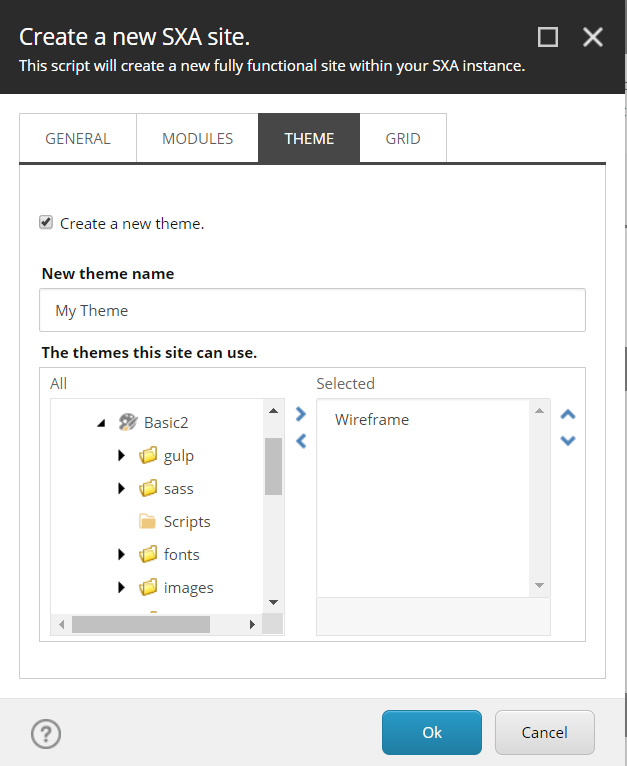
5. On the **Grid** tab, select the grid and click **OK**.
> [!note]
> It is important to be aware that changing the grid system after you create your site requires many manual changes. Because of the references on your pages to the previous grid system, making a change to the grid system will break your layout.
Your new site is available immediately.
6. The **SXA Site Manager** dialog box displays a list of all SXA sites on your Sitecore instance. The icons indicate whether the site can be accessed or whether there is a conflict. If there are site conflicts that you need to solve, you can:
Move the site – click the site and on the ribbon, click Move Up. Use the icons move up and move down.
Correct the site definition – click the site and on the ribbon, click Open. In the Basic section, change the site name, environment, virtual folder, or the host name.
> [!note]
> You can [create a duplicate](https://doc.sitecore.com/xp/en/developers/sxa/93/sitecore-experience-accelerator/clone-an-sxa-site.html "Clone an SXA site") of a site, by using the clone script.
For governance reasons, you can decide to use groups of sites. For example, for an internalization model where you create different sites for different countries:
- Europe (site folder)
- Poland (site)
- Denmark (site)
- The Netherlands (site)
- Ukraine (site)
- Asia (site folder)
- Africa (site folder)
To create a group of sites:
- Right-click the tenant in the content tree, click **Site Folder**, enter a name and click **OK**.
> [!note]
> SXA defines sites as Sitecore items. This enables to mitigate an issue with website restart after each change in Sitecore.config file. You can create new sites with SXA without a need to restart your Sitecore instance. If for some reason you decide to define sites in the config file instead of using items, makes sure to add `IsSxaSite="true"` parameter to your site definition XML node. SXA will use this parameter to determine whether a defined site is an SXA site or not. For example:
```text
```