---
title: "Create an anchor and link to it"
slug: "create-an-anchor-and-link-to-it"
abstract: "Create an anchor in a rich text field and link to it from the current page or another page."
---
# Create an anchor and link to it
An anchor is an HTML code that is used as a bookmark to create a link to a particular section within a page. For example, it could be a *Back to top* link that takes the user to the top of the current page, or it could be a link to a section in the middle of another page.
In Content, you can use the HTML editor to create an anchor in a rich text field, and then you can include the anchor ID when you create a link.
Create an anchor in a rich text field
To create an anchor:
1. In Content, navigate to the item where you want to insert an anchor.
2. Click **Edit content** for the rich text field where you want to insert an anchor.
3. Click the HTML editor tab.
4. In the HTML code, insert the anchor using the format `id=“anchor-name”`. For example, the following HTML code assigns the anchor name ** to a paragraph:
```xml
Introduction
This is paragraph 1
This is the paragraph I want to link to.
```
5. Click **Save and close**.
Link to an anchor on the current page
To link to an anchor on the same page as the link:
1. In Content, in the rich text editor, select the text that you want to format as a link.
2. In the rich text editor panel, click the **Create or edit hyperlink** icon .
3. In the **Add link** panel, in the **Link type** field, select **External**.
4. In the **URL** field, enter *#*.
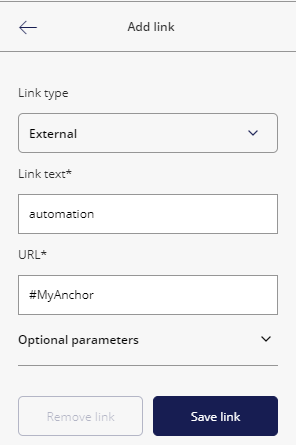
5. Click **Save link**.
Link to an anchor on another page
To link to an anchor on another page:
1. Follow the [procedure to create an internal link](https://doc.sitecore.com/xp/en/users/100/sitecore-experience-platform/create-a-link-in-a-rich-text-field-in-horizon.html "Create a link in a rich text field in Horizon").
2. Expand **Optional parameters**. In the **Anchor** field, enter the anchor name.
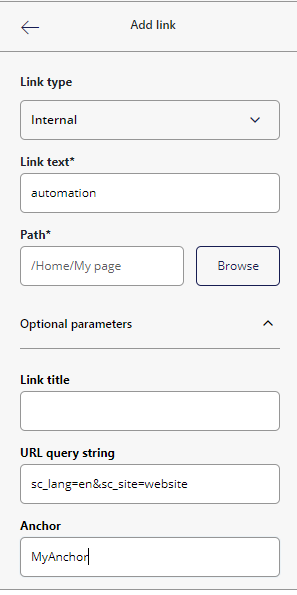
3. Click **Save link**.