---
title: "Create variants of a component"
slug: "create-variants-of-a-component"
abstract: "You can create multiple variants of a component and then test them to find which variant is most effective."
---
# Create variants of a component
Component tests let you test alternative combinations of your website's content to find out which components or combinations of components are the most effective with visitors. You can quickly evaluate the test results to get insight into the content that functions best with your audience. This can help you create more successful campaigns with higher goal-conversion rates.
When your test is finished, you can see each test variation and the accumulated value next to each one and pick the winning content.
This topic describes how to:
- [Create a new variation of a component](https://doc.sitecore.com/xp/en/users/100/sitecore-experience-platform/create-variants-of-a-component.html#UUID-03901e9e-ba03-d32e-7fa2-53387babd3bb_id__Create_a_new "Create a new variation of a component")
- [Specify the content for a variation](https://doc.sitecore.com/xp/en/users/100/sitecore-experience-platform/create-variants-of-a-component.html#UUID-03901e9e-ba03-d32e-7fa2-53387babd3bb_id__Specify_the_content "Specify the content for a variation")
- [Specify the design of a variation](https://doc.sitecore.com/xp/en/users/100/sitecore-experience-platform/create-variants-of-a-component.html#UUID-03901e9e-ba03-d32e-7fa2-53387babd3bb_id__Specify_the_design "Specify the design of a variation")
- [Save new variations](https://doc.sitecore.com/xp/en/users/100/sitecore-experience-platform/create-variants-of-a-component.html#UUID-03901e9e-ba03-d32e-7fa2-53387babd3bb_id__Save_the_new "Save new variations")
You can also [personalize components](https://doc.sitecore.com/xp/en/users/100/sitecore-experience-platform/walkthrough--personalizing-components.html "Walkthrough: Personalizing components") and then include the personalized components in a component test.
Create a new variation of a component
To create a new variation of a component on your website:
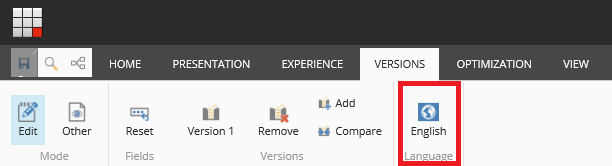
1. On the **Experience Editor** ribbon, on the **Versions** tab, select the language version that you want to create a test for.
> [!important]
> When you run a component test, you must only run the test in one language version at a time. If you run the same test in multiple languages at the same time, the variation that you first select as a winner is also selected as the winner in all the language versions that you have run the test on.
2. Select the component on your website that you want to test and in the floating tool bar, click **Test the Component** .
3. In the **Test the Component** dialog box, to create a new test variation, click **New Variation**.
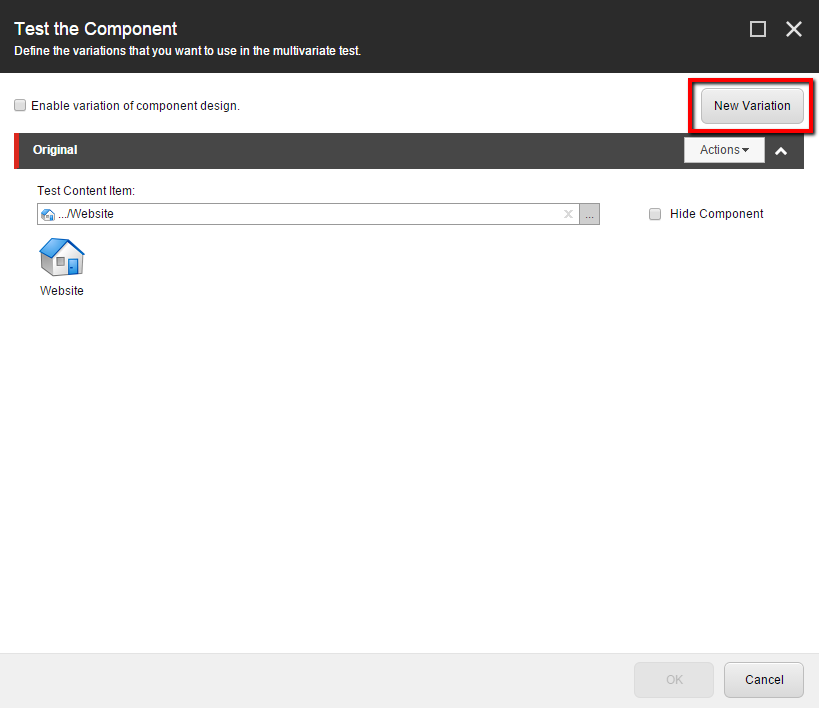
4. Replace Variation Name with a name for the test variation that you are adding.
Now you can specify the content and design of the new variation before you start a content test.
Specify the content for a variation
To specify the content for a new test variation:
1. To browse for existing content in the content tree, in the **Test Content Item** field, click **Browse** .
2. In the **Select the Associated Content** dialog box:
- To browse for an item in the Sitecore content tree, click **Select Existing Content** .
- To search for an item you want to add to the test, click **Search for Content** .
- To clone an existing item, then edit it, click **Clone Current Content** .
- To insert a new content item, click **Create New Content** .
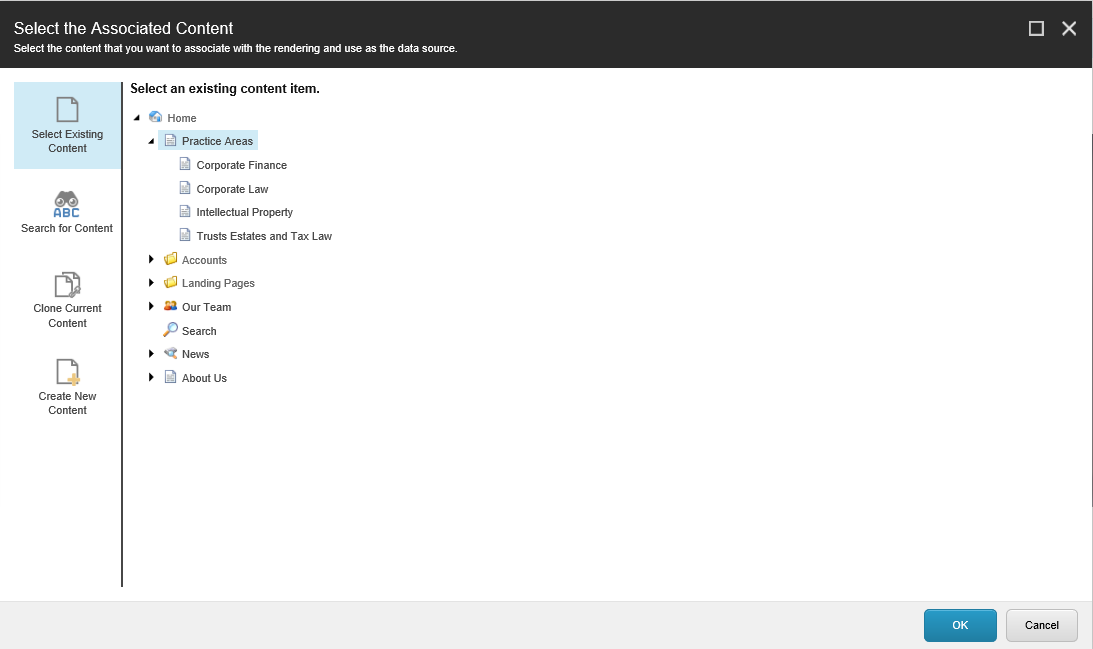
3. When you have selected the content that you want to use, click **OK**.
> [!note]
> Alternatively, to hide the component on the page, select Hide Component.
Specify the design of a variation
To select a rendering for the new variation:
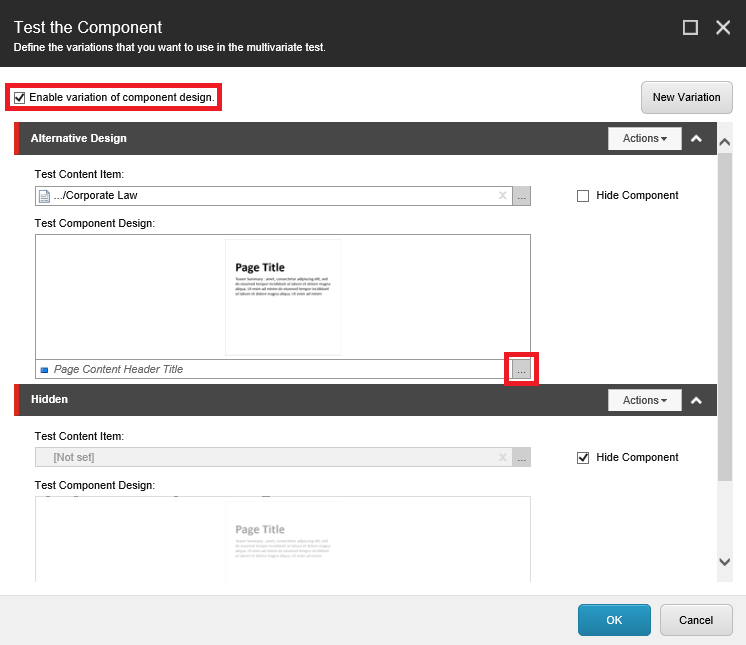
1. In the **Test the Component** dialog box, to test the design of the component, select the **Enable variation of component design** check box.
2. In the **Test Component Design** field, click **Browse**  to select a different rendering.
Save new variations
Once you have added all the variations that you want to include in your test, you must save your changes before you start the test:
1. In the **Test the Component** dialog box, click **OK**.
2. Save your changes.
Now you are ready to [start the content test](https://doc.sitecore.com/xp/en/users/100/sitecore-experience-platform/preview-and-start-a-content-test.html "Preview and start a content test").