---
title: "Design a form"
slug: "design-a-form"
abstract: "How to construct a form using the Form elements."
---
# Design a form
Sitecore Forms enables you to quickly create forms using standard elements. Before you start building your form, you must decide what you want to ask contacts and determine the form fields you want to include.
Create a form
You can start with a blank form or build your form using a template. Sitecore Forms does not include pre-defined templates. Use the Save as template command to create your own templates.
To create a form:
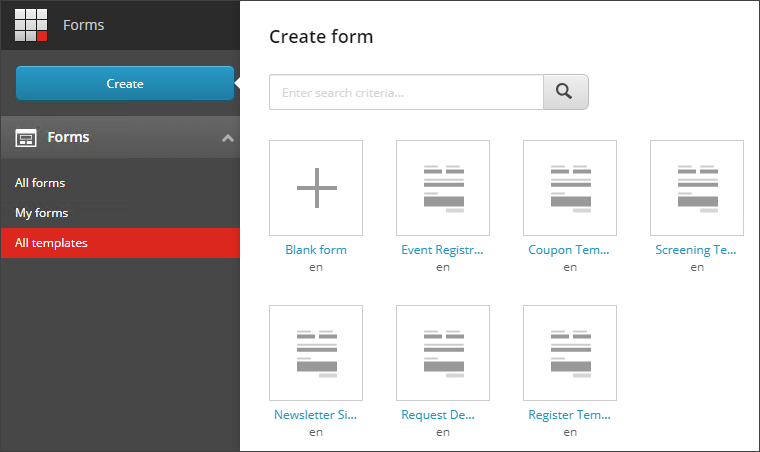
1. On the Forms dashboard, click **Create**.
2. To create a new form from scratch, click **Blank form,** or select a template to base your form on.
> [!important]
> If your form does not display on the dashboard, verify that you completed the post-installation steps when you installed your instance. To make Sitecore Forms work properly, you must rebuild your search indexes after installation.
Add a form field
You add a field to a form by dragging a form element from the **Form elements** pane onto the form canvas. Once you have placed an element as a form field on your form, you can change its settings on the **General** tab in the **Form elements** pane.
To add a form field:
1. In the **Form elements** pane, click the element that you want to add and drag it onto the form canvas.
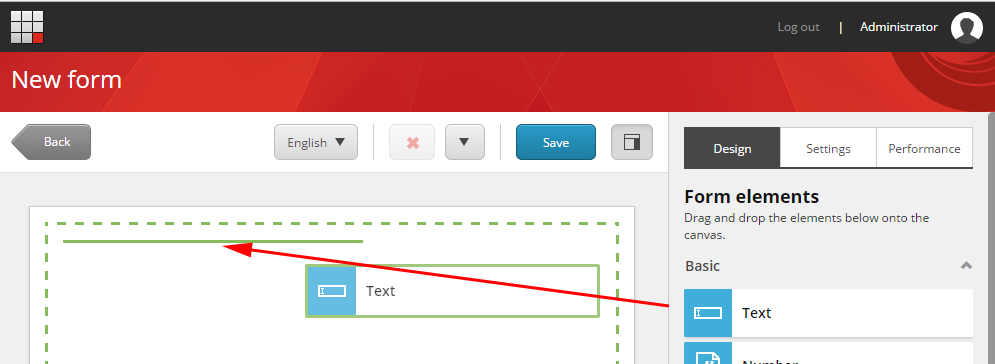
A green line indicates the position of the element on the form canvas.
2. To change the settings of the form element, on the canvas, click the element to select it and apply the changes in the **Form elements** pane. For example, add a CSS class to your field to style it.
3. When you have finished changing the settings, click **Apply** to see the changes on the form.
> [!note]
> We recommend that you preview the form before publishing it on the website. The way the form displays in the Forms application might not reflect the actual styling of the form on the webpage.
4. To add a list to your form, in the Form elements pane, in the **Lists** section, drag the **Dropdown list** to the form.
Make sure to always add a meaningful **Field name**. The Field name is the actual Item name for the Sitecore definition item for the form field. Giving form elements meaningful names, makes it easier to distinguish them in for example form field performance tracking.
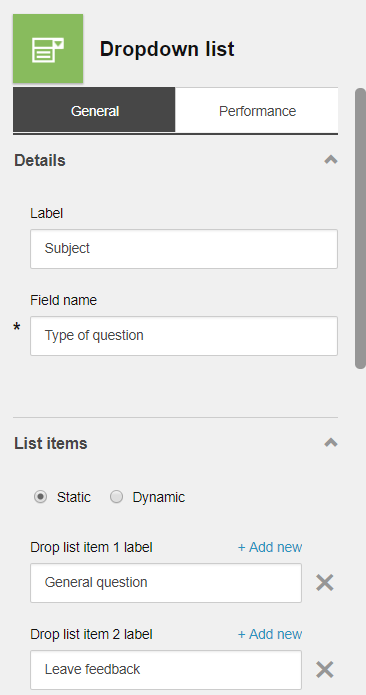
5. To add a Submit button on your form, in the **Form elements** pane, in the **Structure** section, drag the Submit button element to the form.
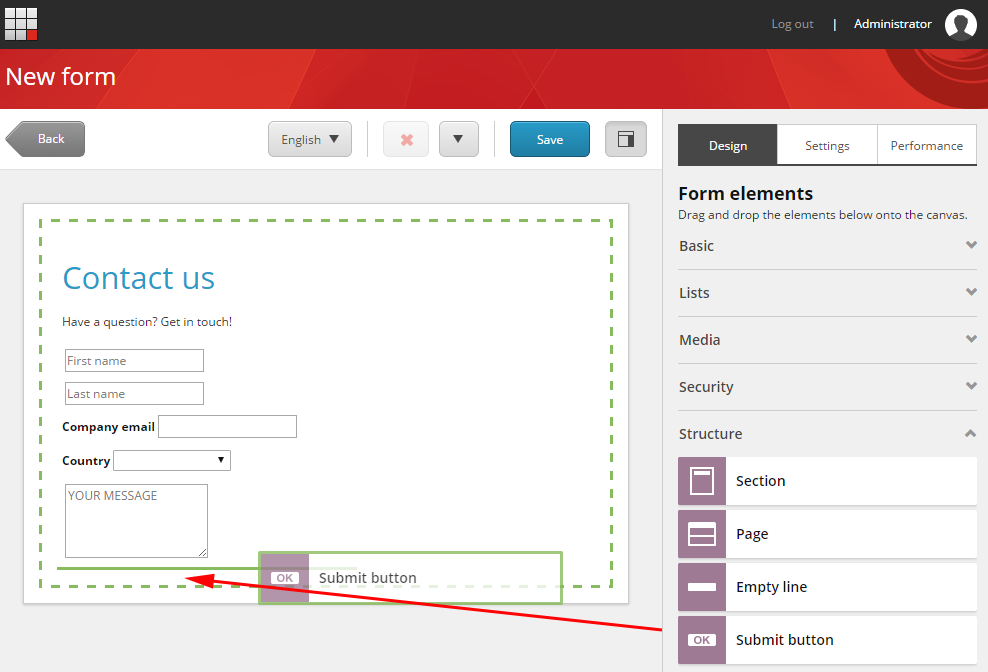
6. In the **Details** section, enter a name for your button and, in the **Navigation step** field, select **Submit**.
7. In the **Details** section, click the  next to **Submit action** and select the action to apply. If you want to add additional submit actions, repeat this step.
8. Click **Apply** to see the changes on the form.
> [!note]
> Occasionally, you might want to remove a field from your form. To delete a form field, click the field that you want to delete and then click Delete.
9. To save your form:
- click **Save** to save and name the new form.
- Click **Save the selected form** to save and name a copy of the form.
- Click **Save the form as a form template** to save the form as a template.