---
title: "Walkthrough: Creating a marketing automation campaign to send a birthday email"
slug: "walkthrough--creating-a-marketing-automation-campaign-to-send-a-birthday-email"
abstract: "How to create a marketing automation campaign that targets contacts on their birthday."
---
# Walkthrough: Creating a marketing automation campaign to send a birthday email
A milestone that is often used to target customers is their birthday. By creating a scheduled marketing automation campaign that runs based on a birthday rule, you can send a birthday message to customers. This walkthrough takes you through the steps to achieve this.
This walkthrough details the following steps:
- Move the birthday rules to xConnect Contact
- Create a marketing automation campaign
To send a birthday email message to customers, you must [create an automated email campaign](https://doc.sitecore.com/xp/en/users/exm/100/email-experience-manager/create-an-email-campaign.html) before you create the marketing automation campaign. You must also [create a segmented contact list](https://doc.sitecore.com/xp/en/users/100/sitecore-experience-platform/create-a-contact-list-or-a-segmented-list.html "Create a contact list or a segmented list") using the birthday rules.
Move the birthday rules to the xConnect Contact folder
Birthday rules are not included by default in Sitecore because they involve personally identifiable information (PII). You must move birthday rules to the xConnect Contact folder yourself.
> [!important]
> Because birth dates are PII sensitive data, you must [enable indexing of this sensitive data](https://doc.sitecore.com/xp/en/developers/100/sitecore-experience-platform/enable-indexing-of-pii-sensitive-data-in-the-xdb-index.html) in the xDB index before you can use birthday rules.
To move the birthday rules to the xConnect Contact folder:
1. In the Content Editor, go to */sitecore/System/Settings/Rules/Definitions/Elements/XConnect - Contact Personal Details Conditions*.
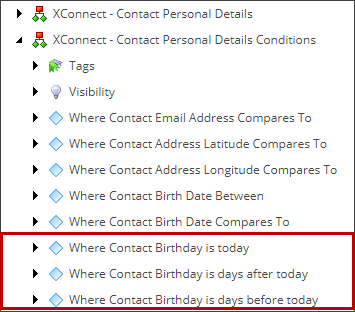
2. Right-click the condition you want to use and click **Copying, Move To**.
3. In the **Move Item To** dialog box, click *sitecore/System/Settings/Rules/Definitions/Elements/XConnect - Contact* and then click **Move**.
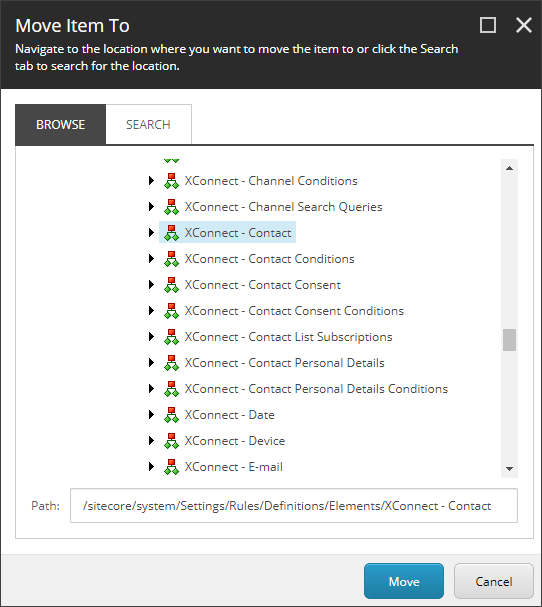
4. Repeat steps 1 to 3 for each birthday rule and save your changes.
Create a marketing automation campaign using a segmented list
In the example illustrated in the following figure, the [marketing automation campaign](https://doc.sitecore.com/xp/en/users/100/sitecore-experience-platform/create-a-marketing-automation-campaign.html "Create a marketing automation campaign") is scheduled to run at `11:00` each day. When it does, assuming the segmented list is created based on the rule **where the contact's birthday is today**, all the contacts who have a birthday today are enrolled in the marketing automation plan and an email message is sent to them.
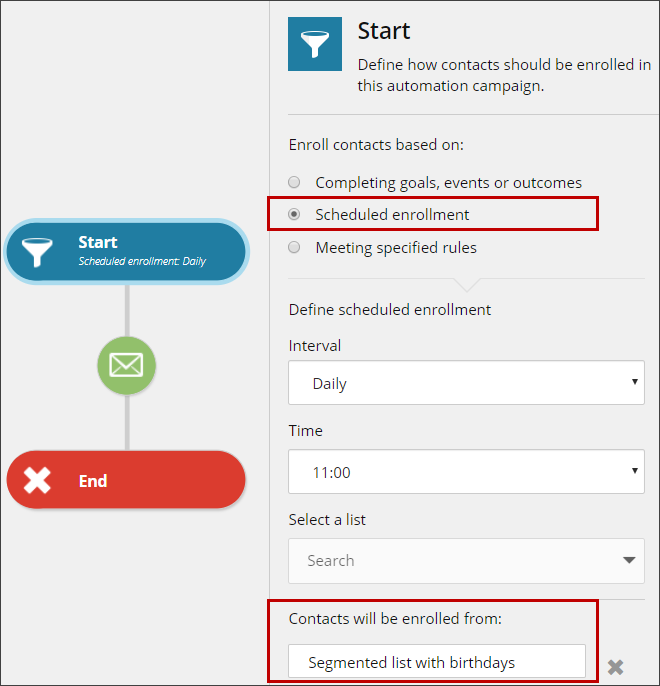
To create a marketing automation campaign using a segmented list:
1. On the Marketing Automation dashboard, click **Create**.
2. In the **Create automation campaign** dialog box, click **Blank automation campaign**.
3. On the canvas, click the **Start** element and, on the details pane, select the **Scheduled enrollment** option.
4. Define the scheduled enrollment parameters.
5. Click **OK** when you have finished and then click **Apply**.
6. In the Toolbox, select the **Send email** element and drag it onto the canvas.
7. On the canvas, click the **Send email** element and, on the details pane, select an email campaign and then click **Apply**.
8. Click **Save** to save your changes.